Shop Settings
Fees and rates
Set your labor rate, shop fees, and pricing defaults so every repair order prices itself correctly from the first line.
Your rates and fees are the engine behind every total Pista calculates. Set them once per store and every estimate, repair order, and invoice prices itself, so your front counter is not doing mental math while a customer waits. This article ties together where each setting lives and how they work as a system.
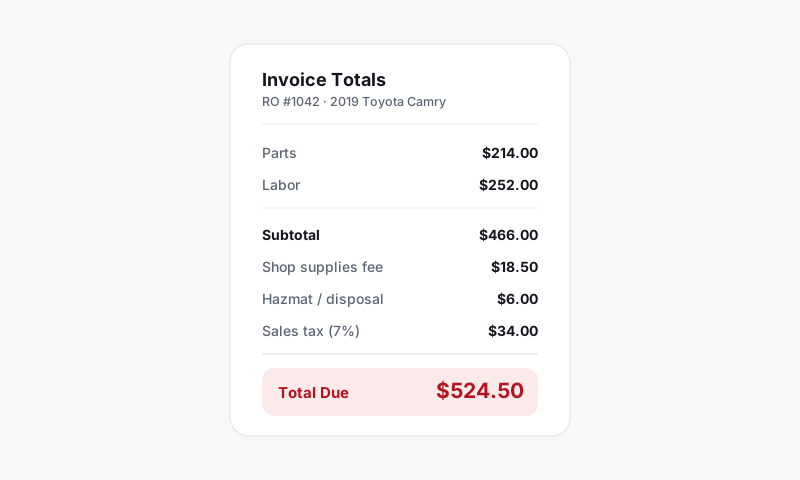
The pieces that set your price
A repair order total is built from a few moving parts, each with its own setting:
- Labor rate — your hourly door rate, multiplied by the labor hours on a job.
- Parts markup — how much you mark up over your cost, flat or by a matrix.
- Shop fees — supplies, disposal, and hazmat charges that recover overhead.
- Tax — applied based on your store's state and what you flag as taxable.
Get these right and a tech can drop in a job, attach parts, and the price is already where you want it.
Set your base labor rate
- Open Shop Settings, then Pricing, or jump to Setting your base labor rate.
- Enter your hourly labor rate for the store.
- Save. New jobs price labor at this rate unless a matrix or override changes it.
Good to know: Pista pulls labor hours from MOTOR data when you auto-load a job, so your rate is multiplied against real published times, not a guess. See Labor and MOTOR data.
Configure parts markup
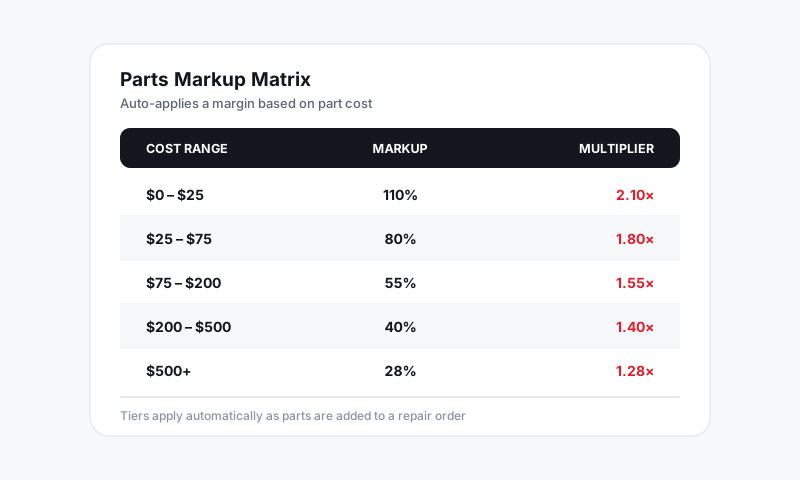
Decide how parts price up over your cost in Parts markup matrices explained. You can run a single flat-rate markup or a tiered matrix that protects margin on cheap parts and stays competitive on expensive ones.
Add your shop fees
Shop fees recover the consumables and disposal costs a parts markup never captures.
- Go to Shop Settings, then Tax and Shop Fees, or see Setting up shop fees.
- Add Shop Supplies, Disposal, and Hazmat as needed.
- Choose a percentage of labor (with a cap) or a flat amount for each.
Decide what is taxable
Tax rides on top of everything else. Confirm your store's rate and flag which lines and fees are taxable in Configuring what is taxable and Tax on fees.
Tips
- Review rates quarterly, not yearly. Labor and parts costs move faster than most shops update their door rate. A stale rate is silent lost margin.
- Cap percentage fees. A supplies fee with no ceiling can tack a triple-digit charge onto a big engine job and feel like gouging.
- Set everything per store. Different locations, different overhead. See Managing multiple stores.
What is next
Once rates are set, sanity-check a real ticket by opening a repair order and confirming labor, parts, fees, and tax all land where you expect.
Still have a question about fees and rates?
Contact support