Shop Settings
Company info, logo, and document footers
Set your shop name, contact details, logo, and the footer text that prints on every estimate and invoice.
Your company info is the identity Pista stamps on everything a customer sees, from the top of an estimate to the fine print at the bottom of an invoice. Fill it in once and every document, email, and text leaves the shop looking like you. Plan on about ten minutes.
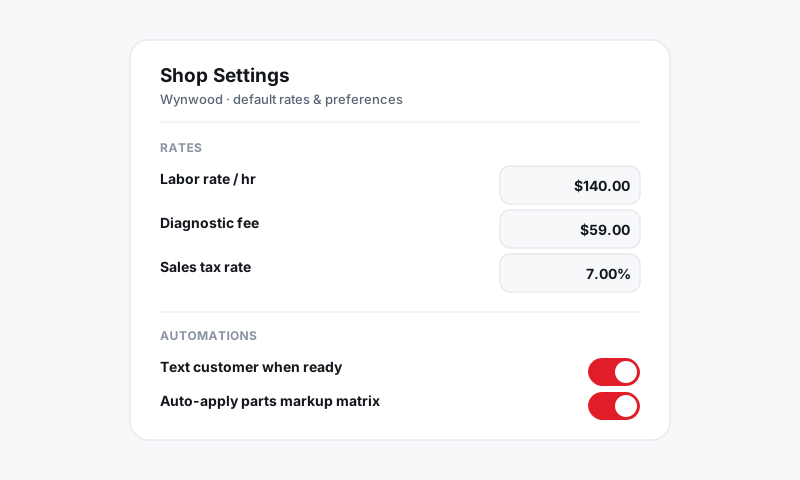
Where company info lives
- Open Shop Settings, then Company Info.
- If you run more than one location, pick the store from the switcher at the top, since each store keeps its own info.
Fill in the basics
- Enter your shop name exactly as you want it to read on documents.
- Add your street address, city, state, and ZIP. Pista reads the state to apply the right tax rules, so get it right.
- Add the phone and email customers should use to reach you. These become the reply-to details on messages.
- Set your time zone so timestamps on approvals, appointments, and reports line up with your bay.
Upload your logo
- In Company Info, click Upload logo.
- Use a PNG with a transparent background. A wide or square version reads cleanest in a document header.
- Watch the live preview to confirm it sits well against a white invoice.
Tip: Upload the highest-resolution file you have. Pista scales a large logo down without losing sharpness, but it cannot rebuild detail from a small, blurry image.
Set your document footers
The footer is the block of text that prints at the bottom of every estimate and invoice. It is where the legal and operational fine print goes.
- Scroll to the Document Footer section.
- Enter your shop registration or license number if your state requires one on repair documents.
- Add a warranty statement if you back your work, for example "12-month / 12,000-mile parts and labor warranty."
- Add any disclaimer text your state mandates, such as language about diagnostic fees, stored parts, or estimate authorization.
Save, and the footer starts printing on new documents.
Good to know: Footer and company-info changes apply going forward. Documents you already sent keep the details they had when they went out, so you always have an accurate record of what each customer actually received.
Confirm it looks right
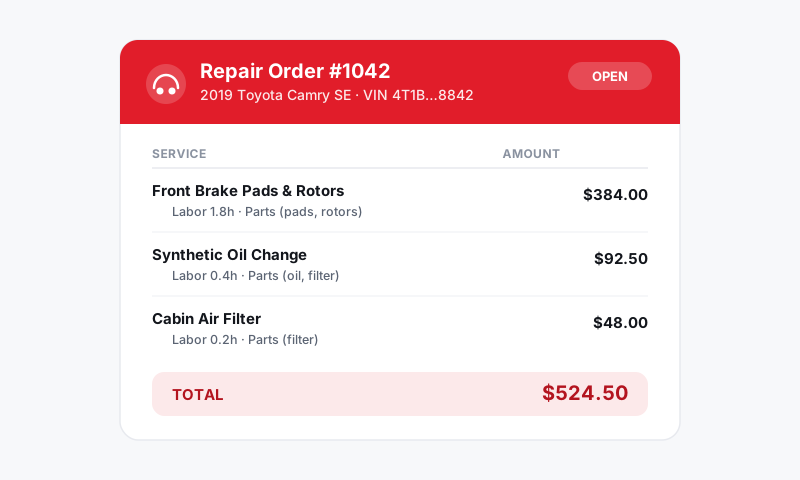
- Open any repair order and click Preview invoice.
- Check that your name, logo, address, and footer all appear correctly.
- Send a test estimate to your own phone to read it the way a customer will.
Tips
- Keep the footer short and plain. A wall of legalese gets skimmed and skipped. Two or three clear lines land better and still protect you.
- Revisit it when your warranty or license changes. Stale footer text is a common audit and dispute headache.
What is next
Push your look further in Branding your customer-facing documents, and if you have more than one location, set each up in Managing multiple stores.
Still have a question about company info, logo, and document footers?
Contact support