Shop Settings
Managing multiple stores
Add and switch between locations, decide what each store controls on its own, and report across the whole operation.
If you run more than one shop, Pista treats each location as its own store under a single account. Every store keeps its own info, rates, tax, and repair orders, while you keep one login and one place to see the whole picture. This is how multi-location owners run two bays or twenty without juggling separate systems.
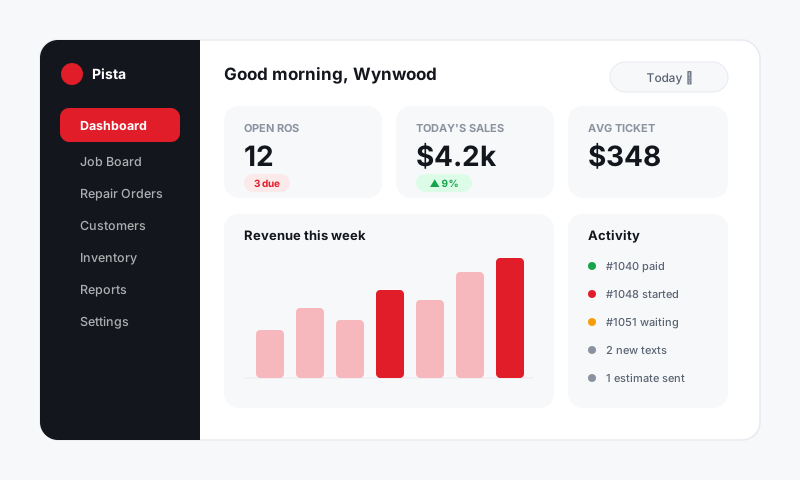
How stores work
Each store has its own:
- Company info, logo, and footers so each location prints its real address and license.
- Labor rate, parts markup, and pricing matrices, because a downtown store and a suburban store rarely charge the same.
- Tax rate and shop fees, which Pista derives from the store's state and your fee setup.
- Business hours, appointments, and job board, so each location's schedule stays its own.
Your customers, vehicles, and reporting roll up across all stores, so a customer who visits two of your locations is one record, and you can report on the whole company at once.
Add a store
- Open Shop Settings, then Stores.
- Click Add Store.
- Enter the new location's name and address. Pista uses the state to apply the correct tax rules.
- Save, then open the new store and set its company info, fees and rates, and hours.
Good to know: A new store does not inherit another store's settings automatically. That is on purpose, since rates and fees usually differ by location. Copy the values you want to reuse rather than assuming they carried over.
Switch between stores
Use the store switcher at the top of the dashboard to move between locations. Everything you see, the job board, repair orders, inbox, and reports, reflects the store you have selected.
Assign staff to stores
- Go to Shop Settings, then Staff and Roles, or see Staff and roles.
- For each person, set which stores they can access.
- Front-counter and tech roles are usually scoped to one location, while owners and managers see all stores.
Report across the operation
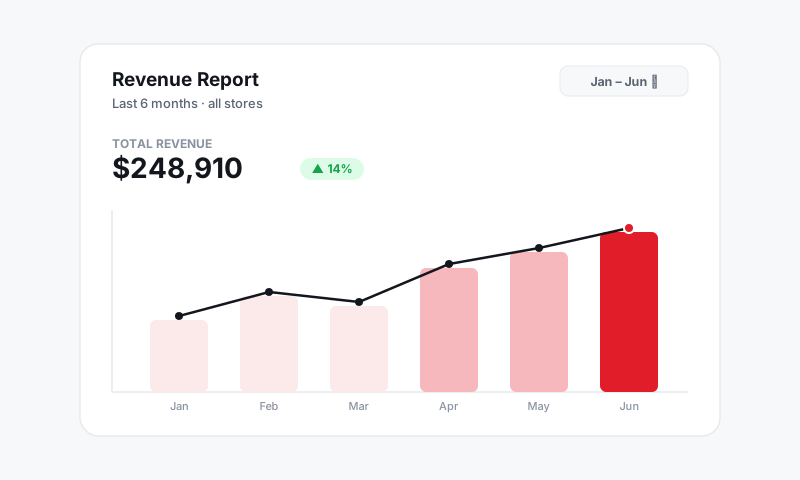
In Reports, use the store filter to view one location or roll everything up. This is where multi-store owners compare gross profit, car count, and technician efficiency side by side to spot which store needs attention.
Tips
- Name stores by location, not by number. "Wynwood" and "Doral" are easier to read in the switcher and on reports than "Store 1" and "Store 2."
- Set each store's tax before writing live ROs. A wrong state on a new store quietly mistaxes every ticket until you catch it. See Per-store tax rates.
- Keep logos consistent but addresses local. Same brand mark on every document, real local address and license in each store's footer.
What is next
Lock in each location's pricing in Fees and rates, then set availability in Business hours and appointments.
Still have a question about managing multiple stores?
Contact support