Shop Settings
Business hours and appointments
Set your open hours, control online scheduling availability, and manage how appointments flow onto your job board.
Your business hours do more than tell customers when you are open. They set the boundaries for online scheduling, drive the "we're open" details on customer-facing pages, and feed appointments straight onto your job board. Set them honestly and your calendar stops booking work you cannot do.
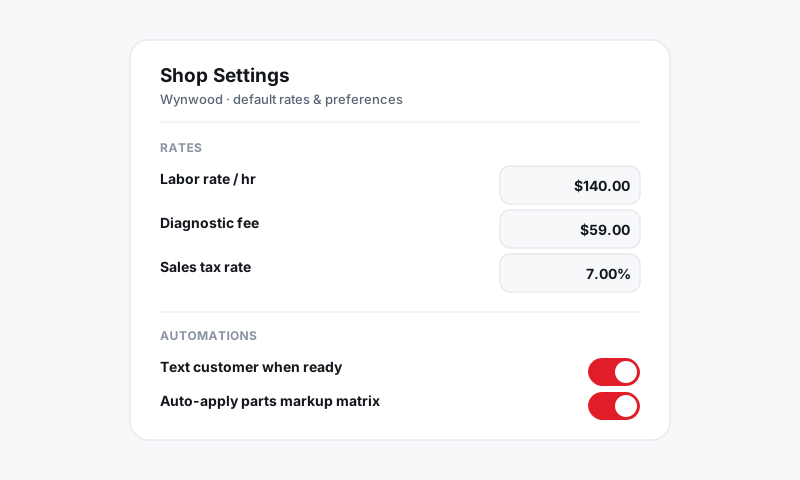
Set your hours
- Open Shop Settings, then Hours.
- If you run more than one location, pick the store from the switcher, since each store keeps its own hours.
- Set the open and close time for each day of the week.
- Mark any day Closed to block it entirely.
Save, and your hours immediately apply to scheduling and customer-facing displays.
Good to know: Hours are tied to the store's time zone, which you set in Company info. Get the time zone right or appointments will land an hour off.
Control scheduling availability
Hours define when customers can request a slot, but you decide how tightly the calendar fills.
- In the Hours or Scheduling section, set how many appointments can start in a given window.
- Block lunch breaks or end-of-day buffers by marking those windows unavailable.
- Add holidays or one-off closures so the calendar does not offer days you are shut.
How appointments reach the board
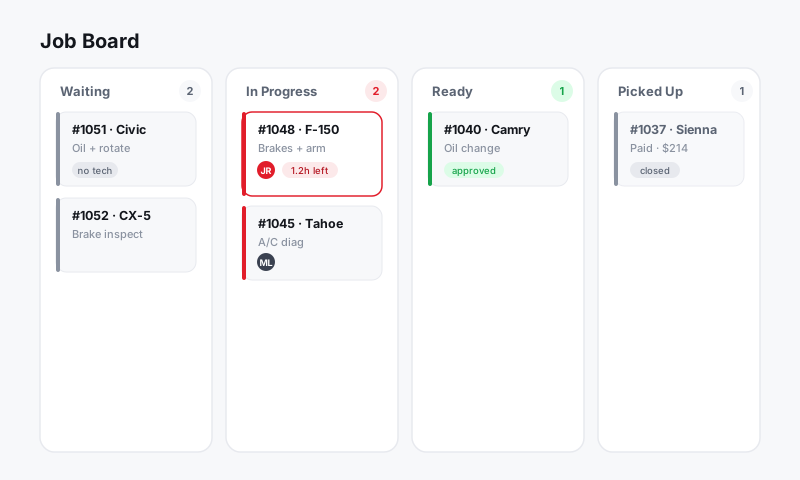
When a customer books or you create an appointment, it shows on your schedule and can flow onto the job board on the day of service.
- Open Appointments to see the day or week view.
- Click an appointment to view the customer, vehicle, and requested service.
- Convert it to a repair order when the car arrives, and the vehicle and customer details carry over so you are not retyping anything.
Confirm and reminder messages
Appointments tie into messaging, so customers get a confirmation when they book and a reminder before they arrive. This cuts no-shows without anyone at the counter chasing people.
Tips
- Build in buffer time. Back-to-back slots with zero gap look efficient until one job runs long and the whole day slides. A short buffer keeps you honest.
- Block the days you are actually closed. Holidays and vacation closures should be marked, not left open, so the calendar never offers a slot you cannot honor.
- Match hours to staffing, not the sign on the door. If you take the last drop-off an hour before close, set scheduling to reflect that.
What is next
Tune how booked appointments behave once the car is in the bay over in Job board and workflow, and set the reminder wording in Messaging and inbox.
Still have a question about business hours and appointments?
Contact support