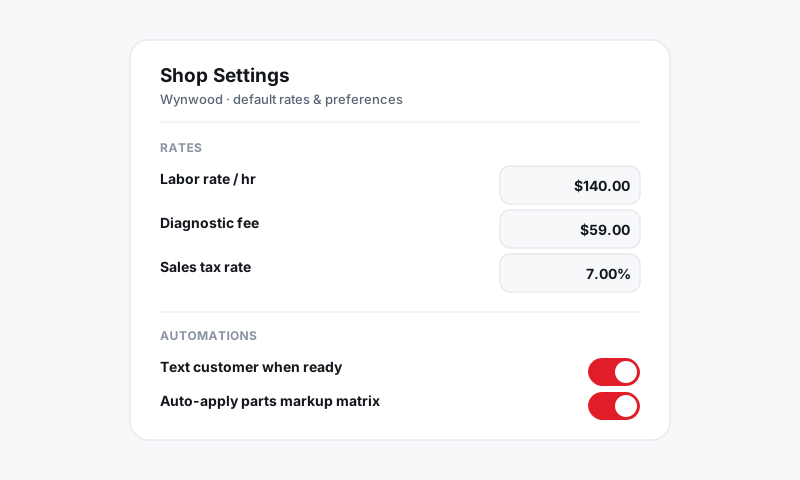
Shop Settings
Branding your customer-facing documents
Make estimates, invoices, and inspection reports look like your shop with your logo, colors, and consistent layout.
Every estimate, invoice, and inspection report you send is a piece of marketing. A clean, branded document tells a customer you run a real operation, and it quietly justifies your prices. Pista lets you brand all of it from one place, so the same polished look follows the customer from the first estimate to the final invoice.
What you can brand
Pista applies your branding consistently across:
- Estimates sent for approval
- Repair orders and invoices
- Digital inspection reports with photos and video
- Email and text messages that carry your shop name and reply-to details
Set it once and you do not re-skin each document type by hand.
Add your logo and brand color
- Open Shop Settings, then Branding (your logo also lives in Company info).
- Upload your logo as a transparent-background PNG so it sits cleanly on white.
- Choose an accent color that matches your shop's brand. Pista uses it for headers and highlights on documents.
- Use the live preview to see your estimate header update as you go.
Tip: Pick one accent color and stick with it. A document that uses your real brand color reads as professional, while a rainbow of highlights reads as clutter.
Set the tone of customer messages
Branding is not only visual. The wording customers read matters too.
- In Messaging and inbox, set your message templates and signature.
- Keep your shop name and a real reply-to so customers know exactly who texted them.
Keep inspection reports on-brand
Digital inspections are often the most-shared document you send, since customers forward them to spouses and second-opinion shops.
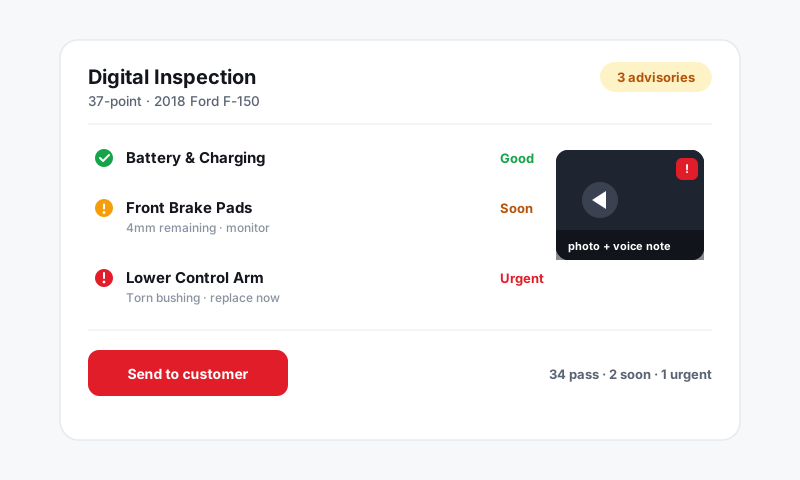
- Confirm your logo and accent color carry onto inspection reports in the preview.
- Lead with clear photos and plain-language findings. See Digital inspections.
Preview before you rely on it
- Open any repair order and click Preview invoice or Preview estimate.
- Confirm your logo, color, and footer all render correctly.
- Send a test document to your own phone and email to see both formats the way a customer will.
Good to know: Branding changes apply to documents going forward. Anything already sent keeps the look it had when it went out, so your records stay accurate.
Tips
- Use a high-resolution logo. A crisp mark on an invoice signals a shop that sweeps its floors. A pixelated one undoes the rest of your branding.
- Match your documents to your physical shop. Same color and logo on the wall, the waiting room, and the invoice builds trust without a word.
What is next
Lock in the legal fine print in Company info, logo, and document footers, and standardize your numbering in Repair order and invoice numbering.
Still have a question about branding your customer-facing documents?
Contact support