Pista Mobile App
Working a ticket on the go
Open a repair order on your phone, update jobs, add parts and notes, message the customer, and keep work moving without the front counter.
Working a ticket on the go
A repair order should not be stuck on the desktop. With the Pista app, a tech can update a ticket from under the hood and a service writer can move work along between phone calls, all on the same RO the counter is looking at. This article walks through working a ticket from your phone start to finish.
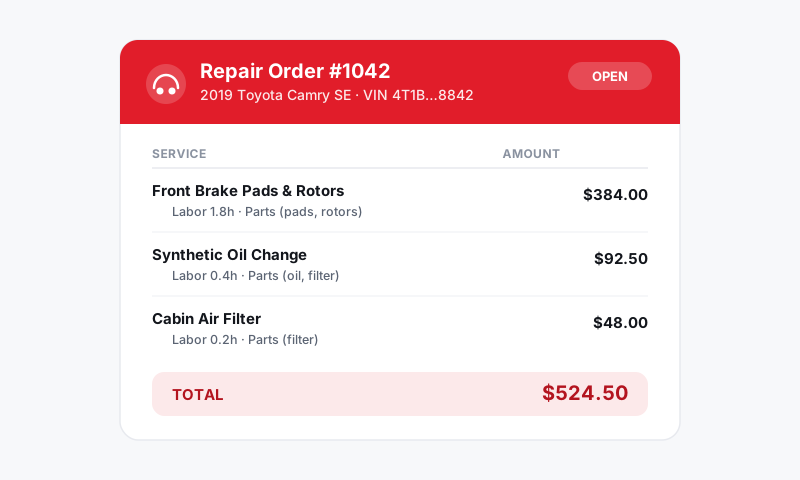
Open the right ticket
- Open the Job Board in the app to see vehicles in the shop.
- Tap the card for the car you are working, or use the search to find a ticket by name, plate, or RO number.
- The repair order opens with its jobs, parts, notes, and timeline.
Techs see the jobs assigned to them; service writers and owners see the full board. See Assigning technicians.
Update jobs and status
Keep the ticket honest as the work happens, not at the end of the day.
- Open a job on the RO to see its labor and parts.
- Mark labor complete as you finish each line.
- Move the card to the next workflow stage (for example, In Progress to Quality Check) so the board reflects reality.
- Add a technician note for anything the writer or next shift needs to know.
Good to know: Every change is timestamped on the RO timeline and syncs to the desktop instantly. That live status is what lets the counter answer "is my car ready?" without walking back to the bay.
Add parts, labor, and findings
You can build the ticket from your phone, not just check it off.
- Tap Add job or Add line on the RO.
- Pull labor time from MOTOR data so the hours are accurate, not guessed.
- Search and add parts across your suppliers and compare pricing. See Adding parts to a ticket.
- Attach photos or video of the finding so the customer sees the why.
Need to write it up fast? The Moto AI Service Writer can draft the job and clean up notes from your shorthand.
Get approvals and stay in touch
When you find more work, you do not have to wait to get back to the counter.
- Build the new work into an estimate on the RO.
- Send it for approval so the customer can authorize from their phone. See Sending an estimate for approval.
- Text or email the customer right from the app's inbox with updates or questions. See Messaging and Inbox.
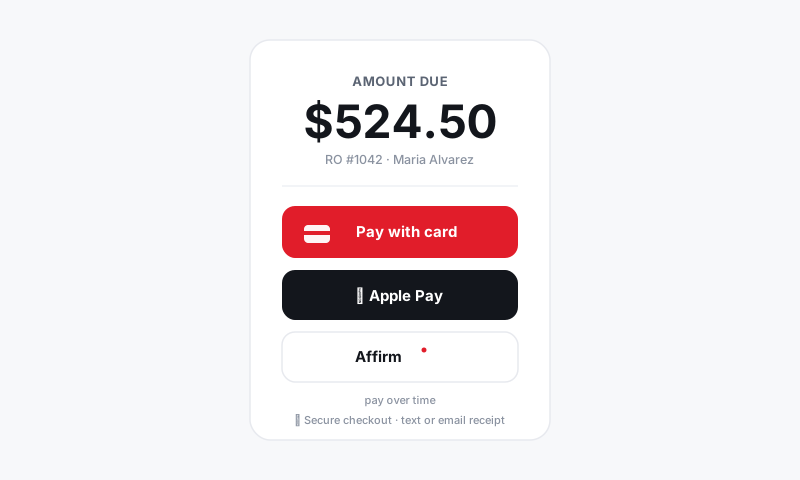
Hand it to checkout
When the work is done:
- Move the card to Ready for pickup so the counter knows.
- A writer can take payment on the spot if needed. See Accepting payment on a repair order.
Good to know
- The app and desktop are the same ticket in real time, so two people can work one RO without stepping on each other; the timeline shows who did what.
- Spotty bay Wi-Fi will not lose your work; changes and media queue and sync when signal returns. See Offline mode and syncing.
- Turn on Push notifications so approvals and customer replies reach you the moment they land.
Still have a question about working a ticket on the go?
Contact support