Pista Mobile App
Getting the Pista app
Download the Pista mobile app, sign in to your shop, and get every tech set up on their phone in a few minutes.
Getting the Pista app
Pista lives at the counter on desktop, but the real work happens in the bay, and that is where the mobile app earns its keep. Techs run inspections at the car, service writers approve work between phone calls, and you can check the board from the parking lot. This article gets the app onto every phone in the shop and signed in to the right account.
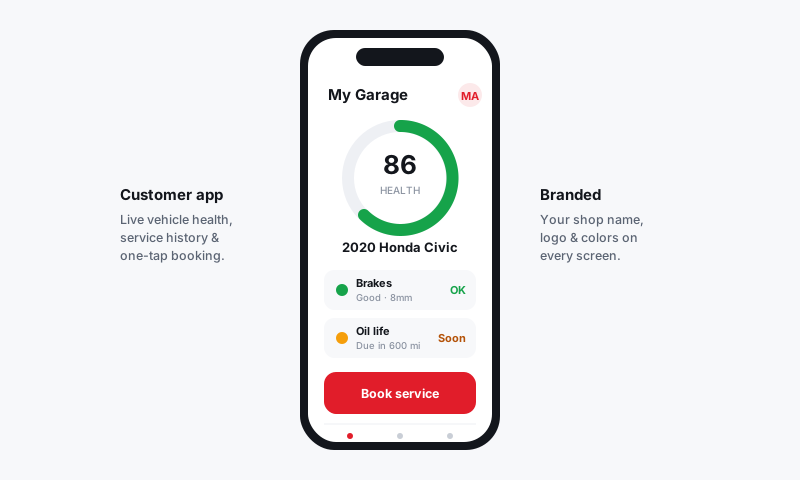
Download the app
- Open the App Store (iPhone) or Google Play (Android) on the phone.
- Search for Pista, the auto repair shop app. Look for the road-in-the-I logo so you grab the right one.
- Tap Get or Install and wait for it to finish.
- Open the app once it lands on the home screen.
The app is free to install. Access is controlled by your shop's Pista account, not a separate app purchase, so there is nothing extra to buy here.
Sign in to your shop
- Tap Sign in on the welcome screen.
- Enter the email and password for that person's Pista account, the same login they use on the desktop.
- If your shop uses two-factor sign-in, enter the code when prompted.
- The app drops you on the Job Board for your store.
Good to know: One person, one login. Do not share a single account across the whole crew. Each tech signing in with their own account is what makes technician efficiency, assigned jobs, and inspection authorship line up correctly in Reports.
Get your team on board
Every person who touches a car should have the app on their phone.
- Make sure each team member has a Pista account with the right role. See Set up your shop.
- Send them to the App Store or Google Play to install Pista.
- Have them sign in with their own credentials.
- Confirm they land on the correct store. Owners with more than one location can switch stores in the app. See Signing in and switching stores.
What each person sees is driven by their role: a Technician sees the jobs assigned to them, while a Service Writer or Owner sees the full board, messaging, and estimates.
Keep the app current
- Turn on automatic updates in your phone's store settings so camera, sync, and notification fixes arrive without anyone thinking about it.
- After a major update, fully close and reopen the app once so it reloads cleanly.
- Keep at least one app version of breathing room on older phones by clearing out unused apps; inspection photos and video need free space to upload.
Good to know
- The app and the desktop share one account, so a tech can start an inspection in the bay and a writer can finish and send it from the counter.
- Forgot a password? Tap Forgot password on the sign-in screen to reset by email. Owners can also reset a team member from Settings → Team on the desktop.
- Next steps once you are in: Pairing the OBD dongle and Working a ticket on the go.
Still have a question about getting the pista app?
Contact support