Pista Mobile App
Vehicle health and live data
Read trouble codes, stream live sensor data, and turn what the dongle finds into work right from the Pista app.
Vehicle health and live data
Once a dongle is paired, the Pista app reads the car the way it actually behaves: stored trouble codes, a quick health snapshot, and live sensor data you can watch while the engine runs. It is a fast triage tool for the bay, and anything you find can become a job on the repair order without re-typing it. This article covers reading and using that data.
Open vehicle health
- Pair the dongle first. See Pairing the OBD dongle.
- Open the vehicle or its repair order in the app.
- Tap OBD / Live Data.
- Tap Scan vehicle to pull a health snapshot.
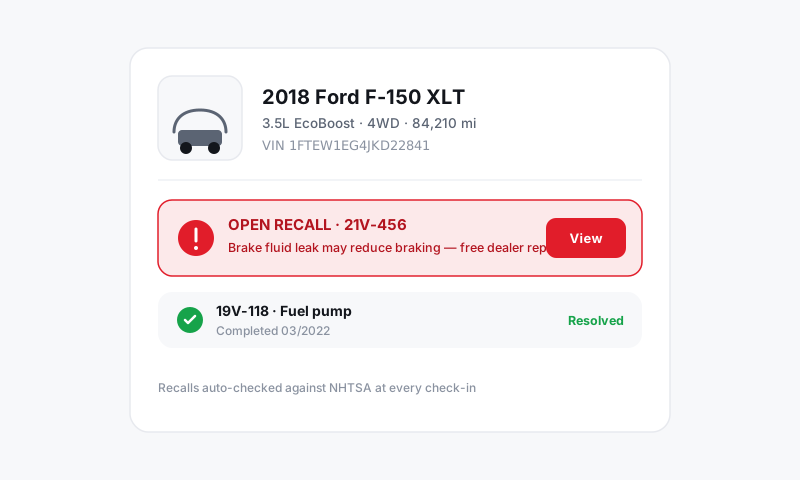
The snapshot shows whether the check-engine light is commanded on, how many codes are stored, and the vehicle decoded by VIN so you know you are reading the right car.
Read trouble codes
- From the OBD screen, open Trouble codes.
- Pista lists each code (like P0301) with a plain-language description.
- Tap a code to see more detail and which system it points to.
- Note pending versus stored codes; pending codes have not matured into a hard fault yet.
Good to know: A code is a clue, not a diagnosis. P0301 says "cylinder 1 misfire," not "replace the coil." Use codes to point your diagnosis, then confirm with live data and a hands-on check before you sell the repair.
Stream live data
Live data is where you catch the intermittent stuff a static scan misses.
- Open the Live data tab on the OBD screen.
- Pick the sensors you want to watch, such as RPM, coolant temp, fuel trims, O2 sensors, or battery voltage.
- Watch the values update in real time while the engine runs or during a test drive.
- Flag anything reading out of range to discuss with the customer.
Clear codes (carefully)
You can clear codes from the app after a repair, but do it deliberately:
- Verify the repair is actually complete.
- Tap Clear codes on the OBD screen.
- Drive the relevant readiness cycle so the monitors reset before you hand the car back.
Clearing codes before you fix the cause only hides the problem and resets emissions monitors, which can fail a state inspection. Fix first, clear second.
Turn a finding into work
The point of all this is to sell and document real work.
- Attach the scan results to the repair order so the finding is on the record.
- Add the matching job to the RO, then pull accurate labor time from MOTOR data and source parts from Parts and Suppliers.
- Pair the code with an inspection note and photo so the customer sees the why. See Running inspections on the Pista mobile app.
Good to know
- Scans and codes save to the vehicle record, so next visit you can see what the car threw last time. See Vehicle service history.
- Live data needs the engine running and the dongle connected; if values freeze, recheck the connection on the OBD screen.
- The app reads generic OBD-II data across makes; deep manufacturer-specific systems may need a dedicated factory tool.
Still have a question about vehicle health and live data?
Contact support