Pista Mobile App
Push notifications
Turn on Pista push notifications so estimate approvals, customer replies, and job updates reach the right person instantly.
Push notifications
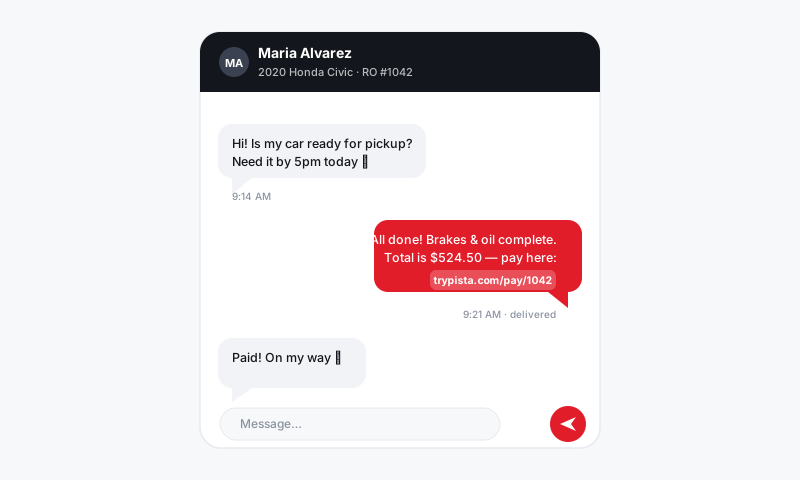
A customer approves a $1,800 estimate and nobody at the shop knows for twenty minutes; that is lost time and a car sitting idle. Push notifications close that gap. Pista pings the right person the moment something needs attention, whether it is an approval, a customer text, or a job moving on the board. This article gets notifications turned on and tuned so they help instead of buzz all day.
Turn on notifications
- The first time you sign in, the app asks for permission to send notifications. Tap Allow.
- If you missed it, open your phone's Settings, find Pista, and enable Notifications.
- Back in the app, tap your profile avatar, then Notifications, to confirm they are on.
If you never see a single notification, this permission is almost always the cause; the phone is blocking them before Pista ever gets a chance.
Choose what you get pinged about
You do not need every alert. Tune them to your job in profile → Notifications:
- Estimate approvals and declines so you can release parts and start work the second a customer says yes.
- Customer replies from the inbox so texts and emails do not go cold. See Messaging and Inbox.
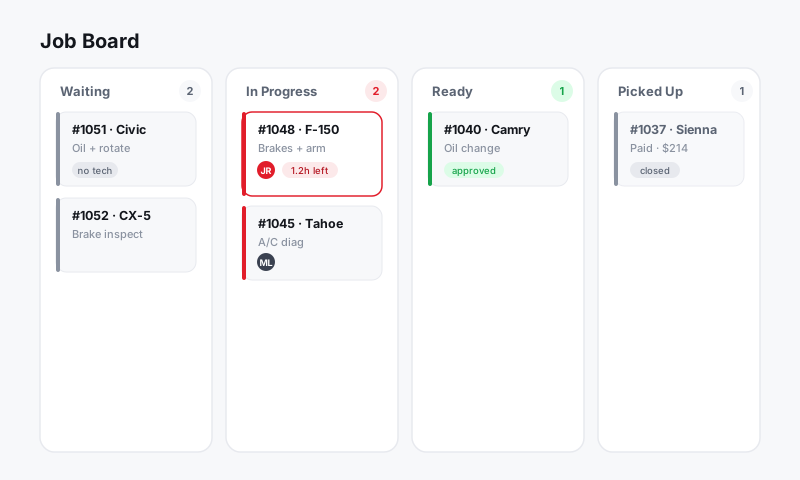
- Job and RO updates, like a tech marking a job complete or a card moving to Ready for pickup.
- Assignments, so a tech knows the moment a new job lands in their queue.
Good to know: Set notifications by role. A service writer wants approvals and customer replies; a technician mostly wants their own assignments and quality-check bounces. Turning off the noise that is not yours is what keeps the important pings meaningful.
Make sure the right person gets it
Notifications follow the work, not a broadcast list.
- Assignments ping the assigned technician. See Assigning technicians.
- Customer replies ping the writer on that conversation or ticket.
- Approvals ping the people watching that repair order.
So the cleanest way to get the right alerts is simply to keep work assigned and tickets owned.
When notifications go quiet
If pings stop, run through this:
- Phone permission for Pista notifications is on (Settings → Pista → Notifications).
- In-app notifications are enabled in your profile.
- Do Not Disturb / Focus mode is not silencing the app; add Pista as an allowed app if you use Focus during work hours.
- Signed in to the right store, multi-location owners only get pings for the store they are viewing. See Signing in and switching stores.
- Force-close and reopen the app to refresh its connection.
Good to know
- Notifications are a nudge, not the system of record; tap one to jump straight to the ticket, estimate, or message it came from.
- Sharing a tablet across the crew muddies who gets pinged. Personal phones with personal logins keep alerts accurate. See Getting the Pista app.
- Battery savers on some Android phones throttle background apps; exempt Pista if you want reliably instant alerts.
Still have a question about push notifications?
Contact support