Job Board and Workflow
Assigning technicians
Put the right tech on every job, reassign work in seconds, and keep each technician's queue balanced.
Assigning a technician tells everyone who owns a job and feeds the numbers behind technician efficiency. A car with no tech assigned is a car nobody is responsible for, so getting this habit right keeps your bay moving and your Reports honest.
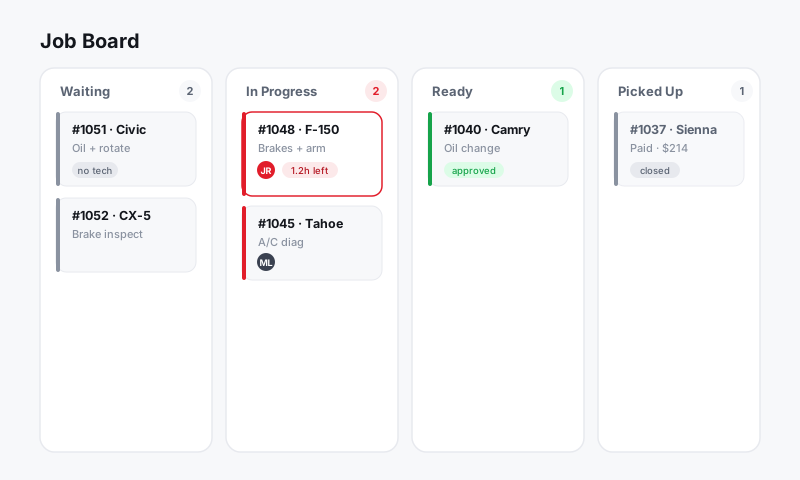
Assign from the Job Board
The fastest way to assign is right on the card:
- Open the Job Board.
- Click the technician avatar area on a card (it shows a placeholder when nobody is assigned).
- Pick a technician from the list.
- The card updates instantly and the tech sees the job in their queue.
You can also drag a card onto a technician's lane in the Tech Board view.
Assign from inside the repair order
When you are already in a repair order, assign from there:
- Open the repair order.
- Find the Technician field near the top of the RO header.
- Select the technician.
- Pista saves it and logs the assignment in the RO timeline.
Assign work at the job level
A single repair order often holds several jobs, like brakes for one tech and an alignment for another. Pista lets you assign per job, not just per RO:
- In the repair order, open a job (a labor-and-parts line group).
- Use the job's Assign control to pick the technician for that work.
- Repeat for other jobs as needed.
This splits labor hours correctly between techs and is what drives accurate per-technician efficiency.
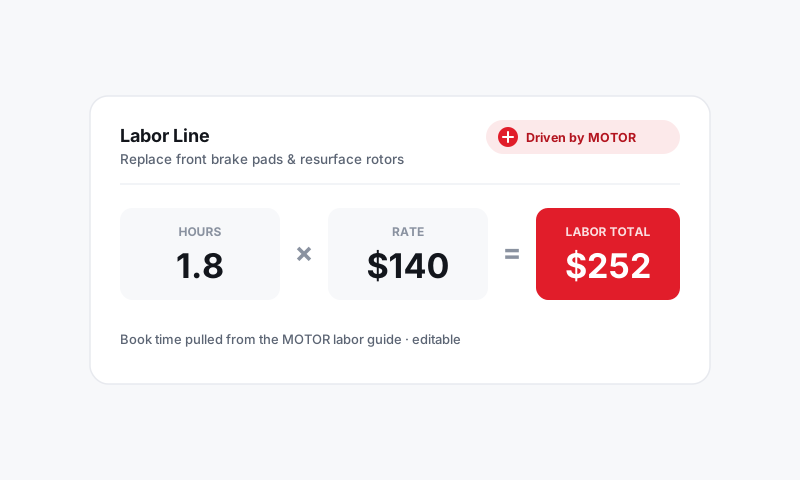
Tip: When you assign a job to a tech, the labor time on it (sourced from MOTOR data) counts toward that tech's flagged hours. Splitting jobs across techs keeps everyone's numbers fair.
Reassign or unassign
Plans change. To move work:
- Click the technician avatar on the card, or the Technician field in the RO or job.
- Choose a different tech, or select Unassign to clear it.
- The change is saved and timestamped.
Good to know
- A technician only sees the jobs assigned to them in the Pista Mobile App, which keeps their phone focused on their own work.
- Only Technician, Service Writer, and Owner roles can be assigned. Set roles under Settings → Team.
- Unassigned cards are easy to spot. Use the technician filter on the board and select Unassigned to find any job that slipped through.
- Reassigning mid-job moves the remaining labor to the new tech going forward, while logged time already on the RO stays put.
To see every technician's workload side by side, switch to The Tech Board view.
Still have a question about assigning technicians?
Contact support