Job Board and Workflow
Using the Job Board (Kanban)
Read the live status of every vehicle in your shop and move work forward by dragging cards across the board.
The Job Board is mission control for your shop. It shows every active repair order as a card, grouped into columns that represent the stage each vehicle is in. One glance tells you what is waiting, what is being worked, and what is ready for pickup. This is the screen most service writers keep open all day.
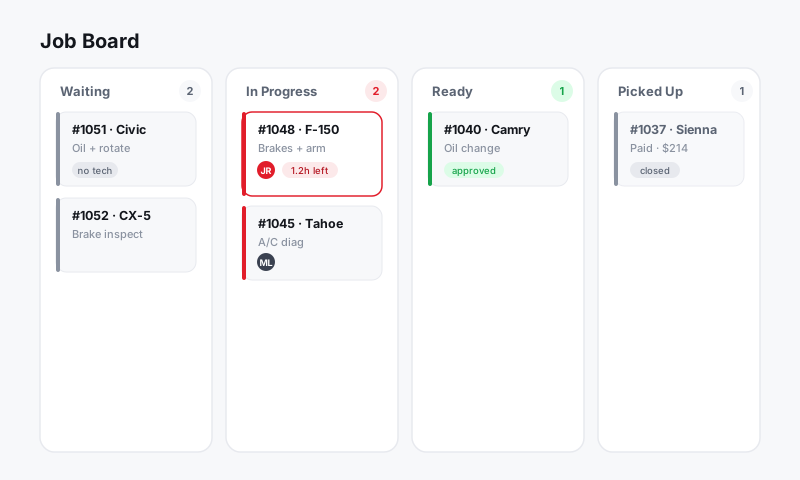
How the board is laid out
Each column is a stage of work, and each card is one repair order. Columns flow left to right in the order work actually happens at the counter and in the bay:
- Estimates for vehicles that need a price before approval
- Awaiting approval for estimates already sent to the customer
- In progress for authorized work on the lift
- Ready for pickup for finished vehicles
- Picked up for closed-out jobs
You can rename, reorder, add, or remove these columns to match how your shop runs. See Customizing workflow columns.
What is on a card
Every card gives your team the basics without opening the repair order:
- Customer name and vehicle (year, make, model)
- RO number
- Assigned technician avatar
- Total or estimate amount
- A promised time or due-by indicator
- Color or icon flags for things like waiting on parts or waiting on the customer
Click any card to open the full repair order with jobs, parts, labor, inspections, and totals.
Move a job to the next stage
- Open the Job Board from the left sidebar.
- Find the card you want to advance.
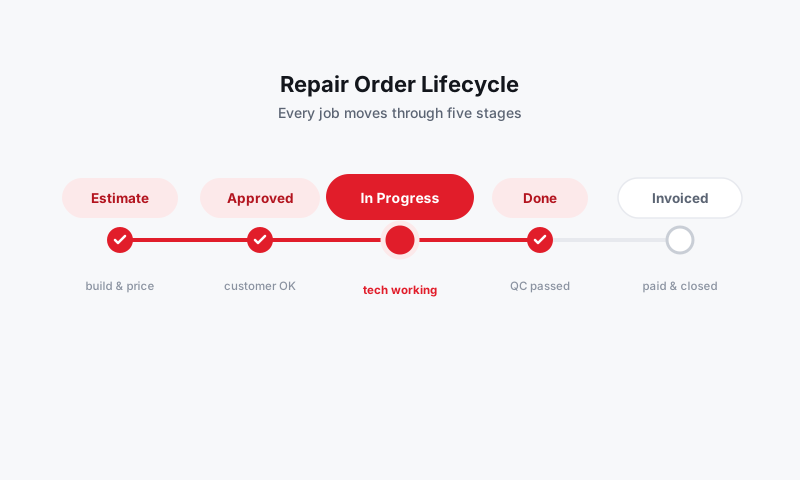
- Drag it into the next column, or click the card and use the status dropdown at the top of the RO.
- Drop it in place. Pista saves the new status instantly and logs the change in the RO timeline.
On a phone or tablet, press and hold a card for a moment, then drag. The same move works in the Pista Mobile App.
Filter and search the board
When the board gets busy, narrow it down:
- Use the search bar to jump to a customer, vehicle, or RO number.
- Use filters to show only one technician, one store, or one status.
- Switch to the Tech Board view to see work grouped by who is assigned. See The Tech Board view.
Tip: Running more than one location? Use the store filter so a writer at your Doral counter is not staring at Wynwood's cars. Each store keeps its own board.
Good to know
- Moving a card never deletes anything. Status is just where the job sits, separate from its line items and totals.
- When a customer approves an estimate by text or email, the card can move forward on its own if you have that automation turned on.
- Cards that have not moved in a while are easy to forget. Clear them out with Archiving stale orders.
When you are comfortable moving cards, the next step is shaping the board around your shop in Customizing workflow columns.
Still have a question about using the job board (kanban)?
Contact support