Job Board and Workflow
The Tech Board view
Switch the Job Board to group work by technician so you can balance the bay and see who has capacity.
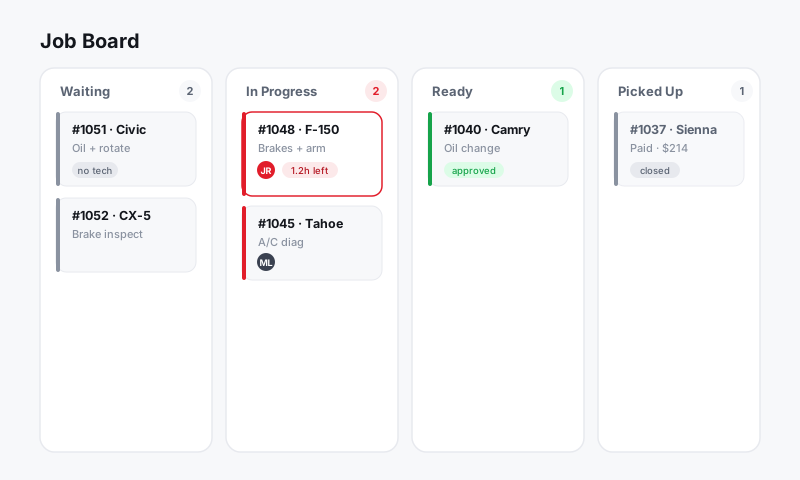
The standard Job Board answers "where is every car?" The Tech Board view answers a different question: "what is each technician working on, and who has room for more?" If you dispatch work or want to balance the bay, this is the view to live in.
What the Tech Board shows
Instead of columns for stages, the Tech Board gives each technician their own lane. Inside a lane you see every job assigned to that tech, so you can read your shop person by person:
- Who is buried and who is open
- Which jobs are in progress versus waiting
- Total assigned hours per technician, so you can compare flagged time against the day
It uses the same cards as the main board, so the customer, vehicle, and RO details travel with the job.
Switch to the Tech Board
- Open the Job Board.
- Use the view toggle at the top of the board.
- Select Tech Board (the standard view is sometimes labeled Status Board).
Your choice is remembered per device, so a dispatcher can default to the Tech Board while a writer stays on the status board.
Dispatch and rebalance work
The Tech Board is built for moving jobs between people:
- Find a job sitting in one technician's lane.
- Drag the card into another technician's lane to reassign it.
- Drop it. The assignment updates instantly, the same as assigning from a card. See Assigning technicians.
Tip: At the start of a shift, scan total hours per lane. If one tech is loaded with eight hours and another has two, drag a job across before the day gets away from you. A balanced board in the morning means fewer cars left over at close.
Filter the Tech Board
- Use the store filter to keep multi-location shops focused on one bay.
- Hide technicians who are off today so empty lanes do not clutter the view.
- Use search to jump to a specific car within the lanes.
Good to know
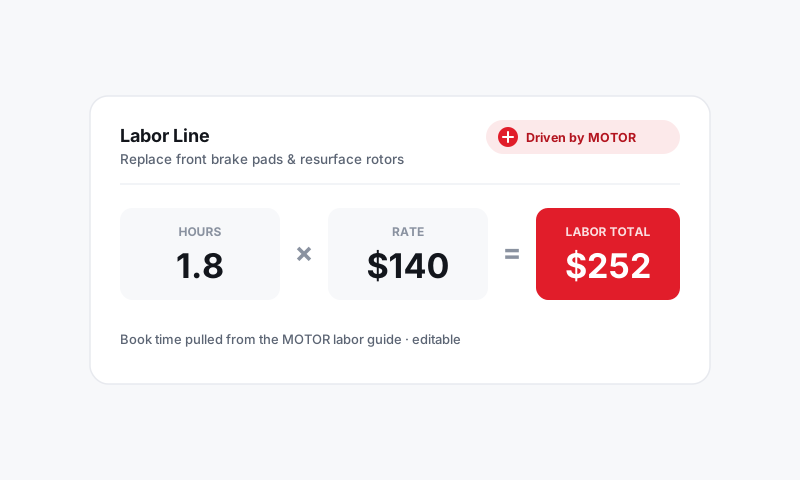
- Hours shown per lane come from the labor times on assigned jobs, driven by MOTOR data, so capacity reflects real book time rather than guesses.
- Jobs assigned at the job level (not the whole RO) show up in the right lane, which is why splitting multi-job ROs across techs gives you a true picture here.
- Technicians using the Pista Mobile App see only their own lane, so the dispatcher's big-picture view stays at the counter.
- Capacity planning here pairs well with the technician efficiency numbers in Reports.
When lanes get cluttered with finished or abandoned work, clean them up with Archiving stale orders.
Still have a question about the tech board view?
Contact support