Job Board and Workflow
Reading card flags and alerts
Understand the colors, badges, and warnings on Job Board cards so you can spot stuck jobs before customers call.
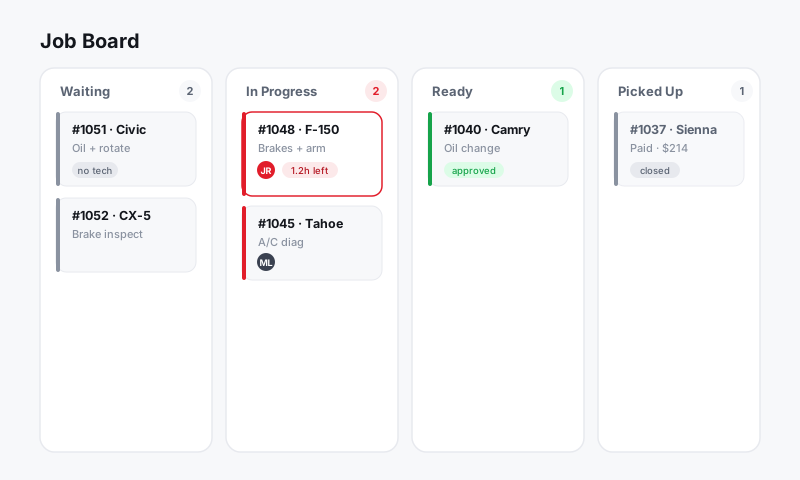
A good board lets you read your whole shop in three seconds. Pista uses flags, badges, and color on Job Board cards to surface the things that need attention without making you open every repair order. This article explains what those signals mean and how to act on them.
Why flags matter
The cars that hurt you are the ones quietly stuck: waiting on a part nobody ordered, sitting on an approval the customer never got, or past a promised time that already slipped. Flags pull those problems to the surface so the writer catches them before the phone rings.
Common flags you will see
- Waiting on parts: a job has parts that are not yet ordered or received. The card stays flagged until parts are sourced. See Parts and Suppliers.
- Awaiting approval: an estimate has been sent and is waiting on the customer. See Estimates and Authorizations.
- Approved: the customer authorized the work, so it is clear to start.
- Promised time at risk or past due: the due-by time is close or has passed. These cards usually move to the top or change color.
- Unassigned: no technician is on the job yet. See Assigning technicians.
- Unread message: the customer replied in the Inbox and nobody has answered.
Read the colors
Card color is a fast signal. While you can tune column colors in Customizing workflow columns, the alert colors on cards follow a simple logic:
- Neutral means the job is moving normally.
- Warning (amber) means something needs attention soon, like an approval going stale.
- Urgent (red) means act now, like a past-due promise time or a customer waiting on a reply.
Act on a flag
- Spot a flagged card on the Job Board.
- Hover or tap to read what the flag is telling you.
- Open the card and resolve it: order the part, resend the estimate, assign a tech, or reply to the message.
- Once resolved, the flag clears on its own. No need to dismiss it manually.
Tip: Train your writers to work the board by color, not by column. Clear every red card first, then ambers, then everything else. It turns the board into a live to-do list ranked by urgency.
Good to know
- Flags update in real time across the counter, the Tech Board view, and the Pista Mobile App, so everyone sees the same picture.
- The Awaiting approval flag clears automatically when a customer approves by text or email, and the card can advance on its own if you have that automation on.
- If a card seems stuck with no flag and no movement, it may just be stale. Clear it with Archiving stale orders.
Still have a question about reading card flags and alerts?
Contact support