Job Board and Workflow
Customizing workflow columns
Rename, reorder, add, and remove Job Board columns so the board matches exactly how your shop moves cars.
Pista ships with a sensible default set of columns, but no two shops run the same way. Some add a Waiting on parts stage, others split In progress into Diag and Repair, and a few want a Quality check column before a car goes out. This article shows you how to shape the Job Board around your real workflow.
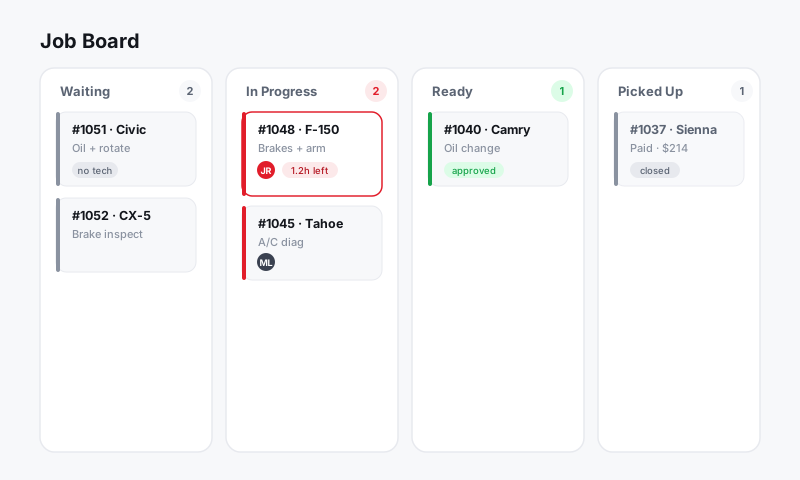
Why columns matter
Columns are not just labels. They are how your team reads the shop at a glance and how Pista reports on where time is spent. A clean, accurate set of columns means fewer cars slipping through the cracks and better data in Reports. Aim for a column for each meaningful handoff, and resist the urge to create one for every small task.
Open column settings
- Open the Job Board.
- Click the gear or Edit columns button at the top right of the board.
- The column editor opens, showing your current stages in order.
Changes you make here apply to the whole store's board, so everyone sees the same stages.
Add a column
- In the column editor, click Add column.
- Type a clear, short name (for example, Waiting on parts).
- Choose where it sits by setting its position, or drag it later.
- Optionally pick a color so the stage stands out.
- Click Save.
Tip: Keep names action-oriented and obvious. Waiting on parts beats Hold, because anyone walking up to the board knows exactly what it means.
Rename or recolor a column
- In the column editor, click the column you want to change.
- Update the name or color.
- Click Save. Existing cards in that column are untouched, they just live under the new label.
Reorder columns
Columns should read left to right in the order work happens. To reorder:
- In the column editor, drag a column to its new spot, or use the up and down arrows.
- Click Save.
Remove a column
- In the column editor, click the trash or Remove icon on the column.
- If the column still has cards, Pista asks where to move them. Pick a destination column so no repair order is left without a home.
- Confirm.
Pista will not let you delete a column and silently strip the jobs inside it. The cars always land somewhere.
Good to know
- A short board beats a long one. Most shops do well with five to seven columns.
- If you run multiple stores, each store has its own column setup. Set up your busiest location first, then mirror it.
- Renaming a column does not rewrite history. Past status changes in an RO timeline keep the name they had at the time.
Once your stages match reality, get the right person on each job with Assigning technicians.
Still have a question about customizing workflow columns?
Contact support