Job Board and Workflow
Archiving stale orders
Clear dead estimates and abandoned jobs off the Job Board without losing the record, and bring them back if needed.
Over time, every shop accumulates cards that never moved: an estimate the customer ghosted, a job that got declined, a car that was towed elsewhere. Left alone, these clutter the Job Board and make it harder to read the work that actually matters. Archiving clears them off the board while keeping the full record on file.
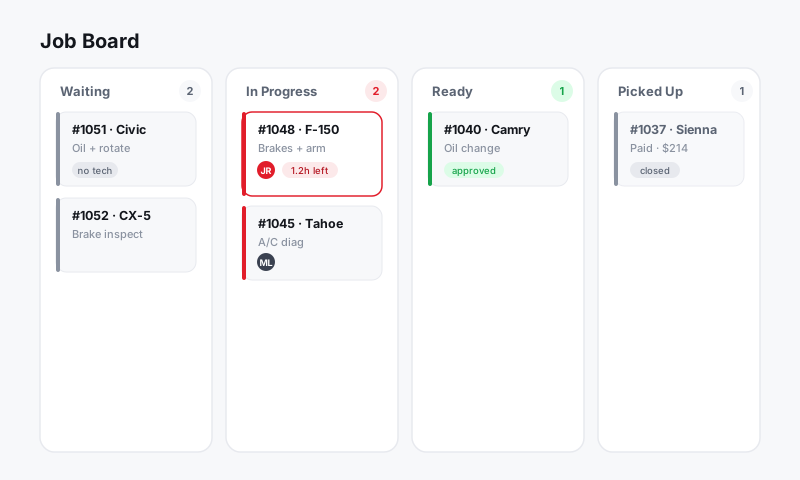
Archiving versus deleting
This is the important distinction:
- Archive removes a repair order from the active board but keeps every detail: customer, vehicle, jobs, parts, totals, and timeline. You can find it later, report on it, and restore it.
- Delete removes the record. Use it only for true mistakes, like a duplicate RO created by accident.
When in doubt, archive. You almost never want to lose a customer's history.
Find stale orders
- Open the Job Board.
- Use filters to surface old work, for example everything still sitting in Estimates or Awaiting approval past a certain date.
- Sort by last updated so the oldest, most forgotten cards rise to the top.
Tip: Make this a weekly habit. A five-minute Friday sweep of stale estimates keeps the board honest and your numbers clean, so an estimate from two months ago is not quietly inflating your open-work totals.
Archive a single order
- Open the repair order, or click the card's menu (three dots) on the board.
- Choose Archive.
- Confirm. The card leaves the active board immediately.
Archive several at once
- On the board, switch on multi-select (or use checkboxes on cards).
- Tick each stale order you want to clear.
- Click Archive selected.
- Confirm. All of them drop off the board in one action.
Find and restore archived orders
Archived work is never gone:
- Open the board filter and turn on Show archived, or open the Archived list from the board menu.
- Search by customer, vehicle, or RO number.
- To bring one back, open it and choose Restore (or Unarchive). It returns to the column it left.
A restored estimate is a real second chance, since the customer who went quiet in spring may be ready to approve in summer.
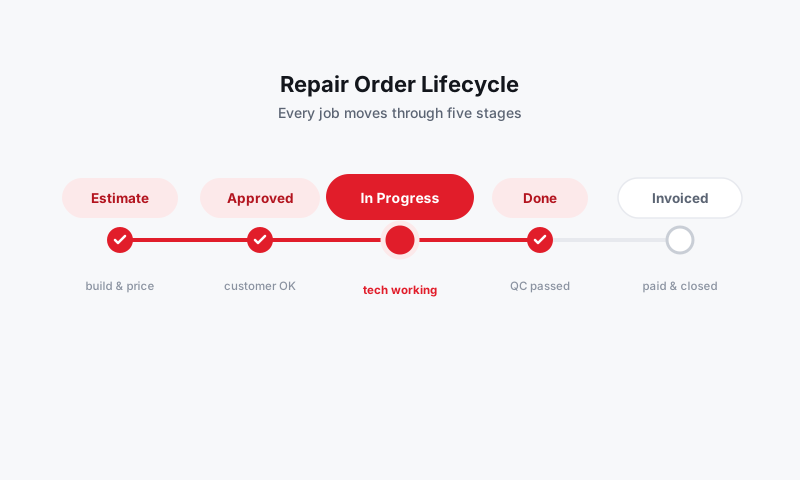
Good to know
- Archived repair orders still appear in Reports for the period they belong to, so archiving does not distort your sales history.
- Archiving an estimate does not cancel anything you sent. If you already messaged the customer, that thread stays in your Inbox.
- Closed and paid ROs usually move to a Picked up or Closed column on their own. Archiving is mainly for work that stalled, not for normal completed jobs.
- Need to clean up by person? Stale cards also clutter The Tech Board view, so archiving tidies both at once.
Still have a question about archiving stale orders?
Contact support