Pista Mobile App
Signing in and switching stores
Sign in securely on the Pista app and switch between your shop locations without logging out.
Signing in and switching stores
If you run more than one location, the last thing you want is to sign out and back in every time you walk between stores. Pista keeps you signed in and lets you flip between the locations you have access to with two taps. This article covers signing in cleanly and moving between stores on the app.
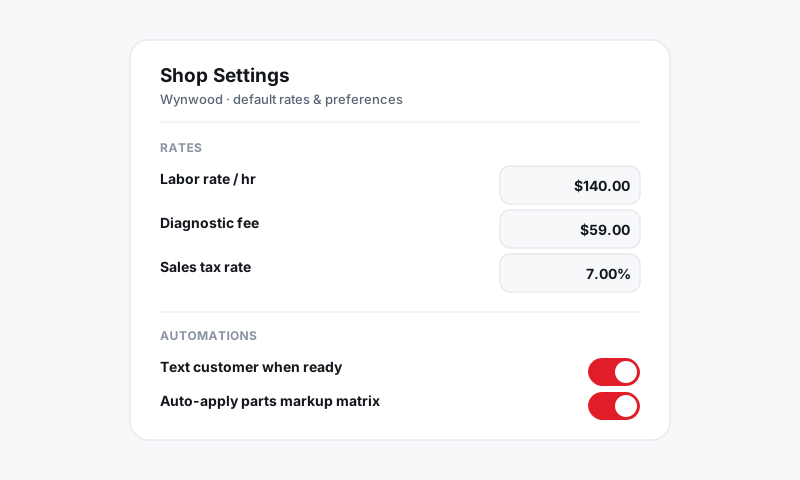
Sign in
- Open Pista and tap Sign in.
- Enter your email and password.
- Enter your two-factor code if your shop has it turned on.
- You land on the Job Board for your default store.
The app remembers you after the first sign-in, so you will not be asked again on that phone unless you sign out or your shop requires periodic re-login for security.
Switch between stores
Owners and managers with access to multiple locations can switch without logging out.
- Tap your profile avatar in the top corner.
- Tap the store name to open the location list.
- Choose the store you want to view.
- The board, inbox, and reports reload for that location.
Good to know: Switching stores changes everything the app shows you, the board, messages, parts pricing, and tax. Always confirm the store name at the top before you create a ticket or take a payment so the work lands in the right location's books.
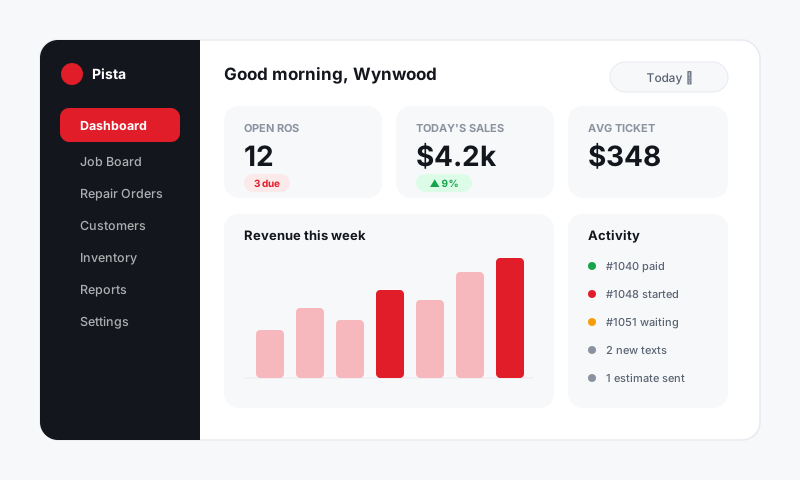
What a single-store user sees
If your account is tied to one location, there is no store picker, the app simply opens to your store every time. That is expected, not a bug.
Stay signed in (and when you should not)
- On a personal phone you carry, staying signed in is fine and saves time.
- On a shared shop tablet, sign out at the end of a shift so the next person's work is logged under their own account.
- To sign out, tap your profile avatar, then Sign out.
Trouble signing in
A few quick fixes before you call for help:
- Wrong store showing? Switch stores from the profile menu rather than reinstalling.
- Password not working? Tap Forgot password to reset by email, or have an owner reset you from Settings → Team on the desktop.
- Stuck on a loading screen? Confirm the phone has signal, then fully close and reopen the app.
- Locked out after a code? Two-factor codes expire fast. Request a fresh one and enter it right away.
Good to know
- Your role travels with your account, so you see the same permissions on the app that you have on the desktop. See Set up your shop.
- Lost or stolen phone? An owner can remove that person's session by resetting their password under Settings → Team, which signs the device out.
- New to the app? Start with Getting the Pista app.
Still have a question about signing in and switching stores?
Contact support