Parts and Suppliers
Adding parts to a ticket
Search, price, and attach parts to any job on a repair order so every labor line carries the part it needs.
In Pista, parts live inside the job they belong to, not in a loose pile at the bottom of the ticket. That keeps your estimate readable, your margin protected, and your tech's pull list crystal clear. Here is how to get parts onto a repair order the right way.
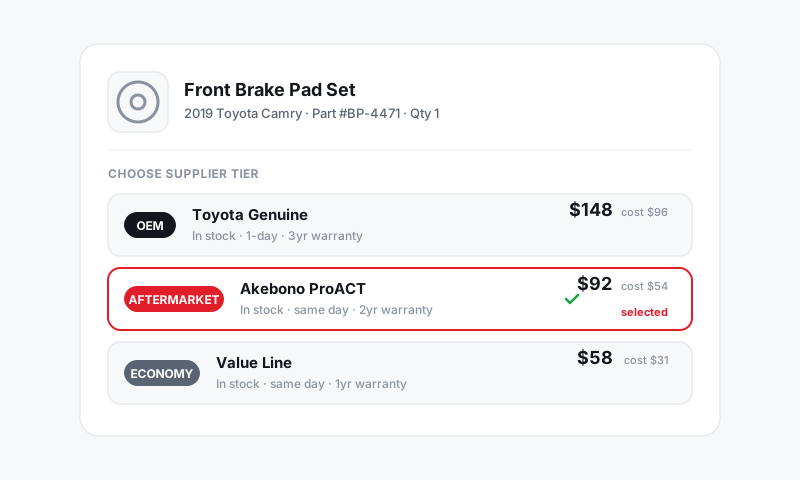
Add a part to a job
- Open the repair order and find the job the part belongs to, like "Front brakes" or "Water pump."
- Inside the job, click Add part.
- Search by part name, part number, or the labor operation you just added. Pista already knows the decoded vehicle, so results are filtered to fitment.
- Pick the line you want. Pista drops it into the job with its cost, applies your parts markup, and sets the sell price automatically.
- Set the quantity, then save.
Repeat for every part the job needs. The job subtotal and the RO totals update live as you go.
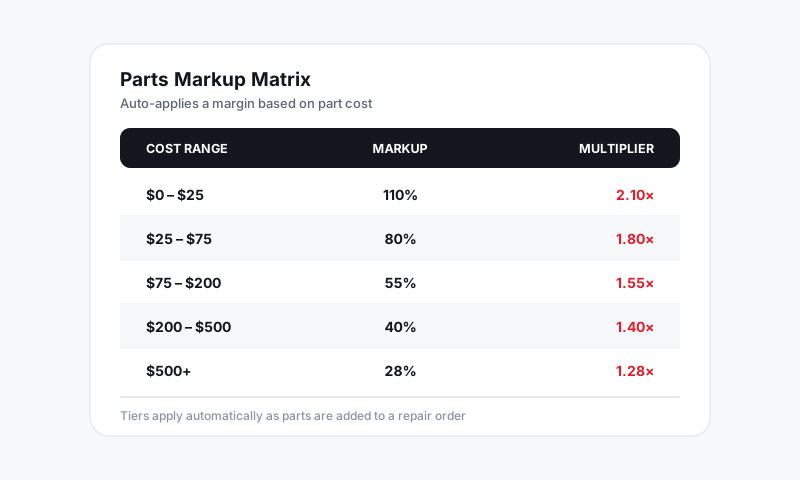
Add a part manually
No supplier connected yet, or quoting something off-catalog like a customer-supplied part? Add it by hand.
- In the job, click Add part, then choose Add manually.
- Enter a description, part number (optional), cost, and price. Markup applies to the cost unless you type a price directly.
- Set the quantity and save.
Tip: For customer-supplied parts, set the cost to 0 and the price to 0, but still add a labor line. You are selling the install, not the part, and you want it on the record for warranty and liability.
Every labor line wants a part
Pista flags any labor line that has no part attached so nothing gets quoted at zero parts margin by mistake. The one common exception is diagnostics, where you are selling time, not components. If you intend a labor-only line, you can clear the flag and move on.
Edit, swap, or remove a part
- Change quantity or price right on the line. Overriding the sell price breaks it from the markup so a manual number sticks.
- Swap a part by deleting the line and searching again, or open the part to compare other supplier options. See Supplier sourcing and parts intelligence tiers.
- Remove a part with the trash icon on the line. The totals recalculate instantly.
Good to know
- Parts you add stay attached to their job, so if a customer declines that job, its parts decline with it. No orphaned lines on the invoice.
- Let Moto AI do the first pass. Describe the concern and it drafts the job with the labor and the parts it usually needs, then you adjust. See Moto AI Service Writer.
- Markup and pricing rules are set once in your shop settings. See Pricing and Markups.
Still have a question about adding parts to a ticket?
Contact support