Parts and Suppliers
Supplier sourcing and parts intelligence tiers
Compare OEM, aftermarket, and budget parts across your connected suppliers and let parts intelligence pick the smart default.
When you search a part in Pista, you are not searching one supplier. You are searching all of your connected suppliers at once and seeing the results sorted into clear quality tiers. That is the Pista parts intelligence engine: one search, every option, ranked so you can quote fast without leaving the RO.
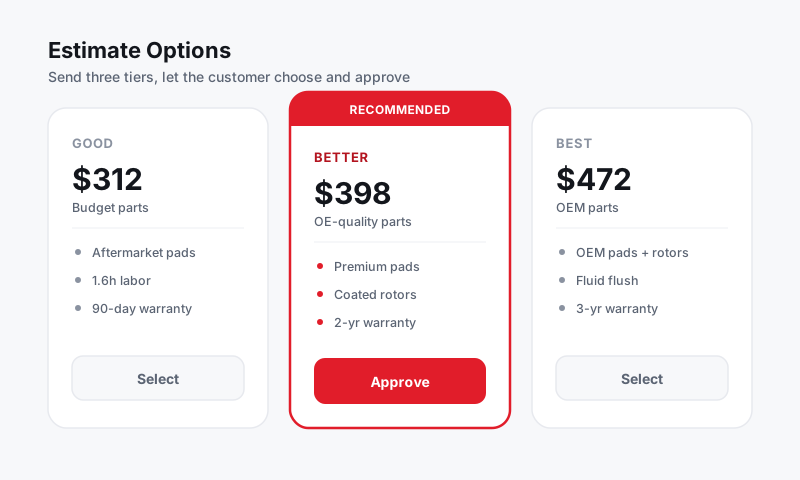
The three quality tiers
Every part result is sorted into one of three tiers so you always know what you are quoting.
- OEM — the original equipment part, dealer-grade fitment and warranty. Best for fussy late-model vehicles and customers who want factory.
- Aftermarket — quality replacement brands at a better cost. The everyday workhorse choice for most repairs.
- Budget — the lowest landed cost option that still fits. Right for older vehicles, fleet work, or a price-sensitive customer.
Pista shows the tiers side by side with live cost and availability so you can compare apples to apples in one glance.
Connect your suppliers
- Go to Settings then Parts and Suppliers.
- Click Connect supplier and pick your account from the list.
- Enter your account credentials or API key. Pista validates the connection and starts returning live results immediately.
- Repeat for each supplier you buy from. More connected suppliers means more options on every search.
Good to know: Connecting more than one supplier is the whole point. With several accounts live, a single search can show OEM from one, aftermarket from another, and budget from a third, all on the same screen.
Let parts intelligence pick the default
You do not have to read every line. Parts intelligence recommends a smart default for each part based on the tier strategy you set, then you accept it or switch tiers with one click.
- Open Settings then Parts and Suppliers then Tier strategy.
- Choose your house default tier, for example Aftermarket, so most quotes land on your bread-and-butter choice.
- Set an auto-discount rule if you want the engine to surface the lowest-cost in-tier option automatically.
When you add a part, the recommended line is pre-selected. Switch to a different tier any time the job calls for it.
Compare and choose on the RO
- In a job, click Add part and search.
- Review the OEM / Aftermarket / Budget columns with cost, brand, and availability.
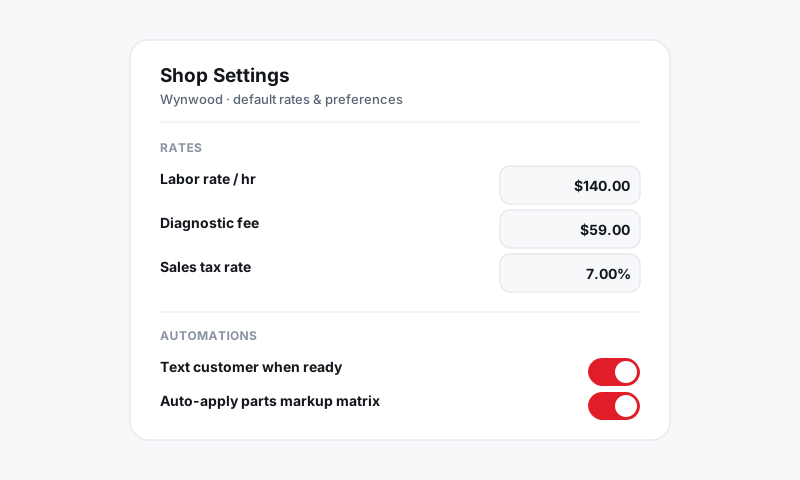
- Click the option you want. Pista applies your markup and sets the sell price.
Tips
- Show the customer the choice. Quoting OEM versus aftermarket on the same screen makes the value conversation easy and builds trust.
- Watch availability, not just price. The cheapest part that ships in three days can cost you the car if the customer is waiting.
- No suppliers connected yet? You can still add parts manually. See Adding parts to a ticket.
Still have a question about supplier sourcing and parts intelligence tiers?
Contact support