Estimates and Authorizations
Sending an estimate for approval
Send an estimate by text or email so the customer can review and approve it from their phone.
Once your estimate is built, getting a fast "yes" is all about making it easy for the customer to say it. Pista sends estimates by text or email with a link the customer opens on their phone, reviews line by line, and approves in a tap. No phone tag, and every action is timestamped.
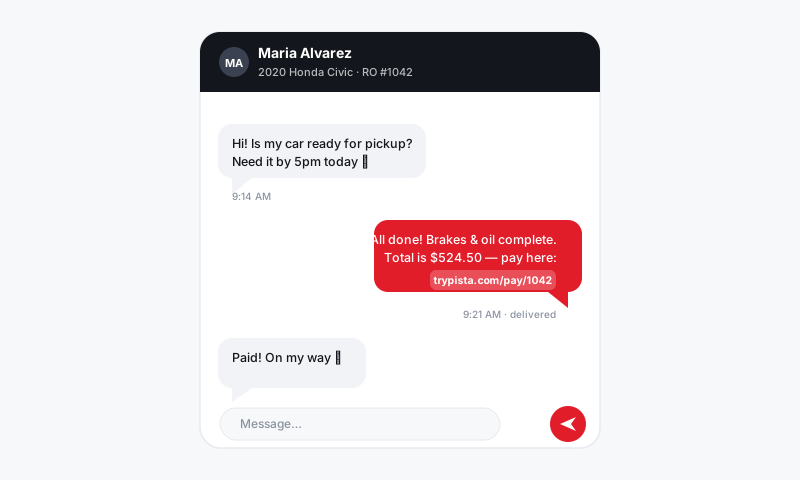
Send the estimate
- On the repair order, open the estimate and give it a final review.
- Click Send for approval.
- Choose the delivery method: Text, Email, or both. Text gets the fastest response for most shops.
- Confirm the customer's mobile number or email. Pista pulls these from the customer profile (Customers and CRM).
- Optionally add a short message, or use a saved template. Click Send.
The customer receives a secure link to a mobile-friendly view of the estimate. They see each job, the parts and labor, any Good / Better / Best options, photos from the inspection, and the total with tax.
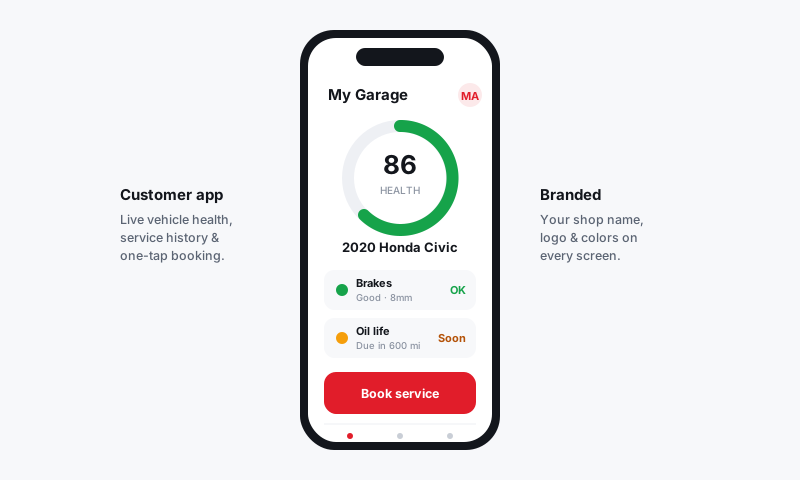
What the customer can do
From the estimate link, the customer can:
- Approve all of the work in one tap.
- Approve or decline individual jobs, so they can green-light brakes and hold off on tires.
- Choose a tier on any job you offered options for. See Good, Better, Best tiers.
- Sign to authorize the work. See Customer e-signature authorization.
Track the response
The RO header shows the estimate status at a glance: Sent, Viewed, Approved, Partially approved, or Declined. You will see a notification the moment the customer responds, and the Job Board reflects the new status so the team knows what is cleared to start.
Tip: If a customer opens the estimate but does not respond, send a friendly nudge from the Inbox. A simple "Any questions on the estimate I sent?" recovers a surprising number of approvals.
Resending and revising
- Revise after sending: edit the estimate, then click Resend. The customer gets the updated version, and the prior one is superseded so there is no confusion about which is current.
- Resend the link: if the customer lost the text, click Resend to deliver the same link again.
- Approve in person: if the customer is standing at the counter, you can capture approval and signature directly on your device.
Good to know
- Estimate links are unique to each customer and RO, so totals and approvals stay private to that job.
- Every send, view, and approval is logged with a timestamp on the RO. That record protects you if a customer later disputes what they authorized.
- You can send updated estimates as the job evolves, for example after a tech finds additional work during a repair.
What is next
After the customer approves, move into Handling approved vs declined work to stage parts and start the job.
Still have a question about sending an estimate for approval?
Contact support