Estimates and Authorizations
Building an estimate
Turn a customer concern into a clean, priced estimate with parts and labor on every job.
An estimate is the heart of the front counter. In Pista, an estimate lives right on the repair order, so the moment a customer approves it, the work is already staged and ready for the bay. This guide walks you through building one from scratch.
Start the estimate
- From the Job Board, open the repair order, or click New Repair Order if the vehicle is not in yet.
- Confirm the customer and vehicle. A decoded VIN lets Pista pull the right MOTOR labor times and fitment for parts.
- You are now on the RO with an empty estimate. Each thing you are quoting becomes a job.
Add jobs
A job is one repairable item: a brake service, an oil change, a water pump replacement. Every job holds its own labor and parts.
- Click Add Job.
- Name the job, or describe the concern and let Moto AI draft it for you. See Moto AI Service Writer.
- Add labor: search the operation and Pista pulls the MOTOR labor time, then multiplies it by your shop rate. You can override hours on any line.
- Add parts: search across your connected suppliers for live pricing and order without leaving the RO. See Parts and Suppliers.
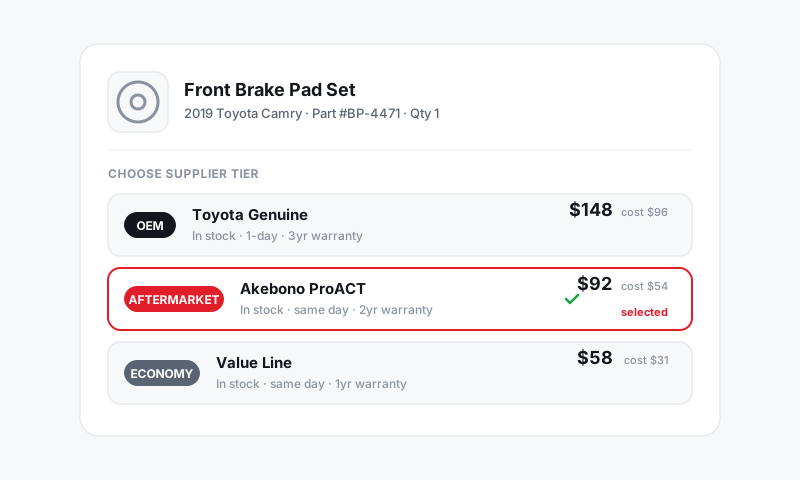
Every labor line should carry the part it needs. Pista flags labor with no part attached so nothing gets quoted at zero margin. Diagnostics are the one exception.
Check the numbers
As you build, the RO totals update live in the summary panel:
- Parts at your configured markup
- Labor at your rate times MOTOR hours
- Shop supplies and fees, applied per your settings
- Tax, calculated by your store's state rules
If a total looks off, open Pricing to review markups and rates (Pricing and Markups) or Tax and Shop Fees for fee setup (Tax and Shop Fees).
Tips for estimates that sell
- Group work into clear jobs. "Front brakes," "rear brakes," and "brake fluid flush" as separate jobs let the customer approve some and decline others.
- Lead with the inspection. Attach photos or video from a digital inspection so the customer sees what you see. See Digital Inspections.
- Use plain language. "Replace leaking water pump" beats "R&R W/P assy." Moto AI can rewrite tech shorthand into customer-friendly wording.
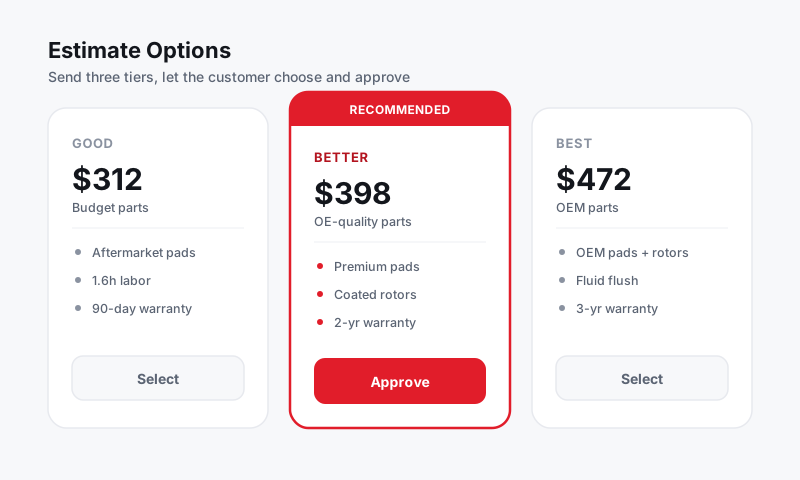
- Offer choices. For bigger repairs, build Good / Better / Best tiers so price is a decision, not a wall. See Good, Better, Best tiers.
What is next
Once the estimate looks right, you are ready to send it for approval and capture an e-signature authorization.
Still have a question about building an estimate?
Contact support