Getting Started
Setting up your shop profile
Add your shop name, logo, address, hours, and contact details so they appear correctly on estimates, invoices, and customer messages.
Your shop profile is the identity Pista stamps on everything a customer sees: estimates, invoices, inspection reports, and text and email messages. Getting it right once means every document that leaves your shop looks polished and matches your brand. Budget about ten minutes.
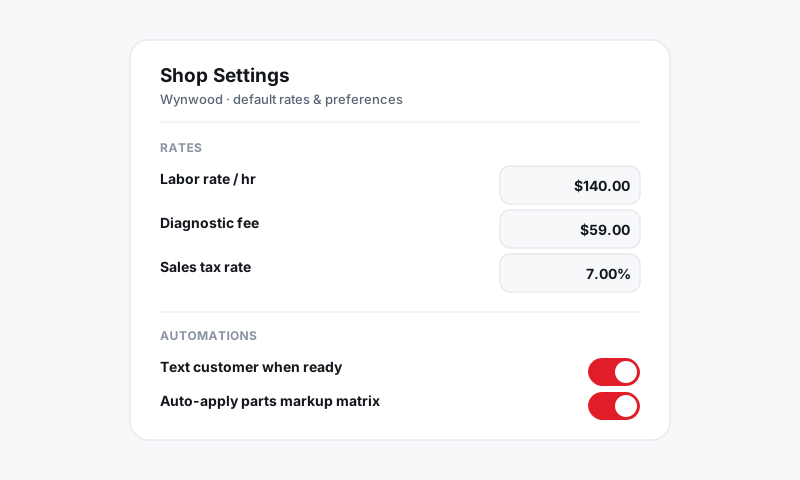
Where to find it
Go to Settings → Shop Profile. If you run more than one location, each store has its own profile, so select the store you want to edit from the store switcher at the top. For setting up additional stores, see Connecting your stores.
Fill in the basics
- Enter your shop name exactly as you want it to read on invoices.
- Add your street address, city, state, and ZIP. Pista uses the state to apply the correct tax rules, so double-check it.
- Add your phone number and email. These are the reply-to details customers see on messages.
- Set your time zone. This controls timestamps on approvals, appointments, and reports.
Upload your logo
- In Shop Profile, click Upload logo.
- Use a square or wide PNG with a transparent background for the cleanest result.
- Pista shows a live preview of how it appears on an invoice header.
Tip: Upload the highest-resolution version you have. Pista scales it down where needed, but it cannot add detail back to a small, blurry file.
Set your business hours
Hours drive your online scheduling availability and the "we're open" details on customer-facing pages.
- Go to the Hours section of the profile.
- Set open and close times for each day.
- Mark any day Closed to block scheduling on it.
Add your license and disclaimer text
Many states require a repair-shop registration number or specific disclaimer language on estimates and invoices.
- Find the Compliance section.
- Enter your shop registration or license number if your state requires one.
- Add any invoice disclaimer text. It prints at the bottom of every estimate and invoice.
Confirm it looks right
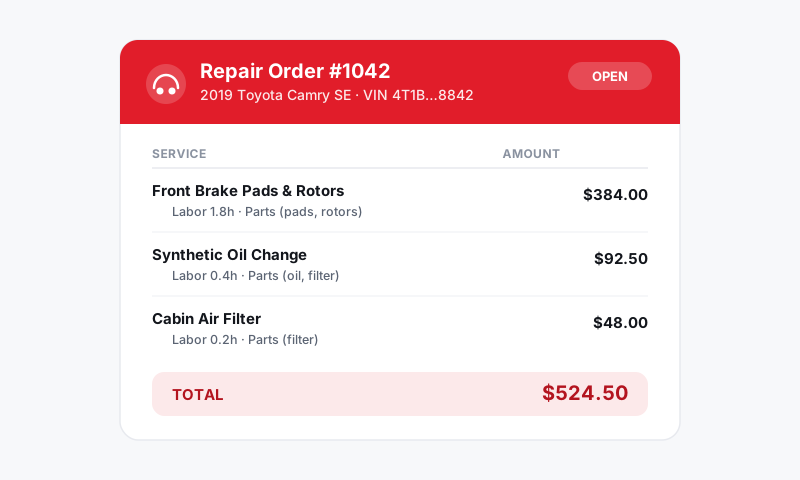
Before you rely on it, generate a test document.
- Open any repair order and click Preview invoice.
- Check that your name, logo, address, and disclaimer all appear correctly.
- Send a test estimate to your own phone to see how it reads to a customer.
Good to know: Changes to your profile apply going forward. Documents already sent keep the details they had when they went out, so you have an accurate record of what each customer actually received.
Next, bring your team on board in Inviting and managing staff and roles.
Still have a question about setting up your shop profile?
Contact support