Getting Started
Navigating the dashboard
Learn the Pista layout, what each section of the main navigation does, and the fastest ways to get where you need to go.
Once your shop is set up, you will spend most of your day in a handful of screens. This article is the map: what each part of Pista is for, and a few shortcuts that save real time on a busy day.
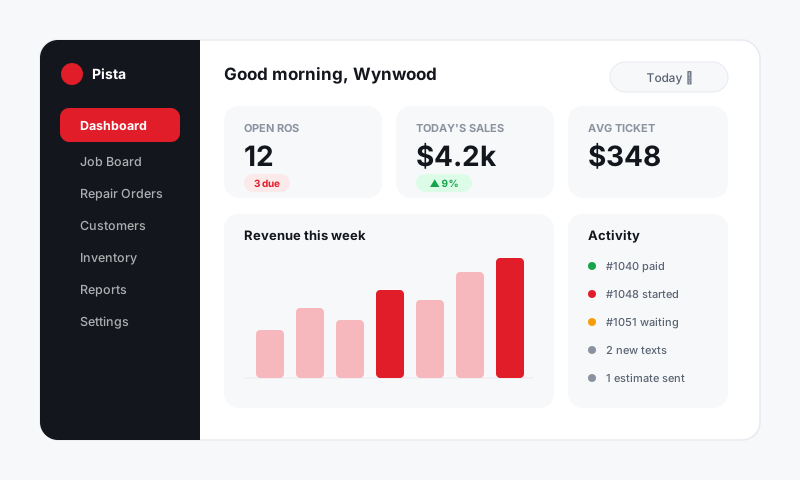
The main navigation
The left-side navigation is your home base. Here is what each section does:
- Job Board — the live view of every vehicle in the shop and exactly where it stands. This is most shops' default landing screen.
- Repair Orders — the searchable list of all ROs, open and closed, with filters by status, writer, and date.
- Inbox — every customer text and email, threaded by customer, in one shared place.
- Customers — profiles, vehicles, and full service history for everyone you have worked with.
- Reports — sales, gross profit, technician efficiency, and shop health at a glance.
- Settings — stores, rates, taxes, fees, team, and integrations.
The store switcher
If you run more than one location, the store switcher sits at the top of the screen. Whatever store is selected filters your job board, repair orders, and reports to that location. Always glance at it before assuming a car "isn't in the system" — it may just be at your other store. See Connecting your stores.
The job board
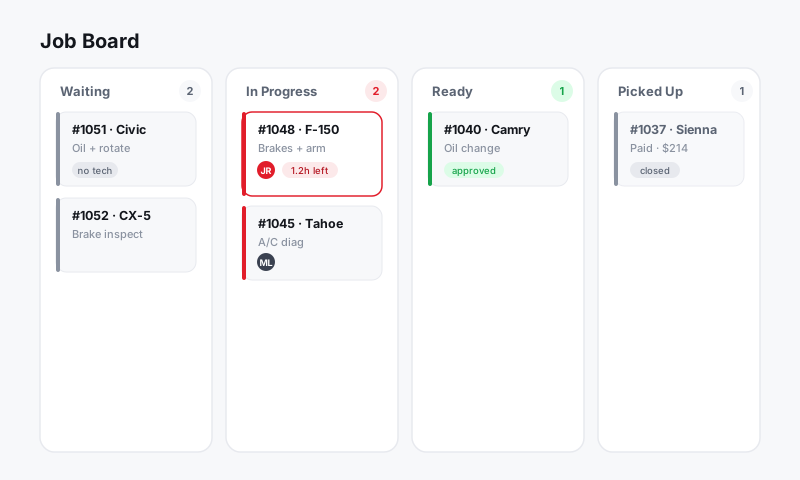
The job board is a set of columns representing the stages of work, such as Estimating, Approved, In Progress, and Ready for Pickup. Each card is a vehicle.
- Drag a card to a new column to move the work along.
- Click a card to jump straight into that repair order.
- Use the color and icons on a card to spot waiting approvals or stalled jobs at a glance.
Tip: Set up your board to mirror how cars actually flow through your shop. The closer the columns match your real process, the more the board tells you without anyone having to ask.
Search and quick create
Two controls live at the top of every screen and are worth memorizing:
- Search finds a customer, vehicle, RO number, or phone number instantly. Start typing a last name or plate and Pista narrows it down as you go.
- New (the + button) starts a new repair order, customer, or appointment from anywhere, so you never have to navigate back to a specific screen first.
Your profile and notifications
Your avatar in the top corner opens your personal settings, the store switcher, and sign-out. The bell shows notifications such as new customer replies and approvals that need attention.
Good to know: Pista remembers the last screen and store you used and brings you back there on your next login, so the shop is exactly where you left it.
Ready to do real work? Walk through Creating your first repair order.
Still have a question about navigating the dashboard?
Contact support