Getting Started
Getting the Pista mobile app
Install the Pista app on your team's phones so techs can run inspections, snap photos, and check the job board from the bay.
A lot of shop work happens away from the front-counter screen, under the hood, in the bay, on a test drive. The Pista mobile app puts the essentials in your team's pockets so a tech can run an inspection or check a job without walking back to a desk. This article gets the app installed and everyone signed in.
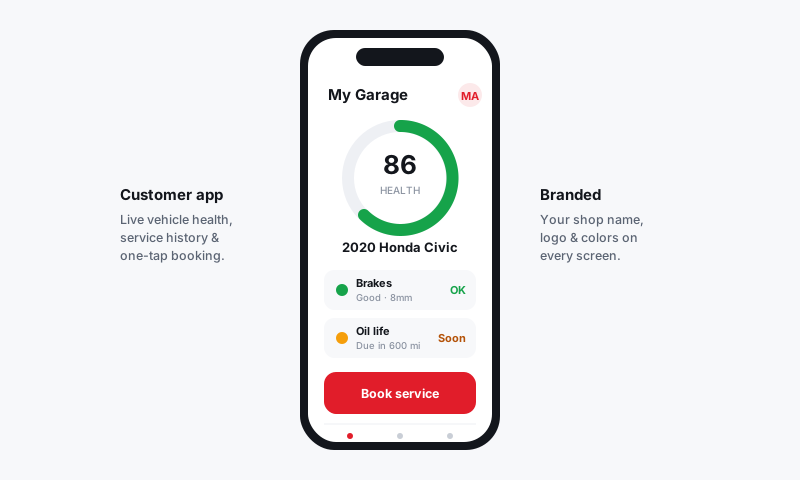
Install the app
- On the phone, open the App Store (iPhone) or Google Play (Android).
- Search for Pista.
- Install it and open the app.
- Sign in with the same email and password used on the web. There is no separate mobile account.
Tip: Have each tech install it on their own phone rather than sharing one device. Individual logins keep inspection authorship and time tracking accurate, which matters when you review who did what.
What you can do from your phone
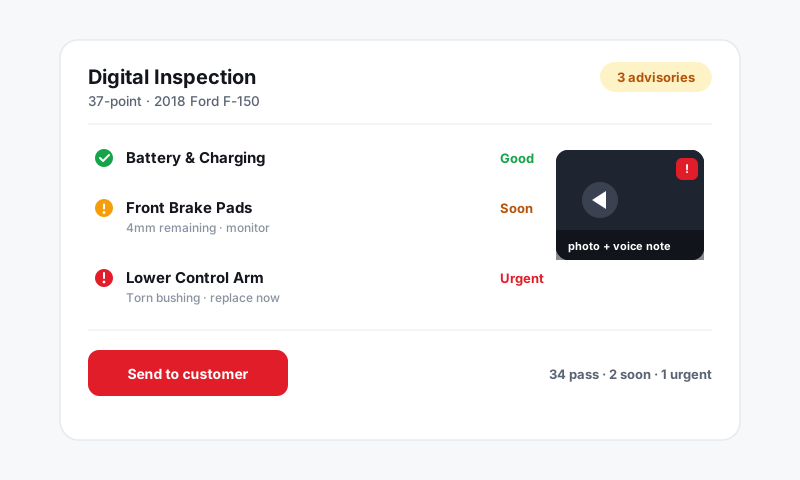
The app focuses on the work that is best done on the move:
- Run digital inspections with photos and video straight from the camera. See Digital Inspections.
- Check the job board to see what is waiting and what is next.
- Open a repair order to view the jobs assigned to you.
- Message customers and read replies from the shared Inbox.
- Log time on jobs as you start and finish them.
Get the permissions right
A couple of phone permissions make the app far more useful:
- Allow camera access so inspection photos and video work.
- Allow notifications so you see new customer replies and approvals as they come in.
You can grant these the first time the app asks, or later in your phone's settings under the Pista app.
Roles still apply on mobile
The app respects the same roles as the web. A technician sees assigned jobs, inspections, and time logging, but not pricing or payments. A service writer or manager sees more. To change what someone can do, update their role on the web. See Inviting and managing staff and roles.
Good to know: The app and the web stay in sync in real time. An inspection a tech finishes in the bay shows up on the writer's screen at the counter the moment it is saved, so the customer conversation can start without anyone shouting across the shop.
For the full set of mobile features, see Pista Mobile App.
Still have a question about getting the pista mobile app?
Contact support