Getting Started
Creating your first repair order
Walk through building a complete repair order from customer and vehicle to jobs, parts, labor, and an estimate you can send for approval.
A repair order is where everything in Pista comes together: the customer, the car, the work, the parts, the labor, and the total. This walkthrough takes you from an empty RO to an estimate ready to send. Once you have done it once, the rest become muscle memory.
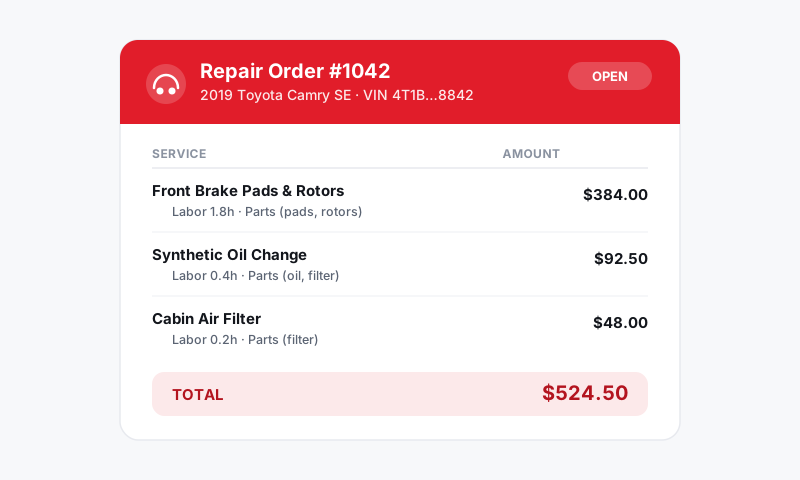
Start the repair order
- From the Job Board or anywhere in Pista, click New and choose Repair Order.
- Search for the customer by name or phone. If they are new, click Add customer and enter their details.
- Select the vehicle, or add one by VIN or by year, make, and model. Decoding the VIN auto-fills the engine and trim so labor and parts lookups are accurate.
Tip: Enter the plate or VIN even on a quick job. It is what lets Pista surface the right labor times, fitment, and any open recalls later.
Add the work
Each piece of work is a job on the RO. You have three ways to add one:
- Type the concern and let Moto AI draft the job, including suggested labor and the parts it needs. See Moto AI Service Writer.
- Search the catalog for a common service like an oil change or brake job, which comes pre-built.
- Build it manually by adding labor and parts lines yourself.
Set labor and parts
For each job, confirm the labor and attach parts:
- Labor pulls from MOTOR data based on the vehicle, so the hours reflect the real procedure. Adjust if your shop runs a different time. See Labor and MOTOR Data.
- Click Add part to search your connected suppliers. Compare OEM, aftermarket, and budget options and pick one; pricing and markup fill in automatically. See Parts and Suppliers.
- Every labor item should have a part attached, except diagnostics. Pista flags labor lines that are missing parts so nothing ships incomplete.
Check the totals
As you build, Pista keeps a running total in the summary panel:
- Parts and labor subtotals
- Your shop supply and disposal fees
- Sales tax based on your store's state rules
If a number looks off, check your pricing and tax and fees settings rather than overriding line by line.
Send the estimate
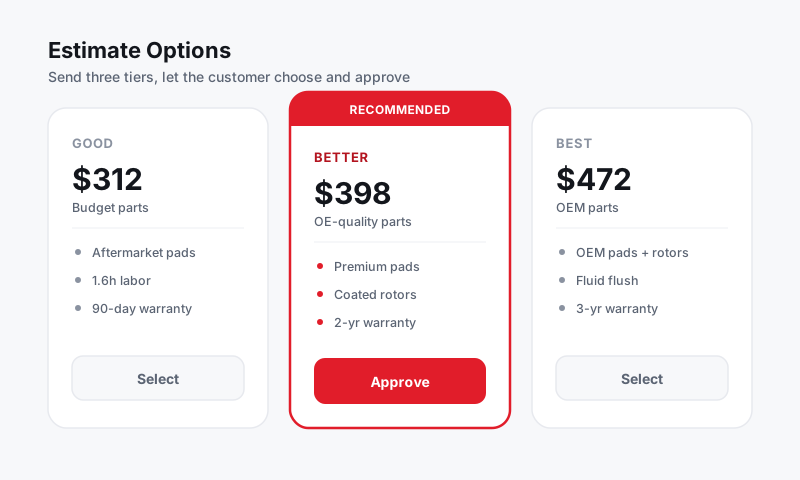
- Click Send estimate.
- Choose text, email, or both.
- The customer gets a clean, itemized estimate they can approve from their phone. Their approval is timestamped on the RO.
Good to know: You can send a partial estimate for the work you are sure of, then add recommended jobs from an inspection later. Customers approve the new items on the same thread, and you have a record of exactly what was authorized and when.
Move it along
Once work is authorized, drag the RO card across the Job Board as it progresses, assign it to a technician, and when the car is done, take payment at checkout. See Repair Orders and Payments for the full lifecycle.
Still have a question about creating your first repair order?
Contact support