Getting Started
Connecting your stores (multi-location)
Add multiple locations, switch between them, share customers across stores, and report on each one separately or together.
If you run more than one shop, Pista keeps each location's day-to-day work separate while giving you one account, one customer base, and one place to see the whole picture. This article covers adding stores, moving between them, and understanding what is shared versus what is per-store.
Add a store
- Go to Settings → Stores.
- Click Add store.
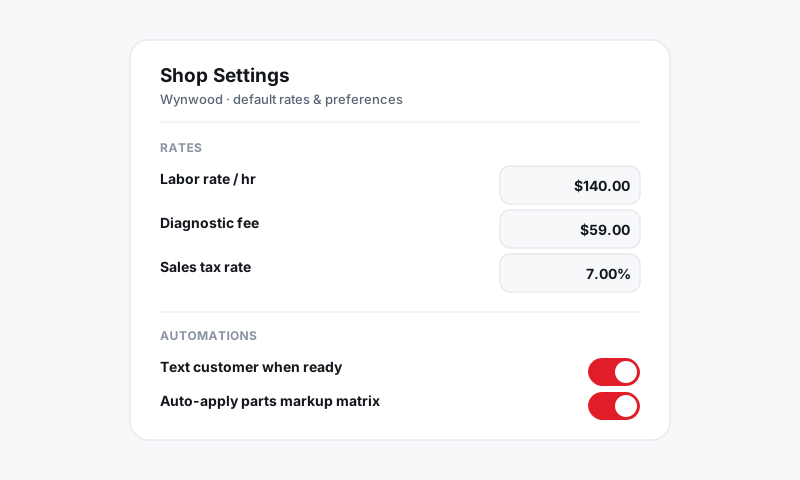
- Fill in the store's name, address, phone, hours, and time zone, just like your first shop profile.
- Save. The new store appears in the store switcher right away.
Tip: Name stores by something customers and staff recognize instantly, like the neighborhood or street ("Wynwood", "Doral"), not an internal code. It shows up in the switcher and on reports, so clarity beats cleverness.
Switch between stores
The store switcher at the top of the screen controls which location you are working in.
- Click the current store name.
- Choose the store you want.
- Your Job Board, Repair Orders, and Reports now reflect that store only.
A repair order always belongs to the store it was created in, so the car stays where the work is happening.
What is shared, what is separate
Knowing this split prevents most "where did it go?" moments:
| Shared across all stores | Set per store |
|---|---|
| Customers and their vehicles | Repair orders and the job board |
| Service history | Labor rate, taxes, and fees |
| Your team (with per-store access) | Inventory and purchasing |
| Your subscription and billing | Hours, branding, and disclaimers |
Because customers are shared, a regular who visits both locations has one profile and one history. Because rates and taxes are per store, each location bills correctly for its own city and state.
Give staff the right store access
Each team member can be granted access to one store or several. Set this when you invite them or anytime after.
- Go to Settings → Team and open a member.
- Under Store access, check the stores they should reach.
- People with multiple stores use the switcher to move between them. See Inviting and managing staff and roles.
Report per store or across the company
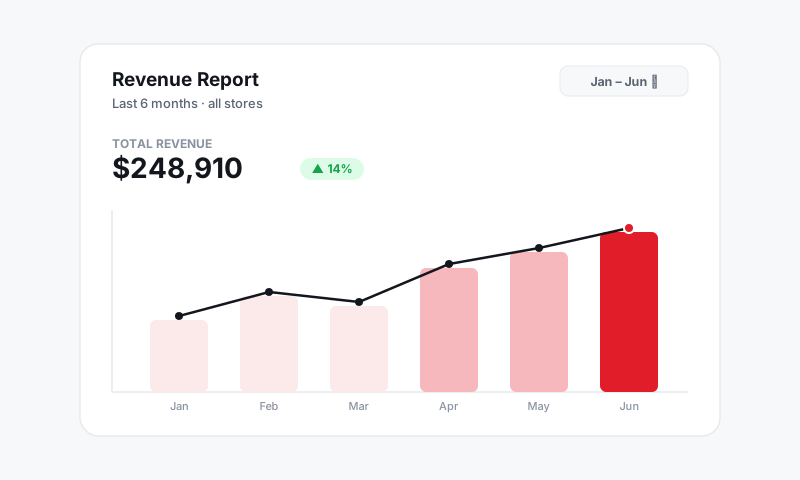
In Reports, use the store filter to view one location at a time, or choose All stores to roll everything into a single company-wide view. This is how you compare locations on sales, gross profit, and technician efficiency side by side.
Good to know: Adding stores may change your plan's seat or location count. Check Account and Billing before opening a new location so there are no surprises on your next invoice.
Still have a question about connecting your stores (multi-location)?
Contact support