Repair Orders
Assigning technicians to RO jobs
Put the right tech on each job, track who is on the car, and keep accountability clear from approval to completion.
A repair order can hold several jobs, and they do not all have to go to the same person. Assigning technicians at the job level lets you put your brake specialist on the brakes and your diagnostician on the check-engine light, all on one ticket. It also makes accountability and tech efficiency measurable instead of a guess.
Assign a tech to a job
- Open the RO and find the job you want to assign.
- Click the technician field on that job.
- Pick a tech from your team list. Only people with the Technician role (or owners) appear.
- Save. The job now shows who is responsible.
You can assign different techs to different jobs on the same RO, or assign one tech to the whole ticket.
Good to know: Assigning at the job level, not just the RO level, is what makes per-tech reporting accurate. When two techs split a car, each one's hours and work land on the right name. See Reports.
Reassign or split work
Plans change mid-job. A tech goes to lunch, a specialty job comes in, or a diagnosis grows.
- Open the job and change the technician field to the new person.
- To split a large job, break it into separate jobs first, then assign each. See Adding services, labor, and parts.
See assignments on the board
Assigned work shows up where the shop already looks:
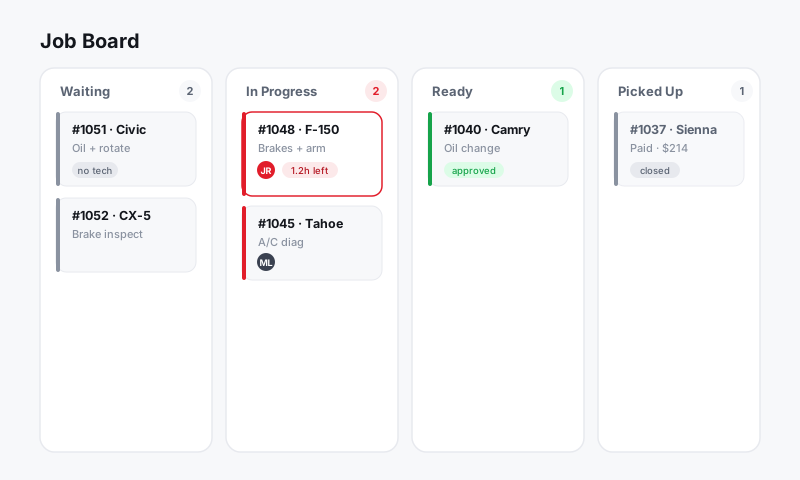
- The Job Board card shows who is on the car, so the front counter can answer "who's got the Tahoe?" without walking to the bay.
- A tech can filter the board to my jobs to see only what is theirs.
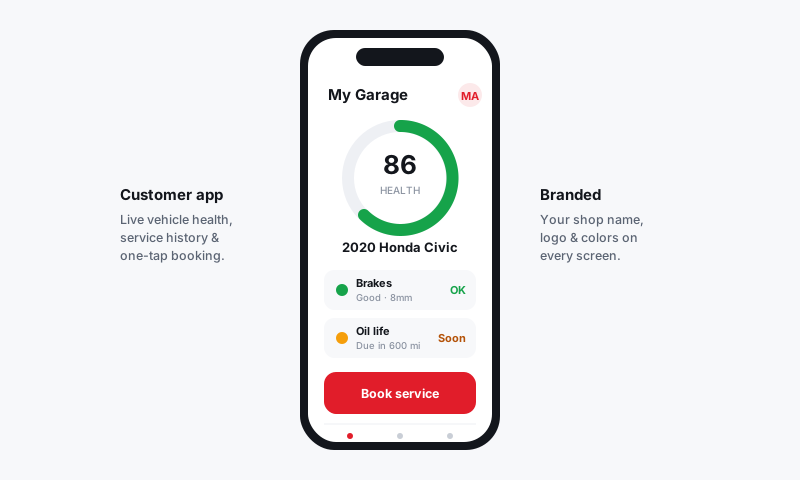
- On the Pista mobile app, techs see their assigned jobs, run inspections, and update status from the bay. See Pista Mobile App.
Tips for a smoother bay
- Assign only authorized work. Putting a tech on a job before the customer approves it just creates rework if the answer is no. Confirm authorization first. See Estimates and Authorizations.
- Match the tech to the job. Routing electrical to your electrical tech beats whoever is free, and it shows up in better cycle times.
- Keep status honest. When a tech starts a job, the RO should move to In Progress. See RO statuses and the workflow pipeline.
- Review the load. If one tech's column is stacked and another's is empty, rebalance before the promised times slip. See Setting the promised time.
Still have a question about assigning technicians to ro jobs?
Contact support