Repair Orders
Adding services, labor, and parts
Build out a repair order with jobs, MOTOR-driven labor times, and live parts pricing so every line is accurate and profitable.
This is where an RO turns from a name and a concern into real, priced work. In Pista, a repair order is made of jobs, and each job holds the labor and parts it takes to do the work. Build it right and your estimate is accurate, your gross profit is protected, and your tech knows exactly what to do.
Add a job
A job is one unit of work, like "Front brake pads and rotors" or "Diagnose check engine light."
- On the build screen, click Add job.
- Name the job, or pick a service from your saved menu of common jobs.
- Tie the job to the customer concern it answers so the estimate reads clearly.
Tip: Let Moto AI do the first draft. Type the concern, and Moto AI proposes the job, the labor, and the parts it usually needs. You review and adjust. See Moto AI Service Writer.
Add labor with MOTOR times
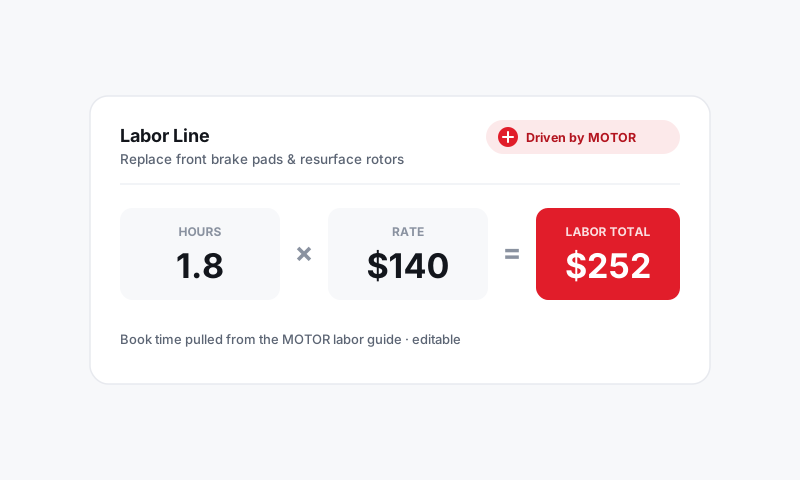
Labor is billable hours times your labor rate. The hours should come from data, not a gut guess.
- Inside a job, click Add labor.
- Search the operation (for example, "replace front brake pads").
- Pista pulls the MOTOR labor time for the exact year, make, model, and engine on the RO.
- The line fills in hours, and your labor rate sets the price.
Because the time is keyed to the decoded vehicle, a 1.2-hour job on one truck and a 1.8-hour job on another are both right. You can override an hours value when a real-world condition calls for it, like rusted-on hardware.
Good to know: Labor times are Driven by MOTOR. Decode the vehicle by VIN on the RO so the times match the exact engine. See Labor and MOTOR Data.
Add parts
Every labor item should carry the part it needs. Diagnostics are the only common exception.
- Inside the job, click Add part.
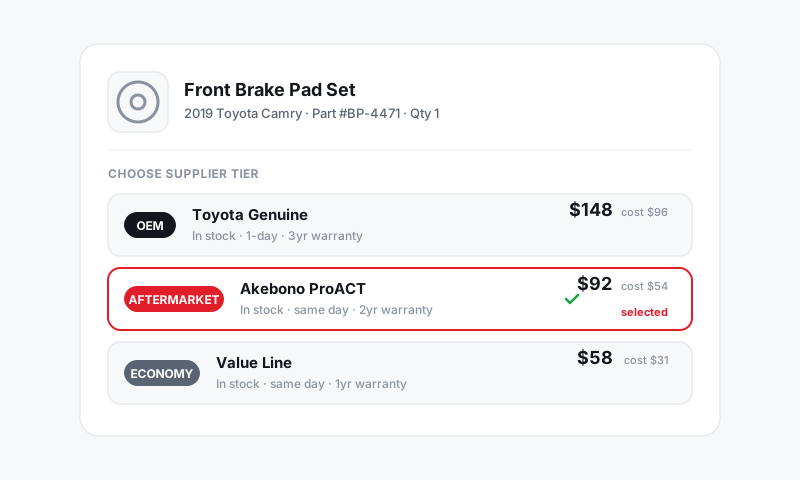
- Search across your connected suppliers to see live availability and cost side by side.
- Pick the line, and Pista applies your parts markup to set the sell price automatically.
- Set the quantity.
You can compare an OEM, aftermarket, and budget option on the same screen, then choose what fits the customer. No supplier connected yet? Add the part manually with a cost and price. See Parts and Suppliers.
Watch your numbers as you build
The RO totals update live as you add lines:
- Parts and labor subtotals per job and for the whole RO
- Shop fees and sales tax applied per your store's rules
- Gross profit on parts so you can see the margin before you send
Tidy up before you send
- Group related work into clear, named jobs the customer will understand.
- Make sure each labor line has its part attached.
- Reorder jobs so the most important recommendation is on top.
When the build looks right, send it for approval. See Estimates and Authorizations, then set the promised time.
Still have a question about adding services, labor, and parts?
Contact support