Pricing and Markups
Auto-applying matrices by part type
Assign different markup matrices to tires, fluids, shop supplies, and regular parts so each category prices on its own rules automatically.
Not every part should price the same way. Tires move on thin, competitive margins. Shop supplies and fluids can carry a healthy markup. A regular replacement part sits somewhere in between. Pista lets you assign a separate markup matrix to each part type, then applies the right one automatically the moment a part lands on a repair order. You set it up once; the system sorts the rest.
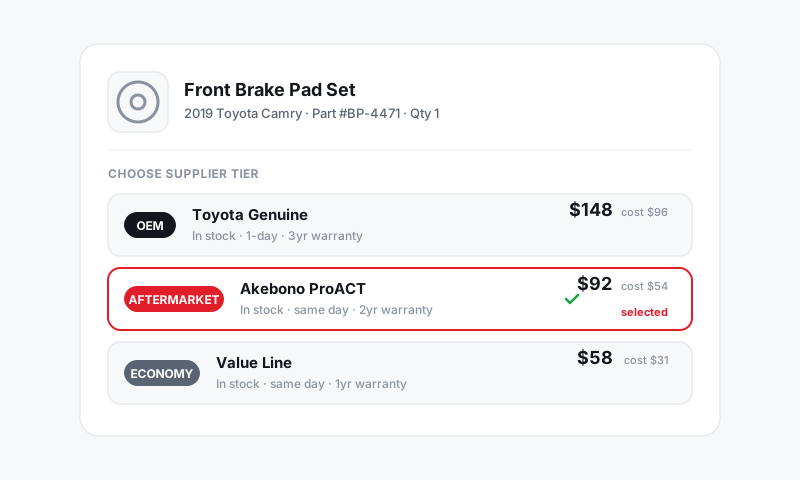
How part types drive pricing
Every part in Pista carries a part type: regular part, tire, fluid, shop supply, sublet, and so on. When a part hits an RO, Pista does three things in order:
- Reads the part's type.
- Finds the matrix assigned to that type.
- Applies that matrix's band to the part's cost to set the sell price.
If no matrix is assigned to a type, Pista falls back to your default parts matrix.
Assign a matrix to a part type
- Go to Settings then Pricing and Markups and open Matrices by Part Type.
- Click Add assignment.
- Pick a part type (for example, Tires).
- Choose the matrix to use for it, or build a new one inline.
- Save. Parts of that type now price off that matrix everywhere in Pista.
Tip: Tires are the textbook case. Many shops run tires at a flat, lean markup so the quote stays competitive, while regular parts ride a full banded matrix. Assign a flat-rate "tire" matrix to the tire type and leave everything else on your standard table. See Flat-rate parts markup.
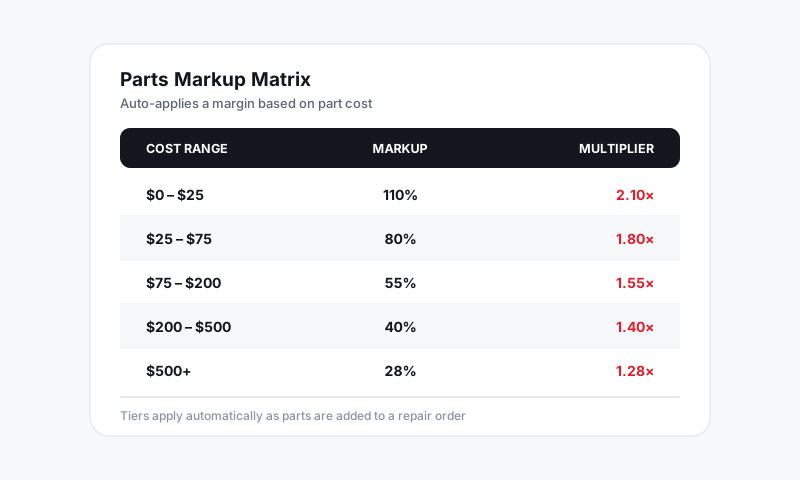
A sensible starting layout
- Regular parts to your main banded matrix.
- Tires to a lean flat or short matrix.
- Fluids and shop supplies to a higher-markup matrix, since these are low-cost, high-frequency items.
- Sublet to a low flat markup, because you are marking up someone else's invoice and want to stay reasonable.
Make sure parts are typed correctly
Auto-applying only works if parts carry the right type. When you add a part from a supplier search, Pista pulls the type with it; when you add a custom line by hand, set the type yourself.
- On the part line, set the Type field.
- Pista immediately reprices that line using the matching matrix.
Good to know: If a part looks mispriced on an RO, check its type first. A tire accidentally added as a regular part will price off the wrong matrix, and the fix is usually one dropdown, not a manual override.
Good to know
- Type-specific matrices set the default price; a writer can still override any single line.
- Reassigning a part type's matrix affects future parts, not lines already on open or closed ROs.
- This pairs naturally with banded matrices. See Parts markup matrices explained.
Set your part-type matrices once and every quote prices itself, correctly, by category, with no thinking at the counter.
Still have a question about auto-applying matrices by part type?
Contact support