Moto AI Service Writer
Reviewing what Moto built before you send
A practical checklist for verifying Moto AI's draft jobs, labor, parts, and totals before the estimate goes to a customer.
Reviewing what Moto built before you send
Moto gets you to a clean draft fast, but you are the one who signs off. Before any estimate leaves your shop, give the ticket a quick once-over. It takes under a minute and it is the step that keeps you from sending a customer the wrong labor time, the wrong part, or a number you did not mean to quote. Here is exactly what to check.
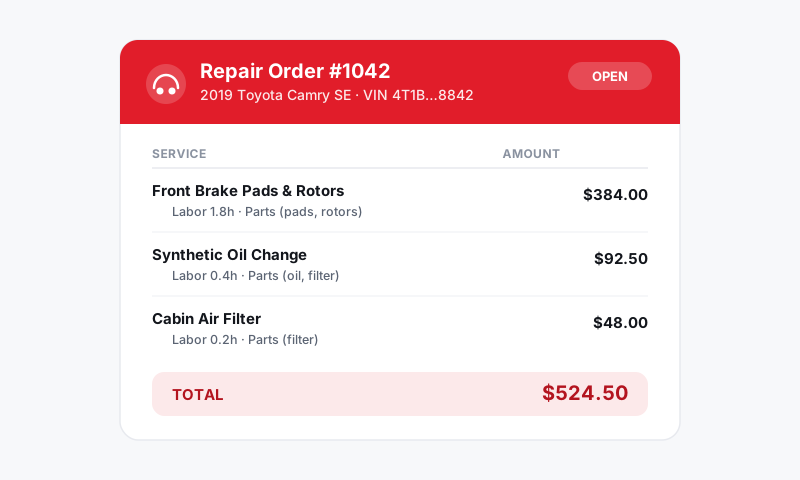
The review checklist
- Vehicle. Confirm the year, make, model, engine, and trim are right. This is the root of everything below it.
- Jobs. Read each concern and recommendation. Are they the work the customer actually asked for? Remove anything that crept in and split or combine jobs as needed.
- Labor. Check that times look right for the work. Moto pulls MOTOR times for the vehicle, but you know your bays. Adjust where your shop's real-world time differs.
- Parts. Verify each part fits and that you are using the supplier and tier you want. Swap an OEM line for aftermarket, or a premium part for budget, if that fits the customer.
- Pricing and totals. Confirm your markups, labor rate, shop fees, and tax applied correctly. The subtotal and total at the bottom are what the customer sees.
- Tone. Make sure the write-up reads professionally and matches your shop's voice.
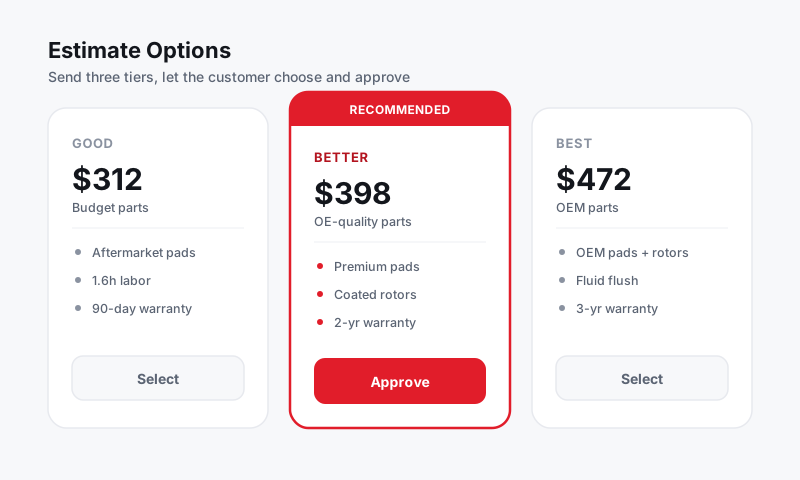
Watch for these specifically
A few things are worth a closer look every time:
- Missing labor data. If MOTOR has no time for a job, Moto flags it and leaves the line blank rather than guessing. Set the time yourself.
- Part fitment. Trim and engine variations can change the part. When in doubt, confirm against the VIN.
- Duplicate or overlapping jobs. If you refined the ticket through several messages, glance for anything Moto added twice.
- Declined work. Make sure anything the customer turned down is actually off the estimate.
Good to know: Every line on the ticket is fully editable. Moto's draft is a starting point, not a locked document. Click any job, labor line, or part to change it, just as you would on a ticket you wrote by hand.
Make changes your way
You have two ways to fix anything you find:
- Edit directly on the repair order by clicking the line.
- Tell Moto in plain language, like "bump the brake labor to 1.8 hours" or "use the OEM water pump."
Both update the same draft. Use whichever is faster in the moment.
Then send
Once the ticket reads right and the totals are correct, send it as an estimate by text or email and capture the customer's approval. Pista keeps a timestamped record of what you sent and what they authorized.
For sharper drafts that need less cleanup, see Tips for accurate AI write-ups.
Still have a question about reviewing what moto built before you send?
Contact support