Moto AI Service Writer
Looking up or creating a customer and vehicle
How to attach the right customer and vehicle to a Moto AI ticket so labor times, parts, and history are accurate.
Looking up or creating a customer and vehicle
Moto AI is only as accurate as the vehicle it is working on. Labor times, parts fitment, recalls, and service history all depend on having the correct customer and vehicle attached to the ticket. This article shows you how to find an existing record or create a new one in seconds, right from the conversation.
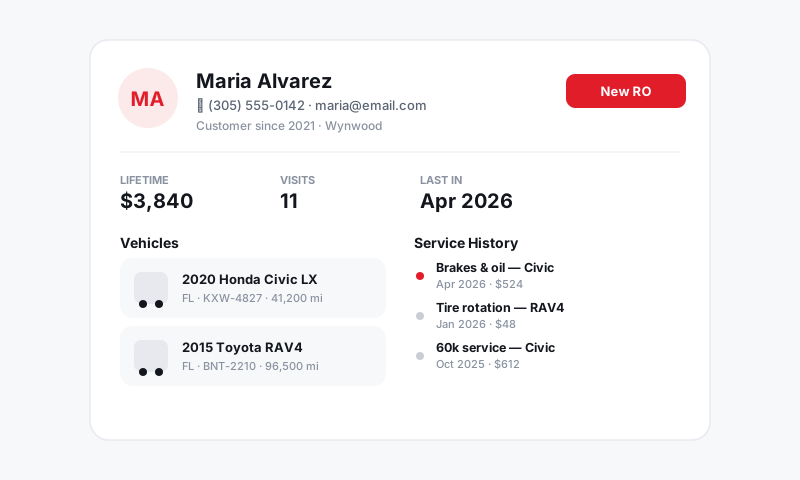
Look up an existing customer
Most of your traffic is repeat business, so start by searching:
- In the Moto AI panel or at the top of a new repair order, open Customer.
- Type a name, phone number, or email. Pista searches your CRM as you type.
- Pick the customer from the list. Their vehicles, contact info, and history come with them.
If you find the customer but they brought a different car, you can add a vehicle to their profile without leaving the ticket.
Look up by vehicle
Sometimes you have the car before you have the name. You can also search by:
- License plate (where supported by your state lookup), which returns the year, make, and model.
- VIN, which decodes the exact trim, engine, and drivetrain.
This is the most accurate path, because trim and engine drive both MOTOR labor times and correct parts.
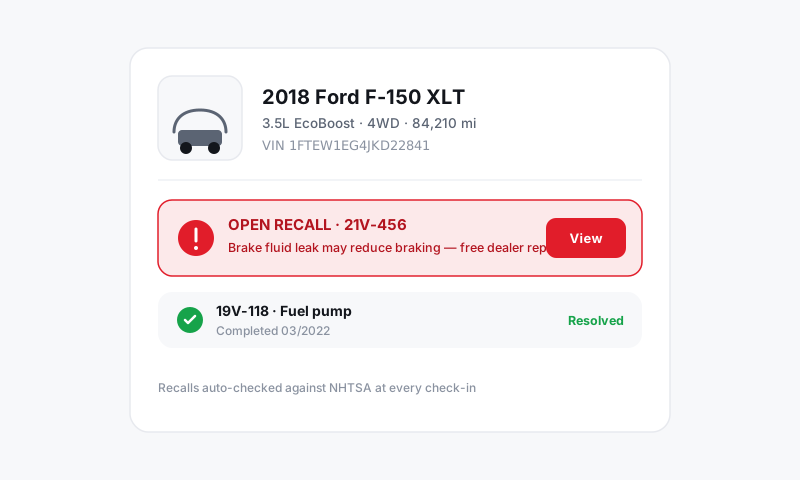
Create a new customer and vehicle
For a first-time customer:
- Choose Add customer and enter their name and at least one contact method (mobile number is best for texting estimates later).
- Choose Add vehicle, then enter or scan the VIN. Pista decodes year, make, model, engine, and trim automatically.
- If you do not have the VIN, enter year, make, and model manually and add the engine/trim when you can. The more specific you are, the more accurate Moto's labor and parts will be.
- Add the current mileage. Moto uses it to recommend due maintenance.
Tip: Always grab the VIN when you can. A year/make/model alone can match several engines, and the wrong engine means the wrong labor time and the wrong part. Scanning the VIN with the mobile app camera takes two seconds and removes the guesswork.
Why this matters for Moto
Once the right vehicle is attached, Moto can:
- Pull MOTOR labor times for the exact engine and drivetrain.
- Source parts that actually fit through your suppliers.
- Surface open recalls and service history so you do not re-sell work that was just done.
- Recommend maintenance due at the vehicle's mileage.
Good to know
If you start a conversation before attaching a vehicle, Moto will still draft jobs but will flag that it cannot confirm labor times or parts fitment until a vehicle is set. Attach the vehicle and Moto recalculates the draft for you.
Next, learn how to review what Moto built before you send.
Still have a question about looking up or creating a customer and vehicle?
Contact support