Reports
The reports landing page
Find your way around the Reports hub, set the date range, and filter by store so every number you read is the number you meant to read.
The Reports hub is where the whole shop comes into focus on one screen. Sales, gross profit, car count, technician hours: it all rolls up here so you can stop guessing and start reading. Before you dive into any single report, it pays to learn the controls that sit on top of every one of them, because the wrong date range or the wrong store filter will quietly lie to you.
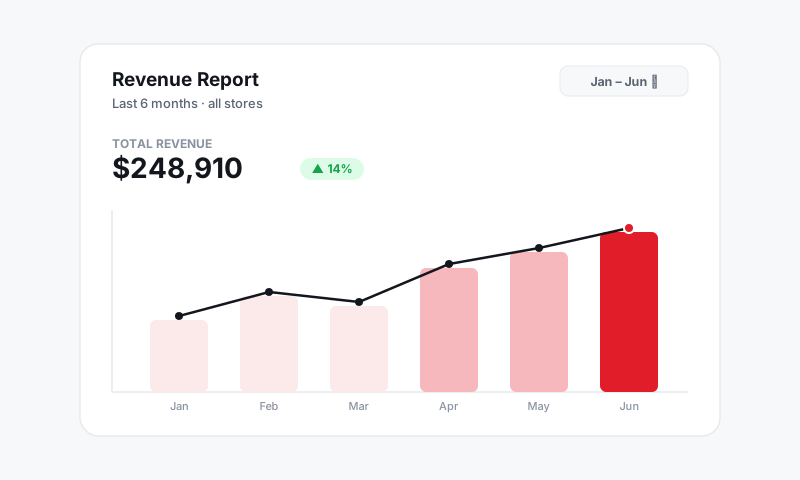
Open Reports
- From the left sidebar, click Reports.
- The landing page opens to a set of report cards, grouped by what they answer: sales and revenue, profitability, technician performance, and end-of-day.
- Click any card to open the full report. Use the back arrow or the sidebar to come back to the hub.
Set your date range
The date range at the top controls every figure on the page. Get this right first.
- Click the date range picker in the top bar.
- Choose a preset like Today, This week, This month, or Last month, or set a custom start and end date.
- The whole report redraws for that window the moment you apply it.
Good to know: Pista uses the date the RO was closed and paid, not the day it was created. A ticket written Monday and paid Thursday lands in Thursday's numbers, which is what you want for sales and deposits to line up.
Filter by store
If you run more than one location, this is the control that keeps Doral out of Wynwood's report.
- Open the store selector next to the date range.
- Pick a single store, or choose All stores to see the group rolled together.
- Reports that break down by tech or service advisor will still respect this filter.
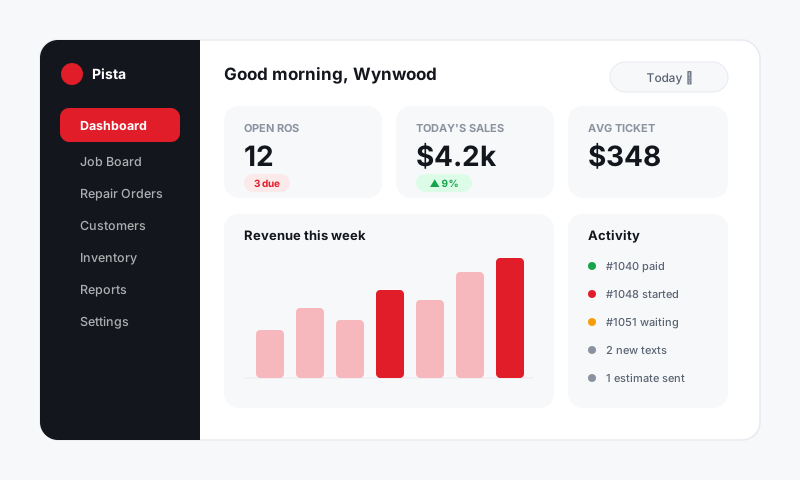
Read, then act
- Skim the summary tiles at the top of each report for the headline numbers.
- Scroll into the detail table below to see the ROs or line items behind the headline.
- Click any row to open the source RO when a number looks off and you want to see why.
Tips
- Compare like windows. This month versus last month tells you a story; this month versus a random 19 days does not.
- Export anything you want to keep or hand to your accountant with the Export button on each report. It pulls the exact rows you are looking at, filters and all.
- Owners and managers see every store; advisors and techs see what their role allows. If a number seems to be missing, check your role before you assume the data is gone.
Master the date range and store filter once and every report in Pista becomes trustworthy at a glance.
Still have a question about the reports landing page?
Contact support