Messaging and Inbox
Message templates
Build reusable text and email templates that auto-fill customer, vehicle, and balance details so your team sends consistent messages in seconds.
Message templates
Your advisors type the same handful of messages all day: "Your car is ready," "Here is your estimate," "We need your approval." Templates let you write those once, drop in placeholders that fill themselves, and send a polished message in one tap. The result is faster replies and a consistent voice no matter who is at the counter.
How templates work
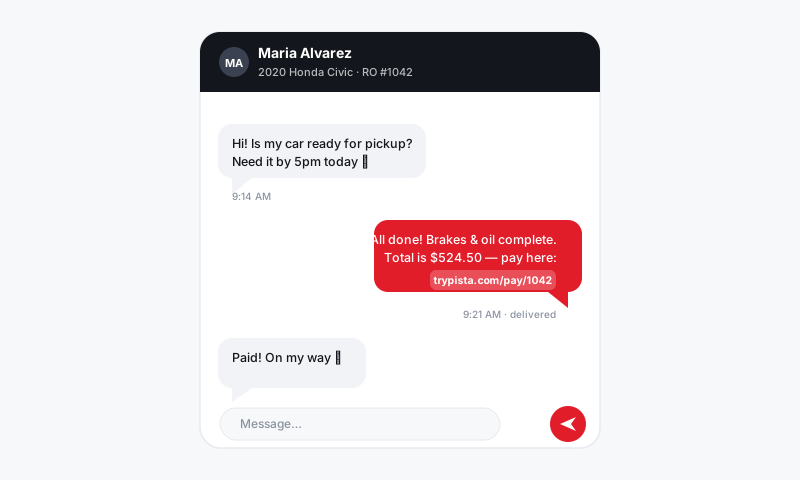
A template is a saved message with placeholders that Pista swaps for real data when you send it. Write "Hi {{customer_first_name}}, your {{vehicle}} is ready for pickup," and the customer receives "Hi Maria, your 2019 Honda Civic is ready for pickup." Templates work for both text and email, and emails can carry a subject line and longer formatting.
Create a template
- Go to Settings, then Message Templates.
- Click New Template and choose a channel: Text or Email.
- Give it a clear name like Vehicle Ready or Estimate Sent so your team finds it fast.
- Write the message. Insert placeholders from the menu, such as customer name, vehicle, RO number, balance due, shop name, or a pay link.
- Save. The template now shows up wherever your team sends messages.
Use a template
- From a repair order or the Message Center, click Message.
- Click Templates and pick the one you need.
- Pista fills in the placeholders from the current customer and RO.
- Review the message, tweak anything, and Send.
Templates worth building first
- Vehicle ready for pickup, with your hours.
- Estimate sent, pointing the customer to approve from their phone.
- Approval needed, for additional work found during the job.
- Waiting on parts, to set expectations when an order is delayed.
- Thank-you and review request, sent after pickup.
- Appointment reminder, the day before a scheduled visit.
Good to know
- Placeholders never go out blank. If a field is missing, Pista flags it before you send so a customer never gets "your {{vehicle}} is ready."
- Templates are shared shop-wide. Update the wording once and everyone sends the new version.
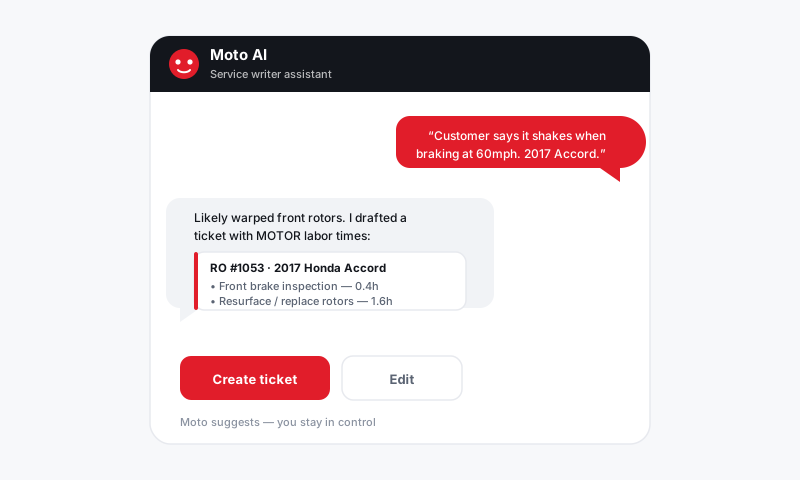
- Moto can help you write them. Ask the Moto AI service writer to draft template copy, then save it. Keep the friendly Moto personality in customer-facing templates and out of anything about money or legal terms.
Tips
- Keep text templates to two or three lines. Save the detail for email.
- Always include a clear next step: a pay link, an approval prompt, or your pickup hours.
- Build a short "library" of five or six templates that cover ninety percent of your messages, rather than fifty you will never find.
Good templates turn message writing into message picking. Your team stops staring at a blank box and your customers get clear, on-brand updates every single time.
Still have a question about message templates?
Contact support