Messaging and Inbox
Setting up your shop texting number
Get your shop's dedicated texting line ready, set business hours and an away message, and stay compliant before you send your first customer text.
Setting up your shop texting number
Before your team starts two-way texting, spend ten minutes setting up your shop's messaging line the right way. A little setup now means customers always recognize who is texting them, replies go to the right people, and you stay on the good side of texting regulations.
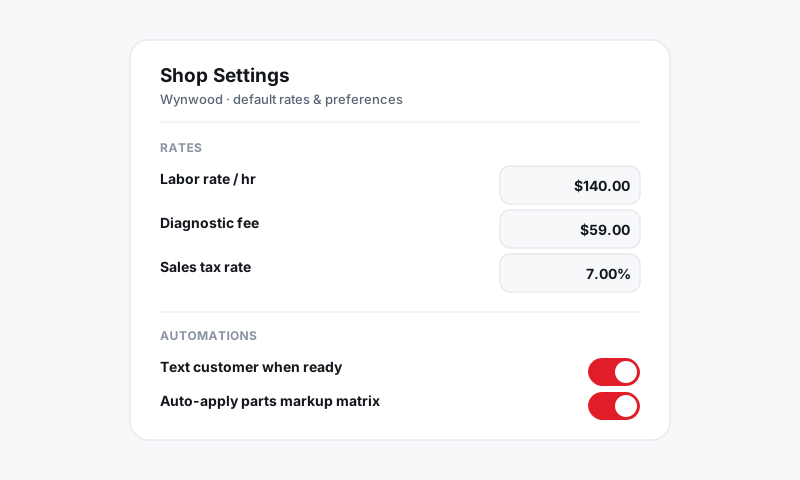
Set up your texting line
- Go to Settings, then Messaging.
- Confirm your shop's texting number is active. If you run multiple stores, set a number per location so each branch texts with its own line.
- Set your shop name for messaging. This is what appears when your team introduces the shop in a text.
- Verify your shop's email sending address if you also send customer email, so messages come from your domain and not a generic inbox.
Business hours and away message
- Enter your business hours for messaging.
- Write an away message that auto-replies when a customer texts outside those hours, for example: "Thanks for reaching out. We're closed right now and will get back to you when we open at 8am."
- Decide whether automatic status updates should respect quiet hours so nothing fires overnight. See Automatic status update texts.
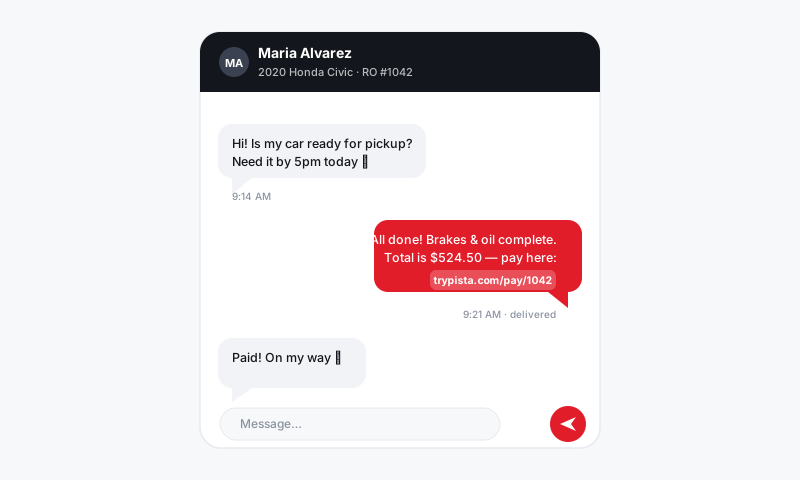
Stay compliant
Texting customers is regulated, and getting it right protects your shop's number from being blocked.
- Only text customers who have a business reason to hear from you: their vehicle, an appointment, or an estimate they asked for.
- Always identify your shop in the first message so it is not mistaken for spam.
- Honor opt-outs. When a customer texts STOP, Pista blocks further messages to that number automatically. Never work around it.
- Keep broadcasts relevant and well-targeted. See Sending updates to multiple customers.
Good to know
- Your shop number is shared. Every advisor sends and receives on the same line, and all of it lands in the Message Center. No personal cell numbers in play.
- Per-store numbers keep branches clean. A two-location shop should never have one branch's customer texting the other by accident.
- Compliance is partly automatic. Pista handles STOP opt-outs for you, but relevance and clear identification are on you.
Tips
- Save a default first-contact greeting as a template so every new customer conversation opens with your shop name.
- Add your texting number to your website, intake forms, and email signature so customers know they can text you, and so they save it.
- Set the away message even if you check texts after hours. It sets expectations and stops a late-night customer from feeling ignored.
Five minutes of setup turns your texting line into a professional front door: recognizable, responsive, and compliant. Do it once and every conversation after starts on the right foot.
Still have a question about setting up your shop texting number?
Contact support