Inventory and Purchasing
Tracking inventory on hand
Keep an accurate count of the parts you stock so the shelf, the screen, and the repair order always agree.
Most shops do not stock thousands of SKUs, but the ones you do keep on the shelf are the ones that keep cars moving: oil filters, wiper blades, brake cleaner, common pads, bulbs, and fluids. Pista's inventory keeps a live count of those items so when a tech grabs a filter, the number on the screen drops to match the number on the shelf. That single source of truth is what makes reorder points, purchase orders, and parts margin reporting actually work.
Add a stocked part to inventory
- Open Inventory from the main menu.
- Click Add Item.
- Enter the part number, a clear description, and the brand so it is easy to find later.
- Set the cost (what you pay) and the on-hand quantity you have right now.
- Choose the store if you run more than one location, since stock is tracked per store.
- Save.
The item now has a live count. Pista applies your configured parts markup to set the sell price when the part lands on a repair order, so you are not re-pricing by hand every time.
How counts go up and down
Your on-hand number moves automatically as work flows through the shop:
- Down when a stocked part is added to a repair order and the work is committed.
- Up when you receive a purchase order against that part. See Receiving a purchase order.
- Manually, any time you do a physical count and adjust to match reality.
Adjust a count by hand
- Open the item in Inventory.
- Click Adjust Quantity.
- Enter the new on-hand number, or the plus/minus change.
- Add a short reason (for example, "year-end count" or "damaged unit").
- Save.
Good to know: Every adjustment is logged with who made it and when. When the shelf and the screen ever drift apart, that history tells you where it happened.
Find and read an item fast
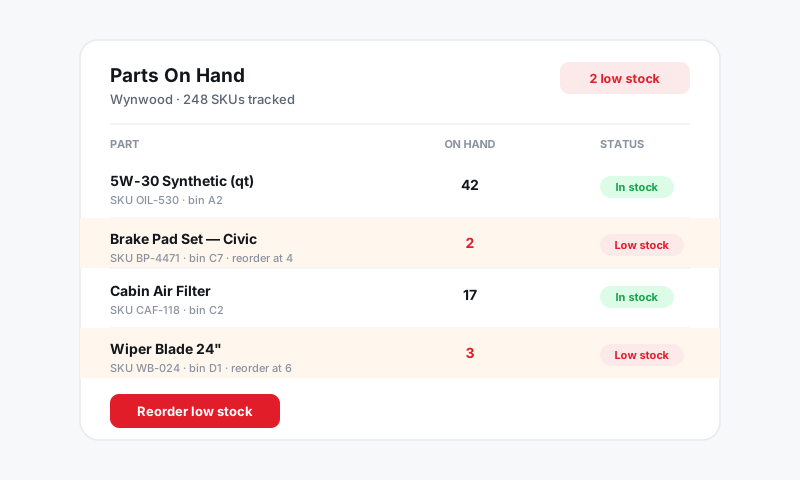
The inventory list is searchable by part number, description, or brand. Each row shows on hand, cost, sell price, and your reorder point at a glance. A part sitting at or below its reorder point is flagged so you can spot it without hunting.
Tips for a count you can trust
- Stock only what turns. A clean list of fast movers beats a bloated catalog you never reconcile.
- Receive every PO in Pista, even small counter pickups, so received stock actually raises your count.
- Spot-count your top movers monthly rather than doing one painful annual count. Small, frequent checks keep drift tiny.
- Set a cost, not just a price. Accurate cost is what powers true parts gross profit in Reports.
What is next
Once your counts are trustworthy, let Pista watch them for you with Low-stock alerts and reorder points.
Still have a question about tracking inventory on hand?
Contact support