Inventory and Purchasing
Creating a purchase order
Build a purchase order to a vendor so every part you buy is documented, costed, and ready to receive against.
A purchase order is your shop's official "we are buying this" record. It tells a vendor exactly what you want, at what cost, and gives you a document to check the delivery against when the box shows up. In Pista, a PO also closes the loop with inventory: once you receive it, your on-hand counts go up automatically and your part costs stay honest.
Start a purchase order
- Open Purchase Orders from the main menu.
- Click New Purchase Order.
- Choose the vendor you are buying from. See Managing vendors.
- Confirm the store the parts are being delivered to if you run more than one location.
You now have an open PO with a header and an empty list of lines.
Add the parts you are ordering
You can fill a PO from three directions, depending on why you are buying:
- From the low-stock list. If you came from Low-stock alerts and reorder points, the flagged items drop in with their reorder quantities already filled.
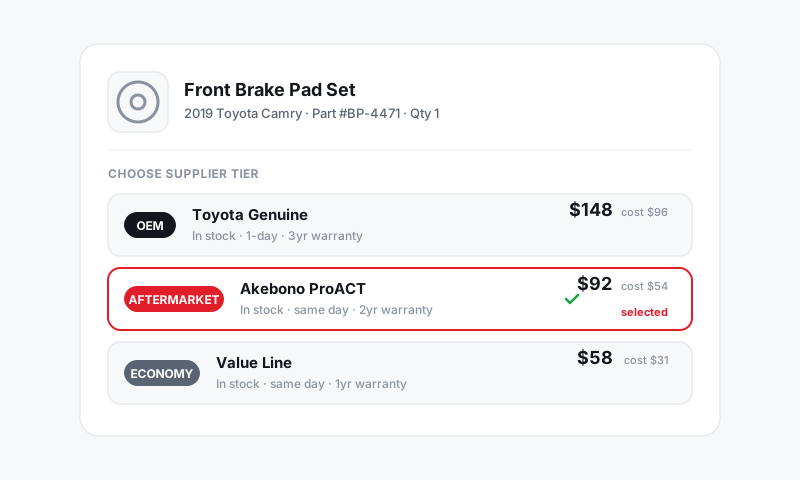
- From inventory. Click Add Item, search your stocked parts, and set the quantity and unit cost.
- By hand. For a part you do not stock, type the part number, description, quantity, and cost directly on a line.
Each line shows quantity times unit cost, and the PO totals roll up at the bottom so you see the full spend before you send it.
Tip: Buying a special-order part for a specific repair order? Note the RO number on the line so whoever receives the delivery knows which car it belongs to and can stage it in the right bay.
Review before you send
- Check that every part number matches what the vendor will recognize.
- Confirm quantities so you are not short or overstocked.
- Verify unit costs against your last quote. This is the cost that flows into your parts margin, so accuracy here pays off in Reports.
- Add a note for the vendor if you need a specific brand, will-call pickup, or delivery window.
Send and track it
- Click Submit to mark the PO as ordered.
- The PO moves to an Open state, meaning it is placed but not yet received.
- It stays on your Purchase Orders list so nothing you bought gets forgotten.
Purchase order states
- Draft — you are still building it; nothing is committed.
- Open / Ordered — submitted to the vendor, waiting on parts.
- Received — parts arrived and counts were updated. See Receiving a purchase order.
Tips
- One vendor per PO. It keeps receiving clean and matches how invoices actually arrive.
- Batch your reorders. Filling one PO per vendor from the low-stock list beats five tiny orders and helps you clear minimums.
- Save the note field for instructions, not part details. Part-specific info belongs on the line.
What is next
When the delivery shows up, close the loop with Receiving a purchase order.
Still have a question about creating a purchase order?
Contact support