Inventory and Purchasing
Managing vendors
Keep a clean list of the suppliers you buy from so every purchase order, cost, and contact lives in one place.
A vendor in Pista is anyone you buy parts or supplies from: your local parts store, a dealer counter, a fluids distributor, the shop down the road you trade with in a pinch. Keeping a tidy vendor list means every purchase order points at the right contact, every cost ties back to a source, and you always know who to call when a part is back-ordered. This is the address book behind your purchasing.
Add a vendor
- Open Vendors from the main menu, or the Vendors tab inside Purchasing.
- Click Add Vendor.
- Enter the vendor name as you want it to appear on purchase orders.
- Add a contact name, phone, and email so reorders and questions go to the right person.
- Add the address for will-call pickups and shipping.
- Optionally record your account number with that vendor for faster ordering.
- Save.
The vendor is now selectable whenever you build a purchase order. See Creating a purchase order.
Edit or update a vendor
Reps change, numbers change. Keep the record current:
- Open Vendors and select the supplier.
- Click Edit.
- Update the contact, terms, or account details.
- Save.
Changes apply to new purchase orders going forward. Existing POs keep the details they were created with, so your history stays accurate.
Vendors versus connected parts suppliers
These two things look similar but do different jobs, and knowing the difference saves confusion:
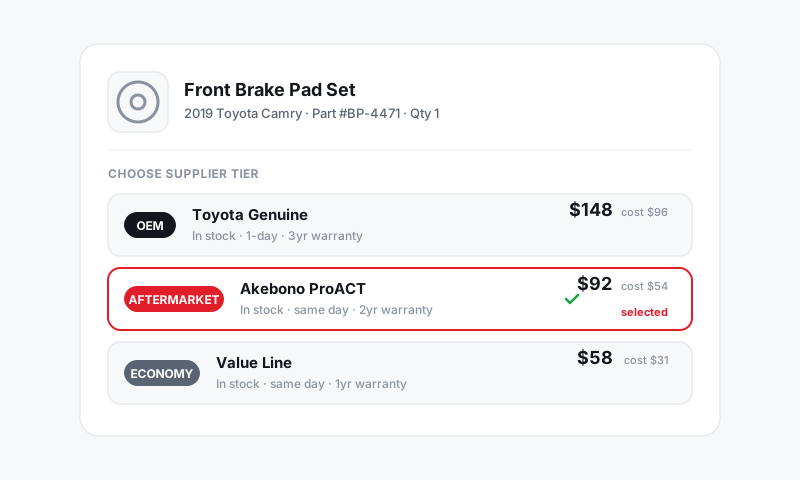
- Connected parts suppliers power live search and pricing right on the repair order, so you can compare OEM, aftermarket, and budget options and order without leaving the RO. See Parts and Suppliers.
- Vendors are your purchasing address book for purchase orders and inventory restocking, including the local and cash suppliers that do not have an API.
Many shops use both. Your connected supplier handles per-job ordering on the RO; your vendor list handles bulk shelf restocking through POs.
Good to know: A vendor does not need an online integration to be useful here. The corner parts store you call and pick up from belongs on your vendor list so those purchases still flow through a PO and into your counts.
See what you buy from each vendor
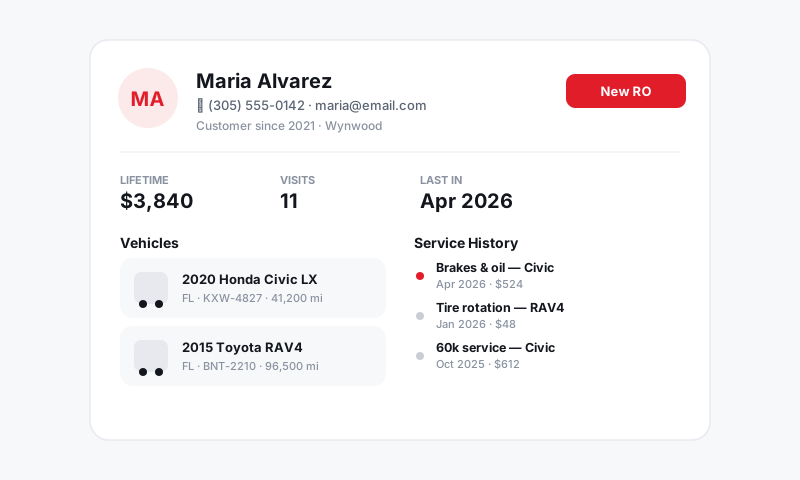
Open a vendor to see the purchase orders tied to it. That history tells you who you lean on most, how often you reorder, and whether a price has crept up over time. It is also the fastest way to find the contact when a delivery is late.
Tips
- Name vendors the way you say them out loud. "NAPA Doral" beats a cryptic code when you are picking one under pressure.
- Keep one primary contact per vendor. Reorders are faster when there is a name and a direct line.
- Record account numbers and terms. Net-30 versus cash, and your account number, save time on every order.
- Retire dead vendors. If you have not bought from someone in a year, clean them out so the active list stays short.
What is next
With vendors in place, you are ready to create a purchase order and receive it into stock.
Still have a question about managing vendors?
Contact support