Integrations
Payment processing
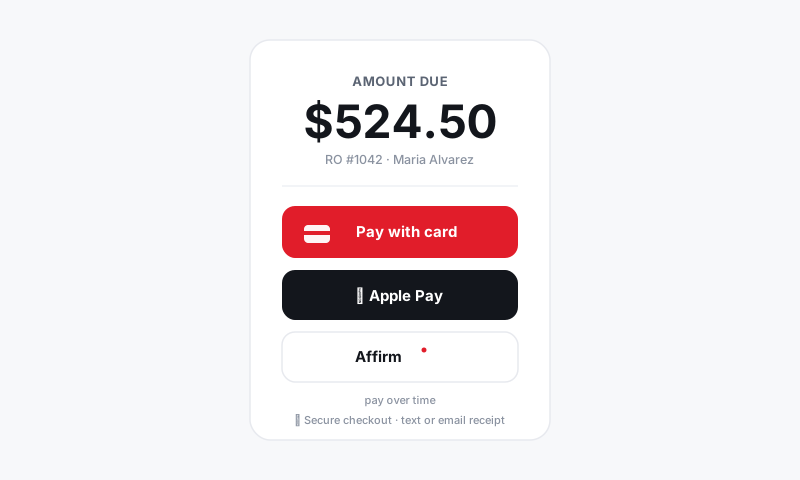
Turn on payment processing in Pista to take card, Apple Pay, Cash App, and pay-over-time right on the repair order.
Payment processing
Getting paid should be the easiest part of the day, not the moment your customer wanders off to find an ATM. Pista's payment processing lets you collect right on the repair order: tap a card, scan Apple Pay, or hand the customer a financing option on a big ticket. This article covers turning it on, choosing your methods, and making sure the money actually lands in your bank.
Activate payments
This is a one-time setup that connects your bank and verifies your business.
- Go to Shop Settings, then Payments.
- Click Set Up Payments to start onboarding.
- Enter your business details: legal name, EIN, business address, and the bank account where deposits should land.
- Submit for verification. Most shops are approved quickly; higher volumes may need a short review.
Good to know: The bank account you enter here is where every deposit batch settles. Double-check the routing and account numbers, because a typo delays your money, not just your setup.
Connect a card reader
- In Payments, open Devices.
- Click Add Reader and follow the pairing steps for your hardware.
- Run a small test transaction, then refund it, to confirm the reader and bank link work end to end.
You can pair more than one reader if you have multiple front-counter stations.
Choose which methods to offer
Decide what appears when your team hits Take Payment.
- Cards and cash are on by default.
- Toggle on Apple Pay and Cash App for contactless and wallet customers.
- Enable pay-over-time: Affirm, Klarna, and Sunbit. This is what lets writers offer financing on big repairs.
Set it per store
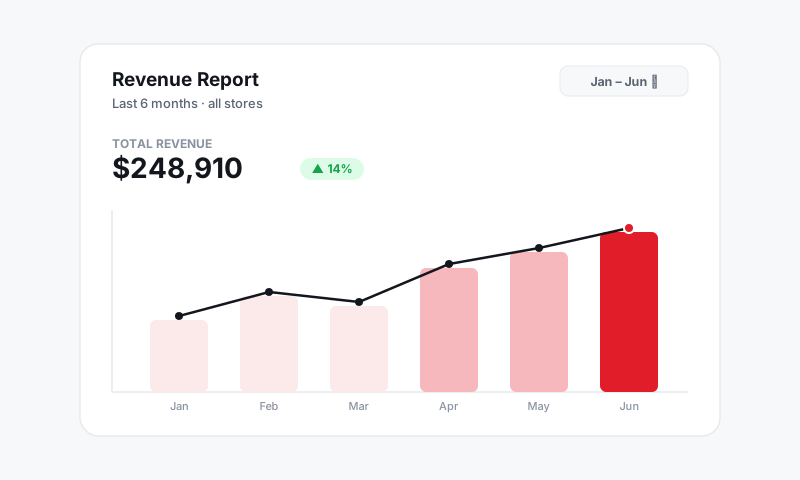
If you run more than one location, like Wynwood and Doral, configure payments per store so each settles to the right account. Each store can have its own readers and method mix, and reports break payments out by store automatically.
Verify the whole chain
- Run one test transaction end to end.
- Confirm the deposit hits your bank.
- If accounting is connected, confirm the payment also flows to QuickBooks. See Connecting QuickBooks Online.
Tips
- Turn on pay-over-time before you launch, not later. The first time a writer needs it is on a big repair, and you do not want to be flipping settings at the counter.
- Test before a real customer is standing there. Running the chain once is the only way to know the reader, the bank, and the books all agree.
- Walk your front counter through the Take Payment screen. See Accepting payment on a repair order and Deposits, payouts, and reconciliation.
Still have a question about payment processing?
Contact support