Integrations
How integrations work in Pista
A quick map of the outside tools Pista connects to and where to turn each one on so your shop runs from one screen.
How integrations work in Pista
Pista is built to be the one screen your front counter lives on, but it does not pretend to be every tool in your business. Instead it connects to the systems you already trust: your accounting software, your parts suppliers, your payment processor, your phone line, and your labor data. This article is the map. It shows you what plugs into Pista and where each connection lives, so you know what is possible before you go set it up.
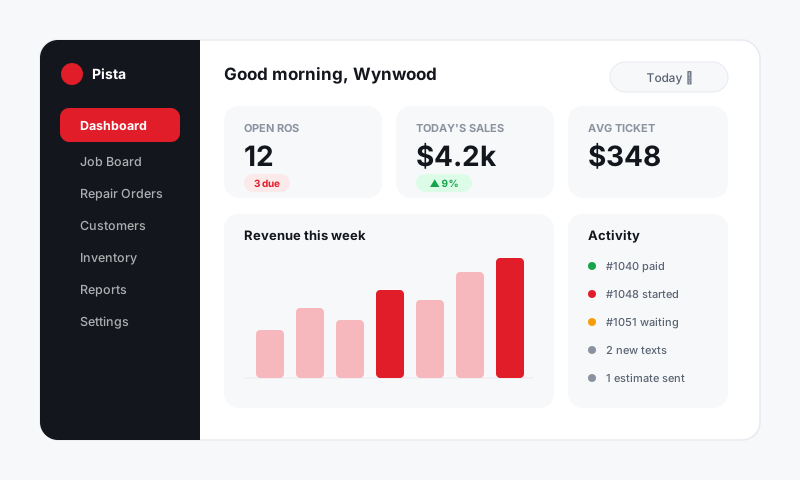
What connects to Pista
Every integration falls into one of a few buckets. Here is the whole picture in one place.
- Accounting — sync invoices, payments, customers, and taxes to QuickBooks Online so your books match your shop with no double entry.
- Parts suppliers — connect your OEM, aftermarket, and budget accounts so a single search returns live pricing and availability inside the RO.
- Labor data — Pista ships with MOTOR labor times built in, so accurate book hours flow onto every job without a separate subscription to wire up.
- Payments — turn on card, Apple Pay, Cash App, and pay-over-time so you can collect right on the repair order.
- Phone and VoIP — route calls, see who is on the line, and log calls against the customer record from inside Pista.
Where to set them up
Most connections live in one predictable place.
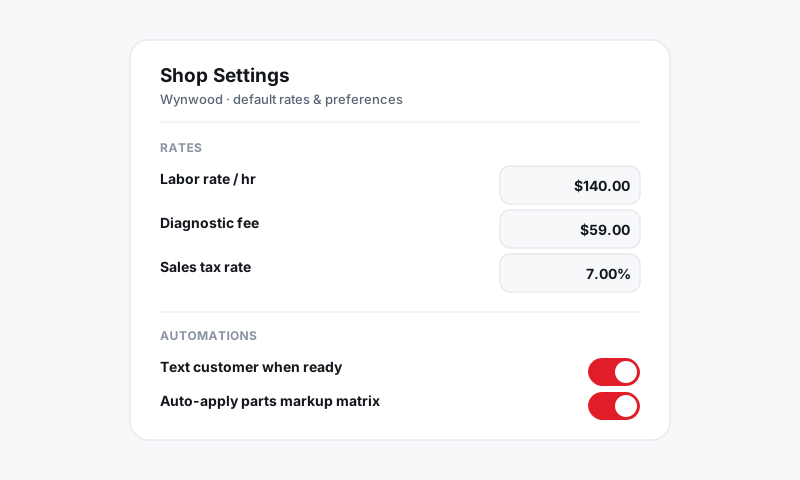
- Open Shop Settings.
- Look for the Integrations section, plus the dedicated panels for Payments, Parts and Suppliers, and Phone.
- Connect each tool once. Pista validates the connection and starts pulling or pushing data immediately.
Good to know: You do not have to connect everything on day one. Labor data works out of the box. Add accounting, parts, payments, and phone as your shop is ready for each. Nothing else breaks if a connection is not live yet.
Multi-store shops
If you run more than one location, like Wynwood and Doral, integrations are configured per store where it matters. Payments settle to the right bank account per store, suppliers can differ by location, and phone numbers route to the right counter. Set each store up once and reporting breaks the numbers out for you automatically.
Tips
- Start with payments and labor, because those touch every single ticket. Add accounting next so your books never fall behind.
- Keep your login credentials and API keys handy before you start. Most connection steps ask for them, and hunting for a password mid-setup is the usual slowdown.
- Connecting a tool is a one-time job. Once it is live, every future RO, invoice, and report just uses it.
Ready to wire one up? Start with Connecting QuickBooks Online or Parts supplier connections.
Still have a question about how integrations work in pista?
Contact support