Integrations
Connecting QuickBooks Online
Link Pista to QuickBooks Online so invoices, payments, customers, and taxes sync to your books with no double entry.
Connecting QuickBooks Online
If your bookkeeper is still re-typing every invoice into accounting software, you are paying twice for the same data and inviting mistakes. Connecting QuickBooks Online (QBO) fixes that. Once it is linked, the work you close in Pista flows straight to your books: invoices, the payments against them, the customers behind them, and the sales tax you collected. Set it up once and your shop and your accounting finally agree.
Before you start
Have these ready so the connection goes smoothly.
- Your QuickBooks Online login with admin rights.
- A clear idea of which income, tax, and payment accounts in QBO should receive Pista data. If you are not sure, ask your bookkeeper first.
- A few minutes per store if you run more than one location.
Connect your QuickBooks account
- Open Shop Settings, then Integrations.
- Find QuickBooks Online and click Connect.
- You are sent to Intuit to sign in and authorize Pista. Approve the connection.
- You land back in Pista with the account linked and ready to map.
Good to know: Pista uses Intuit's official sign-in, so you never type your QuickBooks password into Pista. You can revoke access from either side at any time.
Map your accounts
This is the step that keeps your books clean, so do not rush it.
- In the QuickBooks panel, open Account mapping.
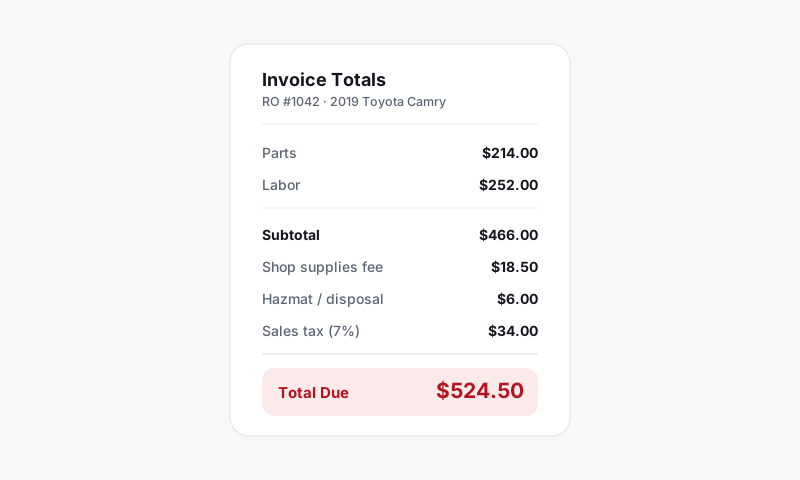
- Point sales income to the right income account (or split it by parts and labor if that is how you report).
- Map sales tax to your tax liability account so collected tax lands in the right place.
- Map each payment method (card, cash, pay-over-time) to the matching QBO account or deposit destination.
Choose what syncs and when
- Decide what pushes to QBO: invoices, payments, and customers are the usual set.
- Choose your timing. Most shops sync on checkout, so a paid RO becomes a QBO invoice and payment automatically.
- Confirm whether new Pista customers should create matching customers in QuickBooks.
Verify the link
- Close one real or test repair order in Pista.
- Open QuickBooks and confirm the invoice, payment, and tax all appear correctly.
- Check that the customer matched an existing record instead of creating a duplicate.
Tips
- Map taxes carefully. A mismatched tax account is the number-one thing that makes a bookkeeper redo work. See Tax and Shop Fees to confirm your rates first.
- Run one ticket end to end before you trust the sync at volume. Catching a mapping error on one RO beats reconciling a hundred.
- For multi-store shops, connect and map each store so deposits and income land in the right books.
Still have a question about connecting quickbooks online?
Contact support