Digital Inspections
Severity flags (green, yellow, red)
Understand what the green, yellow, and red severity flags mean and how to use them consistently across your shop.
Every inspection point in Pista gets a severity flag: green, yellow, or red. These three colors are the heart of a digital inspection. They tell the customer at a glance what is fine, what to plan for, and what needs attention now, without making them read a wall of text. This article explains each flag and how to keep your whole team rating the same way.
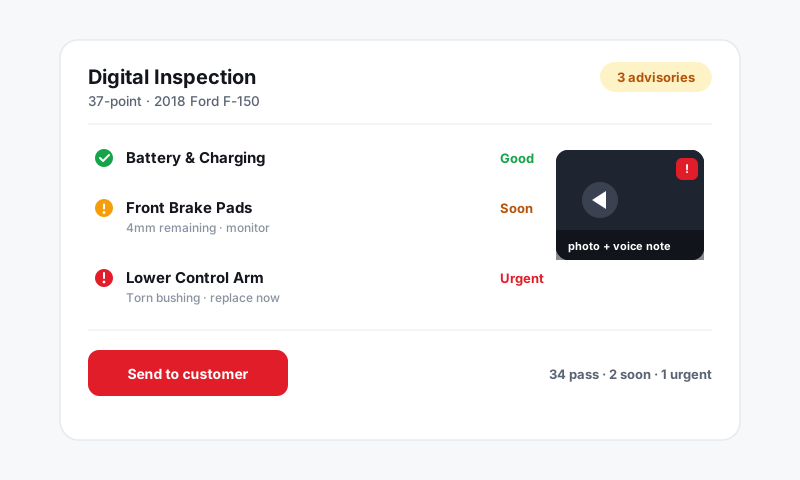
What each color means
| Flag | Meaning | Use it when |
|---|---|---|
| 🟢 Green | Good, no action needed | The component checks out and meets spec |
| 🟡 Yellow | Attention soon, not urgent | The item is wearing or out of ideal range but safe for now |
| 🔴 Red | Needs attention now | The item is at or past its limit, or affects safety |
Think of it the way a customer would. Green is "you're good." Yellow is "let's keep an eye on it." Red is "let's take care of this."
Setting a flag
- Open the inspection point on the repair order or in the mobile app.
- Tap the green, yellow, or red indicator.
- Add a note and a photo so the color has evidence behind it. See Adding photos and video.
A flag with a measurement and a photo is far more persuasive than a bare color.
Why consistency matters
If one tech calls 4mm brake pads yellow and another calls them red, customers lose trust and your service writers lose authority. Agree on the thresholds as a shop and write them down. A simple example:
- Brake pads: green above 6mm, yellow 3 to 6mm, red below 3mm.
- Tires: green above 5/32, yellow 3 to 4/32, red at or below 2/32.
- Fluids: red for anything actively leaking or below the minimum line.
Tip: Post your color thresholds on the shop wall. When every tech rates the same way, the inspection becomes a trusted tool instead of a coin flip, and your approval rate goes up.
How flags drive the rest of Pista
Severity is not just for show. It shapes what the customer sees and what you can act on.
- Customer view: the report groups findings by color, so reds rise to the top and the customer sees priorities immediately. See Sending an inspection to a customer.
- Building work: when you convert findings into jobs, you can pull in all reds first, then yellows, so the estimate mirrors what the customer should approve now versus later. See Turning inspection findings into work.
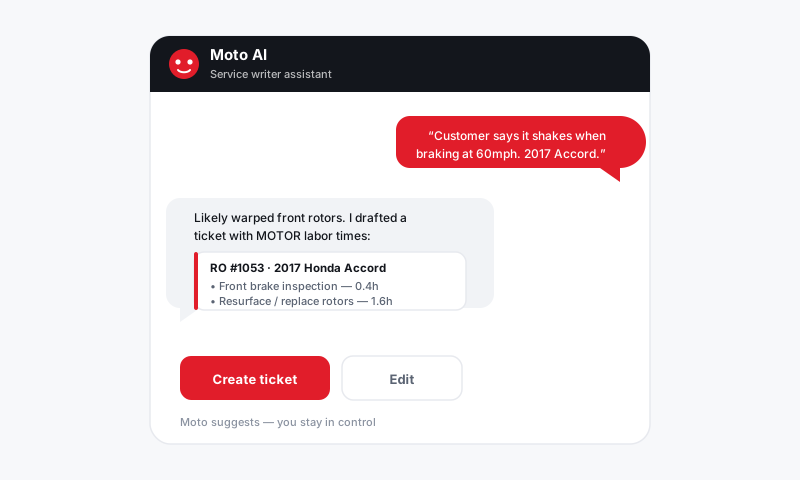
- Moto AI: the Moto AI service writer reads your severities and notes to draft customer-friendly findings, so a clear color and a clear note produce a clear writeup.
Good to know
- Reserve red for things that are genuinely urgent. If everything is red, nothing is, and customers tune out.
- A green inspection is still worth sending. It builds trust and earns the next visit.
- You can change a flag any time before the inspection is sent. After it is sent, edit the inspection and resend if something needs to be corrected.
Still have a question about severity flags (green, yellow, red)?
Contact support