Digital Inspections
Sending an inspection to a customer
Text or email a completed digital inspection so the customer can view findings, photos, and video from their phone.
Once an inspection is complete, sending it to the customer is what turns documentation into approved work. The customer gets a link, opens it on their phone, and sees your findings with photos and video, color-coded by severity. No app or login required. This article shows how to send it and what the customer sees.
Send the inspection
- Open the completed inspection on the repair order.
- Review the findings one last time so notes read clearly and severities are right.
- Click Send to customer.
- Choose Text, Email, or both.
- Confirm the customer's phone number or email, then click Send.
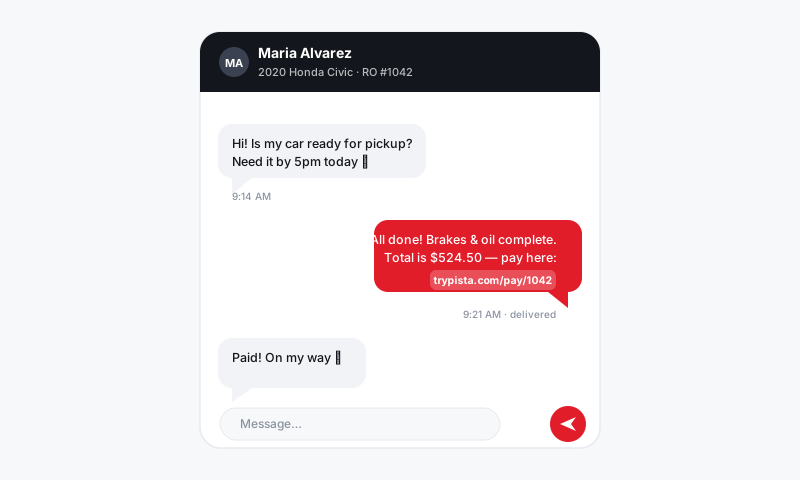
Pista sends a secure link straight to the customer through your unified inbox, so the whole conversation stays in one thread.
Tip: Text gets opened in minutes; email often sits for hours. For anything time-sensitive, send the text and let the email be the backup.
What the customer sees
The customer taps the link and lands on a clean, branded report with your shop's name and logo. They can:
- See findings grouped by severity, with reds at the top. See Severity flags.
- Tap any photo or video to view it full screen.
- Read your plain-language notes for each item.
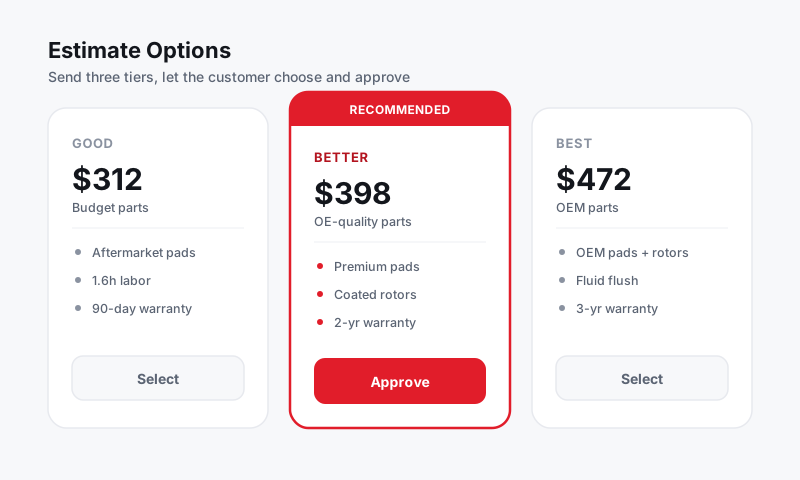
If you have already built an estimate from the findings, they may also see recommended work with pricing and an Approve button. See Turning inspection findings into work and Estimates and Authorizations.
Add a personal note
Before you send, add a short message at the top of the inspection so it does not feel like an automated blast.
"Hi Maria, here's the full inspection on your Pilot. Everything's in good shape except the front brakes, which are due. Happy to walk you through it. Call us anytime."
A human sentence dramatically lifts how many customers respond.
Track and follow up
After you send, Pista keeps you posted.
- Watch the inspection status on the RO move from Sent to Viewed once the customer opens it.
- If they have not opened it within an hour or two, follow up with a quick text from the inbox.
- When they reply with questions, the thread is already there waiting.
Good to know
- The link is unique to that customer and that inspection, so their information stays private.
- Need to fix something after sending? Edit the inspection and click Send again. The customer always sees the latest version.
- Sending a clean, all-green inspection still pays off. It shows the customer you checked everything and builds the trust that brings them back.
Still have a question about sending an inspection to a customer?
Contact support