Digital Inspections
Building and managing inspection templates
Create and edit reusable inspection templates so every tech runs the same consistent checklist.
Templates are the backbone of a fast, consistent inspection program. A good template means every technician checks the same points in the same order, customers get a familiar report every visit, and nothing important gets skipped. This article shows shop owners and managers how to build and maintain templates in Pista.
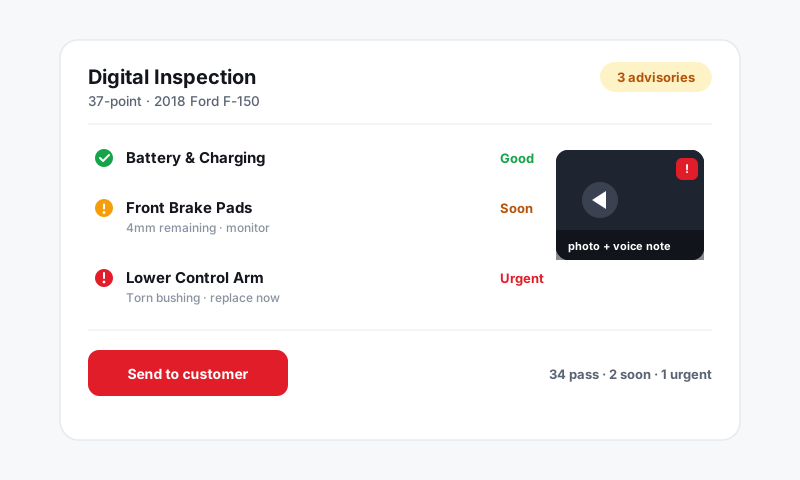
Why use templates
Without templates, every inspection is improvised and quality swings tech to tech. With them, you get:
- Consistency: the same points, every car, every tech.
- Speed: techs tap through a ready-made checklist instead of building one in the bay.
- Coverage: the points you care about, like tire depth and brake measurements, are never forgotten.
Create a template
- Go to Settings → Inspections.
- Click New template and give it a clear name, such as Multi-Point Courtesy or Pre-Purchase.
- Add sections to group related points, for example Under Hood, Brakes, Tires, Suspension and Steering, and Lighting.
- Within each section, add the individual inspection points a tech will rate.
- Click Save.
The template is now available when anyone starts a new inspection. See Creating a digital vehicle inspection.
Choose the right point type
Each point can capture more than a color. Match the type to what the tech actually measures.
| Point type | Best for |
|---|---|
| Pass / fail with severity | Most components: green, yellow, or red |
| Measurement | Brake pad mm, tire tread depth, battery test |
| Multiple choice | Fluid condition: clean, dirty, contaminated |
| Note only | Notes the tech types freely |
Tip: Use measurement points for brakes and tires every time. A recorded number like "3mm" beats a color alone and gives the customer a concrete reason to approve.
Edit and organize
Keep templates tidy so techs move fast.
- Open a template under Settings → Inspections.
- Drag points and sections to reorder them to match the tech's physical walkaround.
- Edit point names for clarity, or delete points you never use.
- Duplicate a template as a starting point for a new one, for example copy your multi-point to build a quick-lube version.
Keep your library focused
A handful of sharp templates beats a pile of overlapping ones.
- Start with one multi-point courtesy inspection that covers the whole vehicle.
- Add a few focused templates such as Brakes, Pre-Purchase, or Seasonal.
- Retire templates nobody uses so the list stays short and quick to pick from.
Good to know
- Editing a template changes it for future inspections only. Inspections already completed keep the points they were run with.
- Templates apply across all your stores, so a multi-location shop runs one consistent standard. See Shop Settings.
- Pair good templates with agreed severity thresholds so every tech rates the same way. See Severity flags.
Still have a question about building and managing inspection templates?
Contact support