Digital Inspections
Creating a digital vehicle inspection
Build a multi-point digital inspection on a repair order and complete it bay-side in a few minutes.
A digital vehicle inspection (DVI) is how your team documents the real condition of a car and shows the customer exactly what they are paying for. In Pista, every inspection lives on a repair order, so the parts and labor you recommend flow straight into the job. This article covers building and completing an inspection from the front counter or the bay.
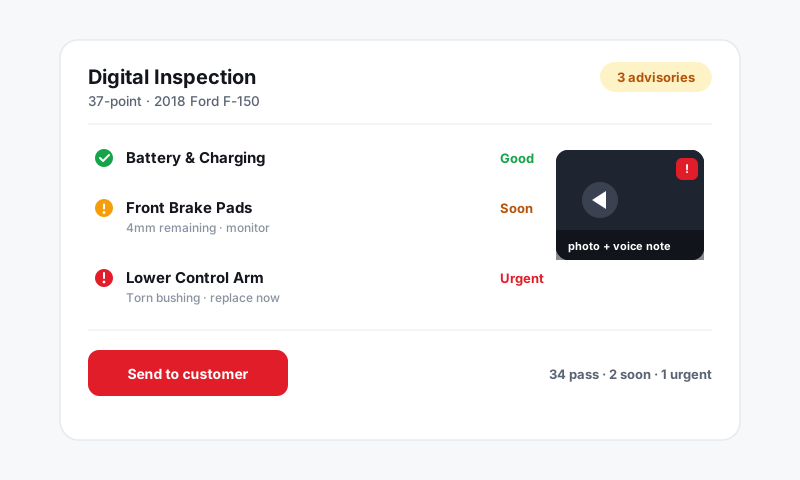
Start an inspection
- Open the repair order for the vehicle, or create a new one from the Job Board.
- Go to the Inspections tab on the RO.
- Click New inspection and pick a template, such as Multi-Point, Brakes, or Pre-Purchase. Choose Blank if you want to build the checklist as you go.
- Assign the inspection to a technician so it shows up on their device.
The inspection is now attached to the RO and visible to anyone working the job, on the desktop or in the Pista mobile app.
Work through the checklist
Each template is a list of inspection points grouped into sections like Under Hood, Brakes, Tires, and Suspension. For every point your tech does three things:
- Set a severity flag of green, yellow, or red. See Severity flags for what each color means.
- Add a short note describing what they found, for example "Front pads at 3mm" or "Slight seep at valve cover."
- Attach photos or video as proof. See Adding photos and video.
You do not have to fill in every line. Points left untouched simply do not appear in the customer's report, so techs can move fast and only flag what matters.
Tip: Tires and brakes get the most customer pushback, so capture a measurement on those points every time. A note that reads "RF 7/32, LF 6/32, RR 3/32, LR 3/32" turns a vague recommendation into an obvious decision.
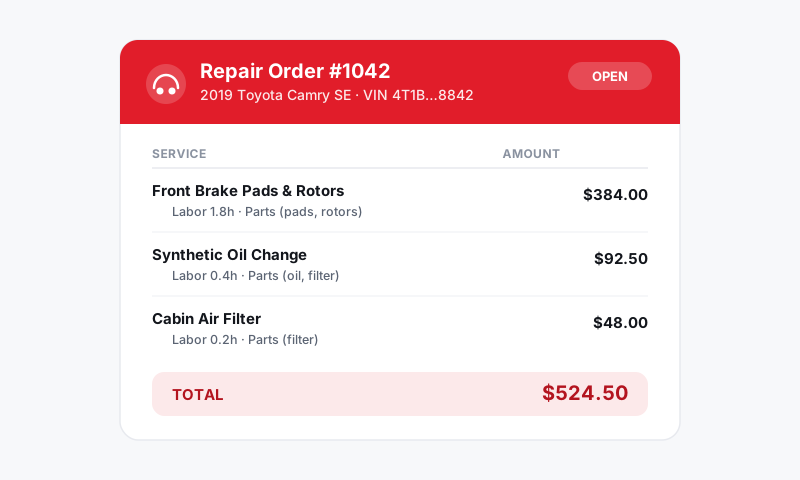
Save and review
When the tech finishes, they tap Mark complete. The inspection moves to the front counter for review.
- Open the completed inspection on the RO.
- Confirm severities and clean up any notes so they read clearly for the customer.
- Add a quick summary line at the top if you want to set the tone, such as "Vehicle is in good shape overall, two items to plan for."
What happens next
Once the inspection looks right you have two moves:
- Send it to the customer so they can see the findings and photos. See Sending an inspection to a customer.
- Turn findings into work by converting red and yellow items into jobs on the estimate. See Turning inspection findings into work.
Good to know
- Inspections are saved continuously, so a dropped connection in the bay will not lose a tech's work.
- You can run more than one inspection on the same RO, for example a courtesy multi-point plus a focused brake inspection.
- Build and edit templates under Settings → Inspections so every tech starts from the same checklist.
Still have a question about creating a digital vehicle inspection?
Contact support