Labor and MOTOR Data
Setting your labor rates
Set your shop's hourly labor rate so MOTOR hours turn into the right dollars, and learn how to handle multiple stores and rate changes without breaking old tickets.
Setting your labor rates
MOTOR gives you the hours. Your labor rate turns those hours into money. Get this number right and every estimate prices itself correctly the moment you add labor. Get it wrong and you are either leaving margin on the table or pricing yourself out of the bay. This article covers setting your default rate and the few things that trip shops up.
How the math works
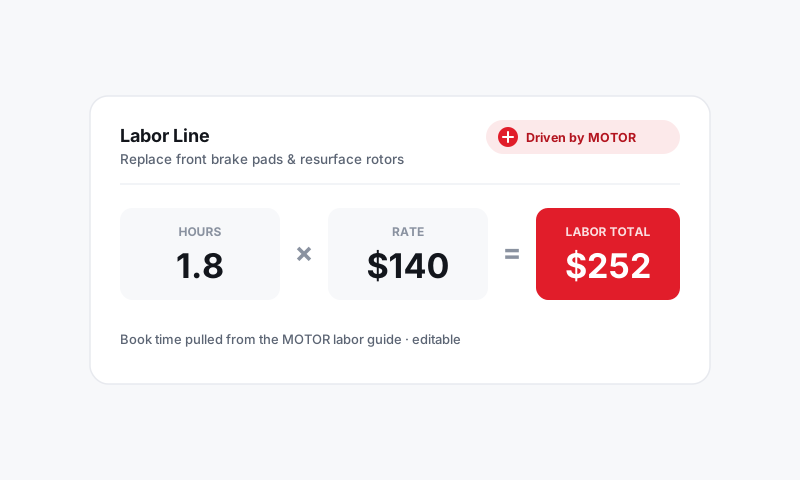
Every labor line is simply:
Labor hours × Labor rate = Labor price
So if a job pulls a 2.0-hour MOTOR time and your rate is $165 per hour, the line prices at $330 automatically. Change the rate and every new labor line follows it.
Set your default labor rate
- Go to Shop Settings, then Pricing (or Labor and rates).
- Find your default labor rate, also called your shop hourly rate.
- Enter the dollar amount you charge per billed hour.
- Save. New labor lines now price at this rate.
Good to know: This is your retail door rate, the number you charge a customer for one hour of work. It is not what you pay your tech. Build your tech wage, benefits, and shop overhead into the rate you set here so every billed hour carries its weight.
Multiple stores, multiple rates
Running more than one location? Markets and costs differ, so your rates can too.
- Open the store you want to price.
- Set that store's labor rate independently.
- Repeat for each location.
Each repair order inherits the rate of the store it belongs to, so a Wynwood ticket and a Doral ticket can carry different rates without any extra work at the counter.
Changing your rate later
When you raise your rate, the change applies to new labor lines going forward. It does not silently rewrite estimates and repair orders you already sent and got approved, which is exactly what you want. A customer approved a price, and that price holds.
- Update the rate in Shop Settings.
- New ROs and any labor you add after the change use the new number.
- If you want an old, still-open ticket repriced, re-add or refresh its labor lines.
Overriding the rate on one line
Sometimes a single job needs a different rate, like a flat-rate special or a fleet discount. You can override the rate on an individual labor line without touching your shop default.
Tip: Resist the urge to discount by quietly cutting your labor rate on a ticket. It hides the discount from your reports and erodes margin you cannot see. If you discount often by job type, set that up properly with labor rate cards instead, so the right rate applies automatically and your numbers stay honest.
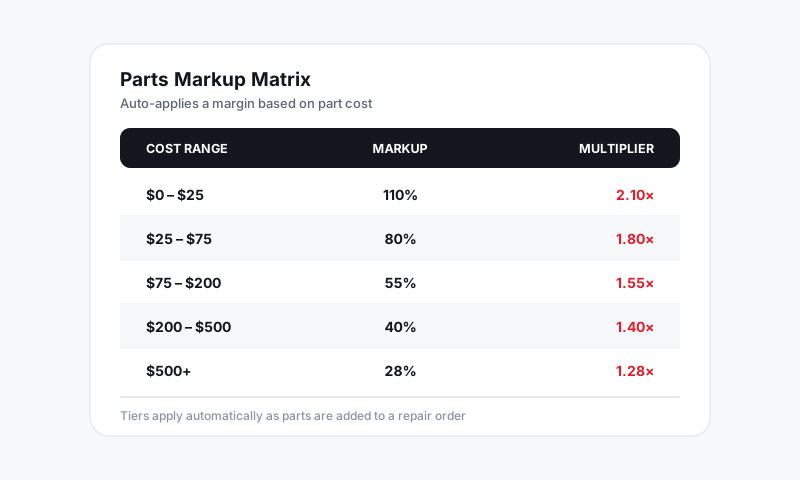
Once your rate is set, every MOTOR time you auto-load prices itself instantly. For parts pricing, see Pricing and Markups.
Still have a question about setting your labor rates?
Contact support