Labor and MOTOR Data
Auto-loading labor on a ticket
Use Auto-Load to drop MOTOR labor times onto a job in one tap, with tips for reviewing the hours before you price and send the estimate.
Auto-loading labor on a ticket
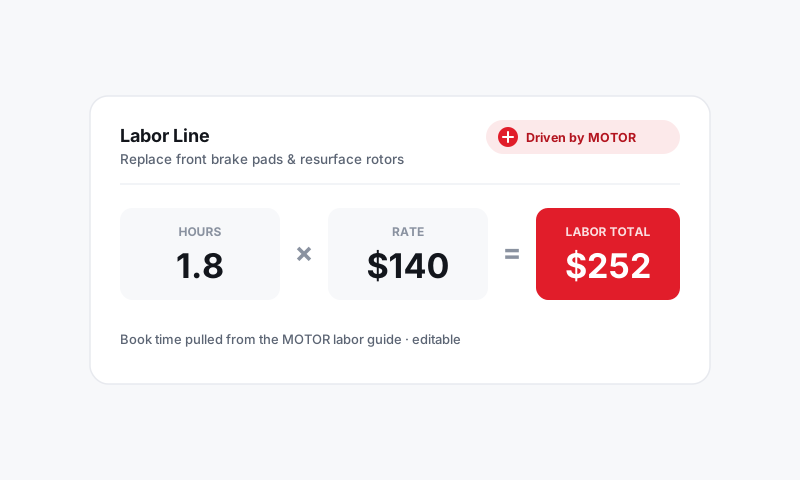
Adding labor one line at a time is fine, but on a busy morning you want the hours on the ticket the moment you name the job. Auto-Load does that. It reads the job and the decoded vehicle, pulls the matching MOTOR labor time, and drops it on the line so you can move straight to pricing.
Before you auto-load
Auto-Load is only as accurate as the vehicle behind it.
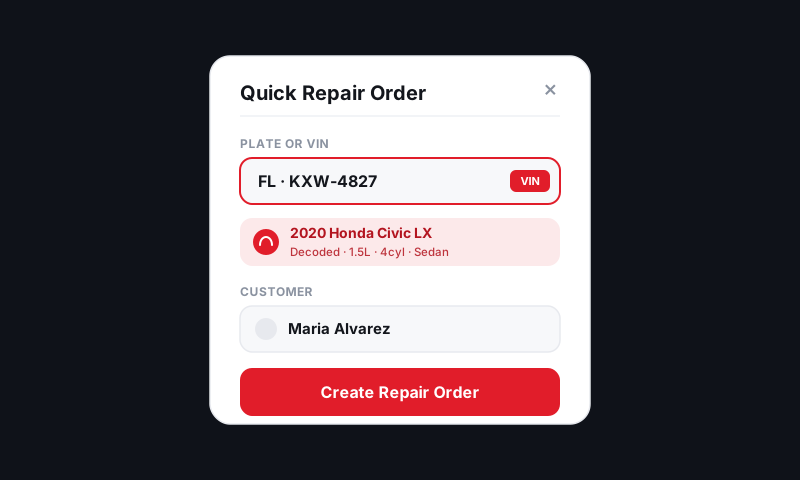
- Make sure the RO has a vehicle that is decoded by VIN, not just a year-make-model typed in by hand.
- Confirm the engine is correct, since labor times can change with the powertrain.
- Name the job clearly so the match is clean, for example replace alternator rather than just charging.
Auto-load labor on a job
- Open the job on the repair order build screen.
- Click Add labor, then choose Auto-Load (or the lightning / Driven by MOTOR action on the labor line).
- Pista matches the job to a MOTOR operation and fills in the labor hours automatically.
- Your shop's labor rate prices the line on the spot.
That is the whole flow. One action, and the job carries the real book time.
Review what landed
Auto-Load is fast, but you are still the service writer. Take five seconds to sanity-check:
- Right operation? Confirm the matched job is the one you meant, not a neighbor like replace vs resurface.
- Right hours? The number should feel right for the vehicle. A wildly high or low time usually means the wrong operation matched.
- Combination jobs. When you do related work together (think pads and rotors), make sure you are not double-billing overlapping labor. Combine into one job where it makes sense.
When you should override
Auto-Load gives you the published time for a healthy car. Real cars are not always healthy.
- Seized or rusted hardware that fights you on the way out.
- Prior bad repairs you have to undo first.
- Add-on access labor when a second job shares teardown with the first.
Click the hours field and type your adjusted number. The line keeps its MOTOR origin for reference while showing your real time.
Tip: Let Moto AI build the whole job and it auto-loads labor for you as part of the draft. Describe the concern in plain language and Moto adds the job, the MOTOR labor, and the parts together. See Moto AI Service Writer.
Good to know: If Auto-Load cannot find a published time for an unusual job, Pista falls back to a standard time estimate so the line is never blank. Read Standard-time fallback explained to see how that works and when to replace it.
Once the hours are right, your labor rate and rate cards handle the pricing automatically.
Still have a question about auto-loading labor on a ticket?
Contact support