FAQs and Troubleshooting
Why a price or labor time looks off
How to diagnose a labor time or customer price that seems too high or too low, and where to adjust it.
Why a price or labor time looks off
A number that doesn't match your gut is usually right for a reason you can't see yet. Pista builds every price from a chain of inputs, and once you know the links in that chain, "that seems off" turns into a thirty-second check. This guide walks the chain from labor hours all the way to the customer's total.
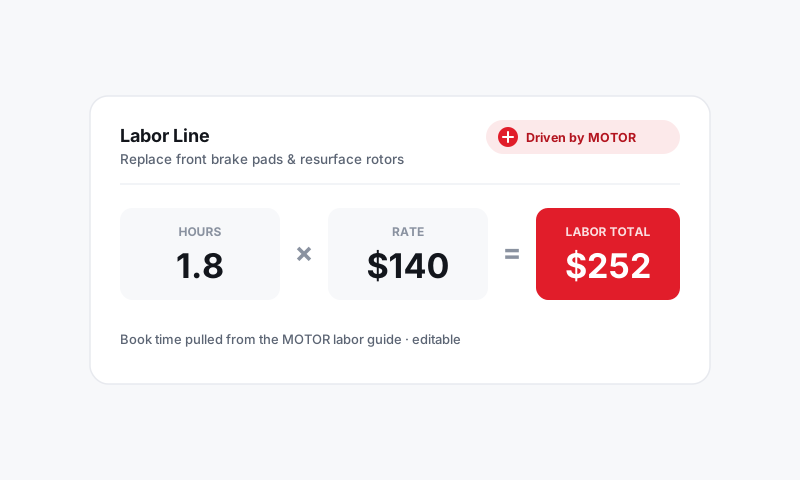
How a line price is built
Every priced line is the result of four things stacked together:
- Labor time (hours) from MOTOR for that specific job and vehicle.
- Your labor rate (dollars per hour) set in your shop settings.
- Part cost plus your markup rule for that price tier.
- Taxes and fees applied at the bottom of the RO.
If a total looks wrong, one of those four is the cause. Check them in order.
Step 1: Check the labor time
- Open the line and look at the labor hours.
- Confirm the vehicle is correct, especially engine and drivetrain. A 4WD or a different engine can carry very different times.
- Confirm you picked the right operation. "Replace" and "replace with related work" can pull different times.
Good to know: Pista's labor times come from MOTOR. MOTOR publishes a standard "book time," not your specific tech's pace. If your shop consistently beats or trails book on a job, that's a rate-and-pricing conversation, not a data error.
Step 2: Check your labor rate
- Open Shop Settings → Pricing.
- Confirm your labor rate is current. An out-of-date rate quietly skews every estimate.
- If you run different rates by job type or store, confirm the right one applied to this line.
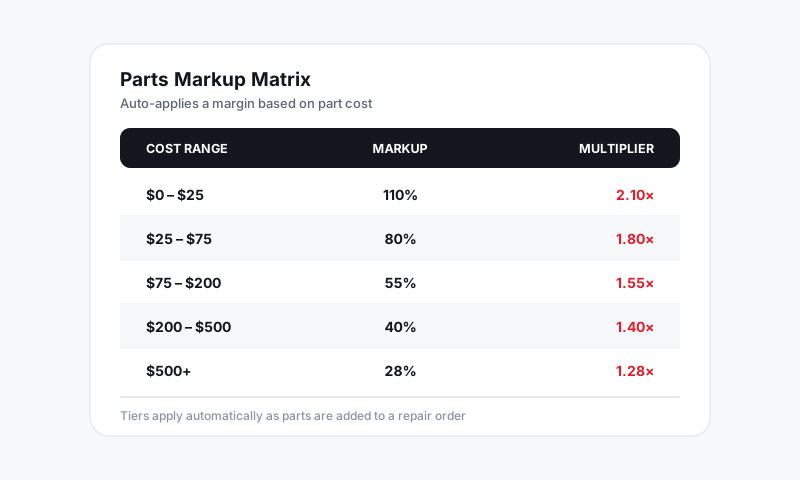
Step 3: Check the part cost and markup
This is the most common reason a price surprises someone.
- Open the line and look at the part cost Pista used.
- Confirm it matches your latest supplier quote. A stale cost throws off the customer price.
- Check which markup tier applied. Pista can mark up budget, aftermarket, and OEM parts differently, so an OEM part will land higher than an economy one for the same job.
Tip: If one part looks mispriced across many ROs, fix the markup rule in pricing settings rather than overriding each line. One change, every future estimate corrected.
Step 4: Check taxes and fees
- Scroll to the totals on the RO.
- Confirm the tax rate matches the job's location. Pista applies tax rules by state, and what is taxable (parts, labor, both) varies.
- Look for shop fees such as supplies or disposal that legitimately raise the total.
If Moto suggested the line
Moto, the AI service writer, drafts lines to save you typing, but it does not get the final say. Review any Moto-suggested time, part, or price before you send the estimate. Treat its output as a strong first draft, not gospel.
Quick reference
- Time too high? Wrong vehicle trim or operation, or your shop simply beats book.
- Part price too high? Stale cost or the OEM markup tier.
- Total too high? A fee or a tax rule you forgot was on.
- Everything low? Outdated labor rate or markup turned off.
Still doesn't add up?
If the numbers still don't reconcile after walking the chain, see Getting more help and send us the RO number so we can trace it with you.
Still have a question about why a price or labor time looks off?
Contact support