FAQs and Troubleshooting
Login and access issues
Step-by-step fixes for password problems, locked accounts, and not being able to see the screens you expect.
Login and access issues
Can't get in, or you're in but the menu looks wrong? Almost every access problem falls into one of the buckets below. Work through them in order and you'll usually be back in within a minute or two.
I forgot my password
- On the login screen, click Forgot password.
- Enter the email address tied to your Pista account.
- Check your inbox for the reset link. It is valid for a limited time, so use it promptly.
- Set a new password and sign back in.
Tip: No reset email after a couple of minutes? Check your spam folder, then confirm you typed the same email your shop used to invite you. A typo or a personal-vs-work address mix-up is the usual culprit.
The reset link expired
Reset links are single-use and time-limited for security. If yours expired, just request a fresh one from Forgot password and use it right away.
My account is locked
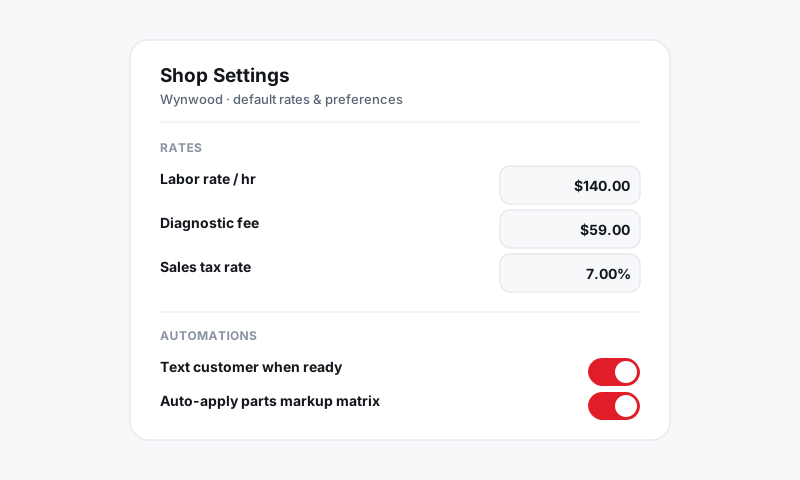
After several failed attempts, Pista temporarily locks the account to block guessing. Wait a few minutes and try again with the correct password, or use Forgot password to reset it cleanly. If it stays locked, an owner or admin at your shop can confirm your account is active under Shop Settings → Team.
I never got my invite
- Ask your shop owner or admin to open Shop Settings → Team.
- Have them confirm your email is spelled correctly.
- Have them click Resend invite.
- Watch for the email and accept it to set your password.
I'm logged in, but screens are missing
This is almost always roles, not a bug. Each role only shows the tools that person needs.
- Ask an admin to open Shop Settings → Team and check your assigned role.
- If you need more access (for example, to see totals or edit pricing), they can change your role there.
- Sign out and back in so the new permissions load.
I work at more than one location
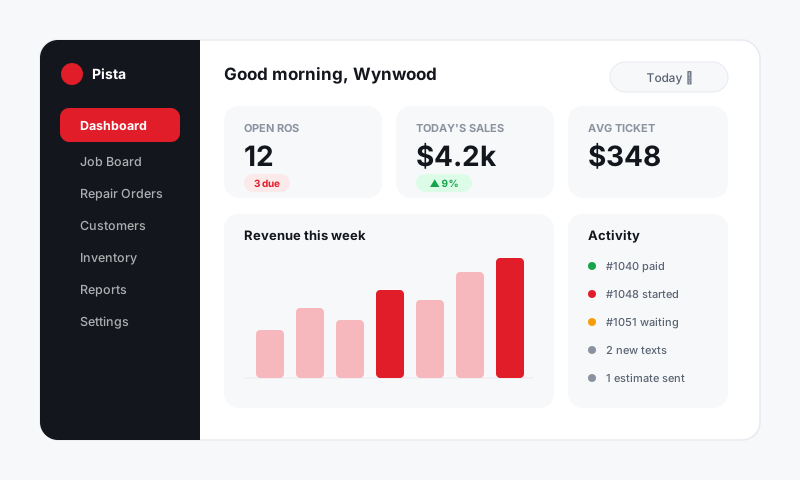
If your shop runs multiple stores, make sure you are viewing the right one. Use the store switcher near the top of the dashboard. Repair orders, inventory, and reports are scoped per store, so the "missing" RO is often just sitting under the other location.
The app won't keep me logged in
- Make sure the Pista mobile app is updated to the latest version.
- Confirm your phone has a working connection; a dropped session on bad signal can sign you out.
- Sign in once more so a fresh session is stored.
Good to know
- Owners and admins manage everyone else. If a teammate is stuck, the fastest fix is usually an admin in Shop Settings → Team, not a support ticket.
- Use your work email. Logging in with a personal address that was never invited is the number-one cause of "it won't let me in."
Still locked out?
If you have tried the steps above and still can't get in, see Getting more help and we'll get you back to work.
Still have a question about login and access issues?
Contact support