FAQs and Troubleshooting
Data not syncing between app and dashboard
What to do when a repair order, photo, or inspection shows on one device but not another.
Data not syncing between app and dashboard
You added a note on the shop floor with the Pista mobile app, walked to the front counter, and it's not on the dashboard yet. Annoying, but almost always fixable in under a minute. Pista keeps the app and the dashboard in sync over your internet connection, so when something lags, the fix is usually about connection, refresh, or making sure the change actually saved.
First, the 30-second fix
- Confirm the device with the missing data has a working internet connection.
- Refresh the dashboard in your browser, or pull down to refresh in the mobile app.
- Give it a moment. Large items like inspection photos upload in the background and can trail a few seconds behind text.
That clears the large majority of sync hiccups. If it's still missing, keep going.
Make sure the change actually saved
A change that never left the original device can't sync.
- Go back to the device where you made the edit.
- Confirm the item shows as saved, not stuck mid-edit on an open line or a half-finished inspection.
- If the app was offline when you typed it, reconnect and let it push, then check the dashboard again.
Good to know: The mobile app can hold edits made on weak signal and send them once you're back online. If a tech filled an inspection in a dead zone in the back of the shop, the data appears on the dashboard shortly after their phone reconnects to Wi-Fi.
Confirm both devices are pointed at the same place
It's easy to think something vanished when you're just looking in the wrong spot.
- Same login? A teammate on a different account may be looking at a view you don't expect.
- Same store? If you run multiple locations, the RO lives under the store it was created in. Use the store switcher to check the other one.
- Same RO? Two cars from the same customer are easy to mix up. Verify the RO number and VIN.
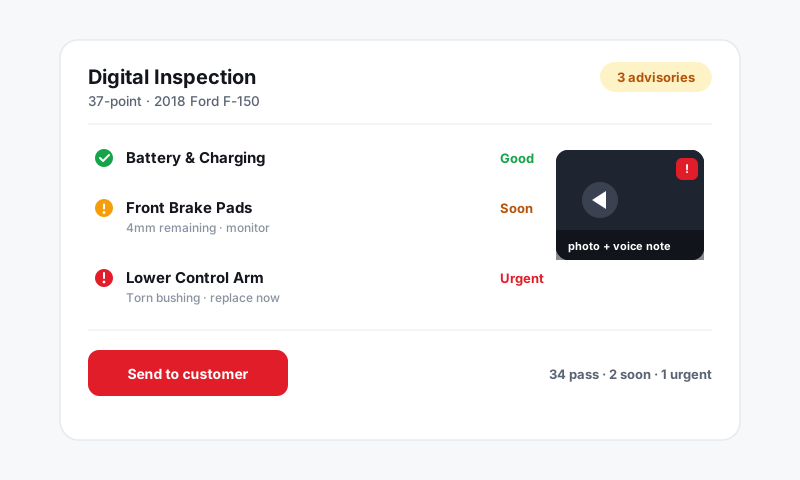
Photos or inspections won't upload
- Confirm the phone has enough signal or Wi-Fi to push image files, which are larger than text.
- Keep the Pista app open until the upload finishes; backgrounding it on a poor connection can pause the transfer.
- If a single photo is stuck, remove it and re-add it, then let it upload fresh.
Update the app
An out-of-date app is a quiet cause of sync trouble.
- Open your device's app store.
- Update Pista to the latest version.
- Reopen the app and check that the item now appears.
When in doubt, sign out and back in
A fresh session re-pulls everything from the server.
- Sign out of the device showing stale data.
- Sign back in.
- Open the RO again; it should reflect the latest state.
Tips
- Text syncs faster than media. If the note is there but the photo isn't, wait a beat before assuming anything broke.
- One source of truth. When two devices briefly disagree, the dashboard reflects what the server has. Refresh it to see the real current state.
Still out of sync?
If an item is confirmed saved on one device and genuinely missing on another after refreshing, see Getting more help and include the RO number plus which device shows what.
Still have a question about data not syncing between app and dashboard?
Contact support