Customers and CRM
Finding a customer fast
Search by name, phone, plate, or VIN to pull up any customer or vehicle in Pista in seconds, even with a partial match.
Finding a customer fast
When a car rolls up or the phone rings, you should have the right profile on screen before the customer finishes their sentence. Pista's search is built for the counter: type a few characters of almost anything you know about the customer or their car, and the match comes up. This article shows you the fastest ways in.
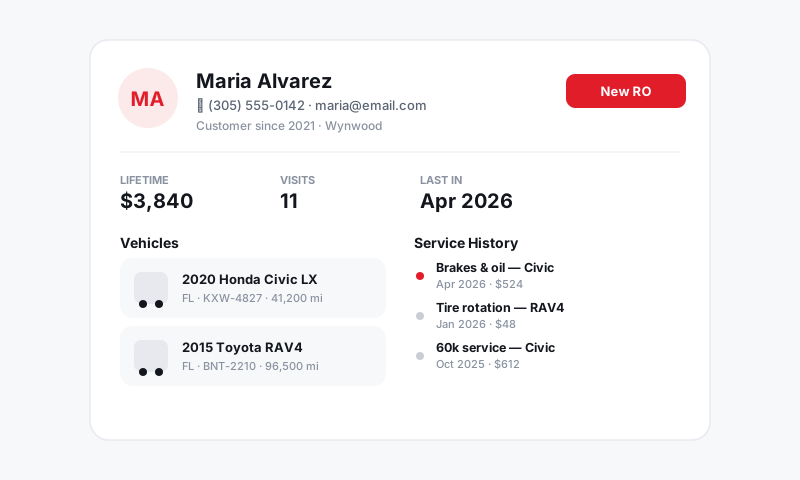
Search by what you have in hand
You rarely know everything about a walk-in, so Pista lets you search by whatever you do have:
- Click the search bar at the top of Pista, or open the Customers tab.
- Type any one of these:
- Name (first, last, or business)
- Phone number (even the last four digits)
- License plate
- VIN (full or the last several characters)
- Email address
- Pick the matching customer or vehicle from the results.
Partial matches work, so "joh 4821" or just a plate will usually find the right record without you typing the whole thing.
Tip: Phone number is the fastest search at the counter. Ask for the cell, type the last four digits, and you are almost always looking at the right profile in one step.
Search by the vehicle, not just the person
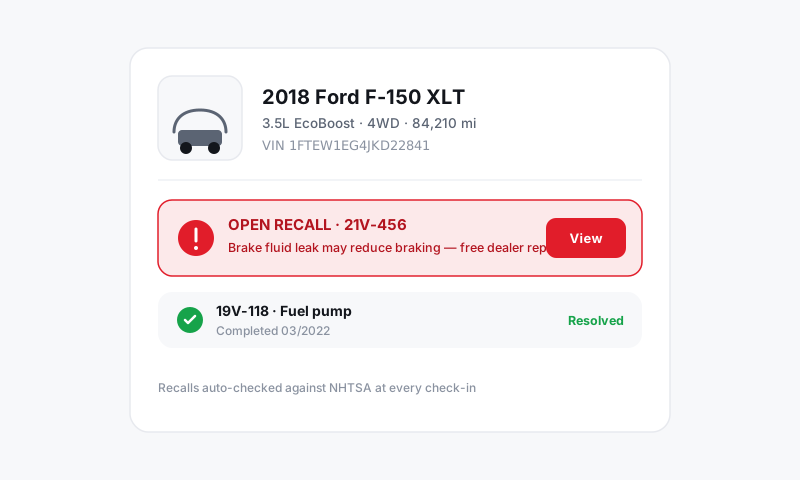
Sometimes you know the car but not the owner's name, especially with fleets or a spouse dropping off. Searching by plate or VIN jumps you straight to the vehicle and its owner, so a "silver Tahoe, plate starts with K" becomes a real record fast.
Find them by phone, hands-free
If your shop uses Pista's built-in phone, an incoming call can surface the matching customer automatically using the caller's number. You answer already knowing who it is, what they drive, and what they last had done. See Messaging and Inbox.
On the move
Pulling a customer up from the bay or the lot is just as quick on the Pista mobile app. Scan a VIN with the camera to land on the exact vehicle, or search by name and phone the same way you would at the desk.
When nothing comes up
If a search turns up empty, it usually means one of three things:
- The customer is genuinely new, so create them. See Creating and editing a customer.
- There is a typo in the saved record, like a transposed phone number. Try a shorter partial or a different field.
- The customer exists twice under slightly different spellings. If you find duplicates, merge them so future searches are clean. See Merging duplicate customers.
Good to know: A clean customer list is what makes search feel instant. The more your team searches before creating, the fewer duplicates you build, and the faster every future lookup gets.
Still have a question about finding a customer fast?
Contact support