Customers and CRM
Customer notes, tags, and alerts
Use notes, tags, and profile alerts in Pista to flag VIPs, fleets, and special handling so every advisor treats each customer the same way.
Customer notes, tags, and alerts
The best front counters run on shared memory. The advisor who checked in a customer last month is rarely the one checking them out today, so what one person knows has to be visible to everyone. In Pista, notes, tags, and alerts turn one person's knowledge into the whole shop's playbook for that customer. This article shows how to use each.
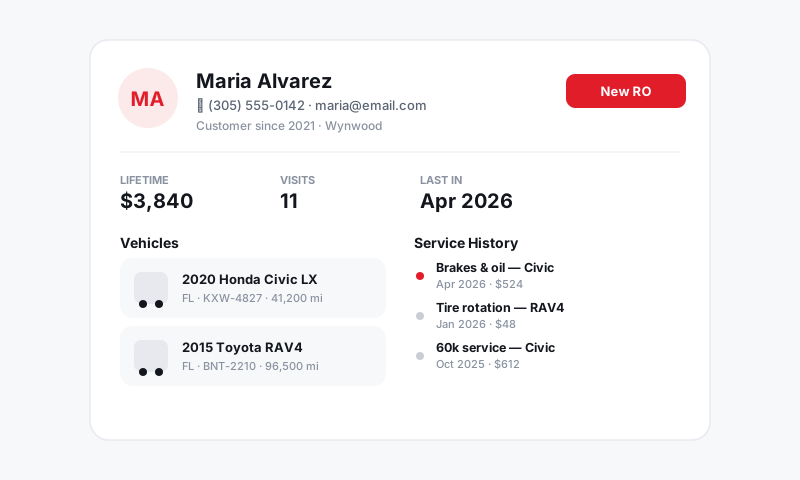
Notes: the running record
Notes are free-text context that stays on the profile. Use them for the things a system field cannot capture.
- Open the customer and find the Notes section.
- Add a note, for example "Prefers OEM parts only," "Always asks for a loaner," or "Pays for the fleet, bill the company."
- Save it. The note stays on the profile for any team member to see.
Tip: Keep notes about how to serve the customer, not gossip. "Wants a call before any work over $300" helps everyone. Anything you would not want the customer to read should not be in there.
Tags: group and filter
Tags are short labels you attach to a profile so you can group and find customers later.
- Common tags: VIP, Fleet, Wholesale, Warranty, New customer.
- Apply one or several tags per profile.
- Use tags to pull a list, like every fleet account or every VIP, when you plan outreach.
Tags pay off when you want to act on a whole group at once: a heads-up to fleet accounts about holiday hours, or a thank-you to your VIPs.
Alerts: the can't-miss flag
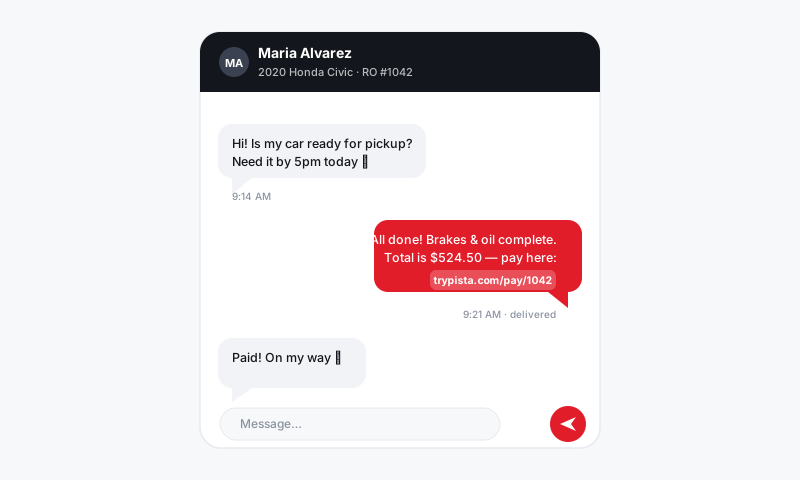
An alert is a note you want impossible to overlook. It surfaces prominently when anyone opens the customer or starts a repair order for them.
- Mark a critical note as an alert on the profile.
- Use it for things that change how you handle the visit:
- Payment holds, like "Card on file declined, collect before release."
- Special handling, like "Hearing impaired, text only."
- Account flags, like "Disputed last invoice, manager approval to proceed."
Good to know: Alerts are powerful because they interrupt. Reserve them for things that genuinely must be seen this visit. If everything is an alert, your team learns to ignore them, and the one that mattered gets missed.
How they work together
Used as a set, these three keep your shop consistent:
- Notes carry the long-term context.
- Tags group customers for outreach and reporting.
- Alerts stop an advisor in their tracks when it counts.
Pair them with the customer's marketing preferences and service history, and any advisor can pick up any customer and serve them exactly the way your best advisor would.
Still have a question about customer notes, tags, and alerts?
Contact support